13
2.5.2 Clear Supports
Select this option to empty all the supports of your model. Click Edit->Undo in the menu or Ctrl+Z to undo
this operation.
2.5.3 Add
Select this option to add supports. After selecting this option, move your mouse to where you want to add
the support, and then left-click the mouse to select the start point of support structure. Press and hold the left
mouse button down, drag the cursor, and then you can preview the support structure you will add (If the
support surface does not need to support, or the angle of support column is too large, the previewed support
structure will be highlighted.) Release the left button of mouse to add this support, the support structure will
be generated according to the start and the end position. But if the support column intersects with the model
or the previewed support structure is highlighted, the support structure will not be generated.
2.5.4 Delete
Select this option to delete supports. After selecting this option, move the mouse to the supports you want to
delete, then left-click the mouse to delete it.
2.6 New Project
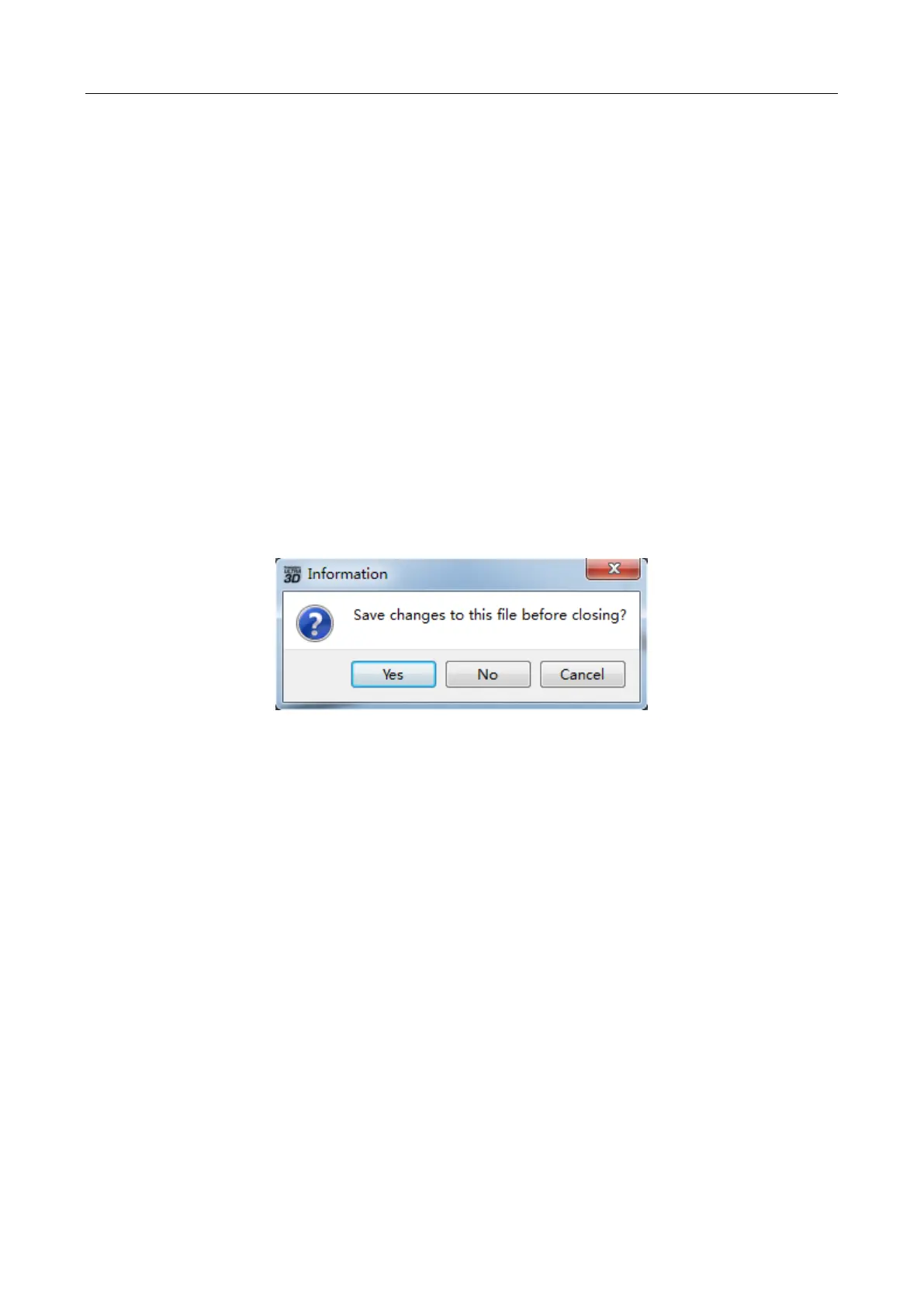
Click File -> New Project to create a new project. If your current project hasn’t been saved with changes, it will
pop up a dialog to prompt you to save them. Click Yes button to save those changes, click No button to discard
them, Click Cancel button to close this dialog and it will not create a new project.
2.7 Saving File
You can save changes of your model files by using the following two methods:
A. Click File -> Save Project to save your file use only .fpp format. All models (including supports) are in
the .fpp format file, are independent, and can be edited again when reloading the file. Additionally, an
extruder configuration and model locations remain same when saving the file.
B. Click File -> Save As to save your file with .stl, .obj, or .fpp format. All the models (including supports)
in a .stl or .obj format file are not independent, but combined to a new model. All model locations remain the
same as saving the file, while an extruder’s configuration becomes different when reloading the file.
2.8 Printing Process
2.8.1 Choose Machine Type
Click Print-> Machine Type to choose the machine type you have selected before connecting to the printer,
or the Powerprint will automatically recognize the machine type after connecting, in this case you cannot
manually switch to other machine type(s). Different machine types have different machine frames which
will affect the sliced file(s).
2.8.2 Connect Machine
Please refer to Chapter 2.9.1.1 for configurations of connecting to 3D printer.


 To Next Page