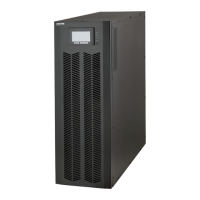
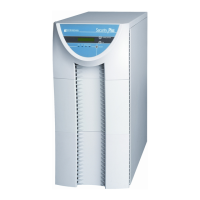
POWERVAR Security Plus UPS
31
2.1.2 Security Plus Display/Controls Operation
The menu visible in the LCD display of the Security Plus UPS is illustrated in Fig. 2-2 and 2-3.
The various LCD displays are accessed using the front panel controls of the UPS as follows:
Function Button Explanation
The NORMAL/BYPASS button is used to start and stop the inverter. When the inverter is
stopped, the UPS will be in bypass.
The SELECT button is used to scroll through various display screens and must be pressed for 3
seconds to change UPS programming modes.
The OK button is only functional when in the programming mode (Settings Menu)
Display Content and Corresponding Operation
Default Mode
After startup, the LCD displays a message showing the UPS name and model number.
This message will display for 8 seconds unless the SELECT button is pushed. After either 8
seconds or if the SELECT button is pushed, the UPS display changes to either the “OPERATION
MODE” display (i.e. NORM, BYP, BATT) or the “FAULT” display (if the UPS has detected a fault
condition). In the absence of a UPS fault condition, the “OPERATION MODE” display is the
default display.
UPS Parameters Mode
When the UPS is operating normally, pressing the “SELECT” button will allow switching to the
UPS parameter displays.
The parameter displays are as follows:
1. Operation Mode
2. Output voltage display
3. Input voltage display
4. Input frequency display
5. Output frequency display
6. Output load percentage display
7. Battery voltage display
8. Battery percentage charge display
9. UPS state one display
10. UPS state two display
While in the Parameters mode, pressing the “SELECT” button for 3 seconds will cause the UPS
to enter the UPS Settings Mode. Refer to Figure 2.3 for the Parameter Setting Menu in the UPS
Settings Mode.
When in the UPS Parameters mode, if no operation is performed for 30
seconds, the Parameters mode will be cancelled and the UPS display
will return to the default “OPERATION MODE” display.


 To Next Page