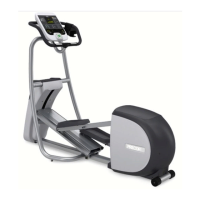
3. To change the height of the column, refer to the following table.
Table 5. Custom Program keys
Equipment Key Description
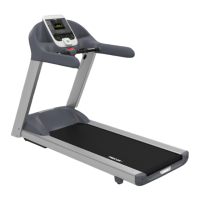
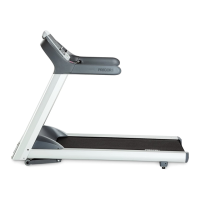
Treadmill INCLINE keys Changes the column height and
affects the Custom Program incline.
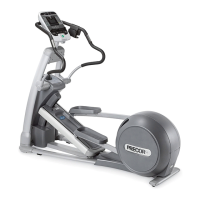
EFX CROSSRAMP
keys
Changes the column height and
affects the Custom Program ramp
incline.
Cycle RESISTANCE
keys
Changes the column height and
affects the Custom Program pedal
resistance.
Climber RESISTANCE
keys
Changes the height of the column
and affects the Custom Program
step resistance.
4. When the column height is set, press the down arrow key on
the navigational keypad, to move to the next column. You can
press the up arrow key to move back and change earlier
columns as needed.
5. Continue adjusting the profile for each column.
6. When you are ready, press OK to save the program profile and
return to the Precor banner.
Note:
Informational Displays
If you prefer to exit the program without saving changes
to the custom profile, press BACK.
Use the information displays to locate information about equipment
use (odometer and hour meter), software versions and part
numbers, serial number, usage log, and error log. In general, you
would only access this information if directed to do so by Precor
Customer Support.
To navigate through the informational displays, use the following
flowchart. A table located after the flowchart provides more
information about each more display.


 To Next Page