15
3 Advanced Studio One Integration
3.1 Controls
ATOM SQ
Owner’s Manual
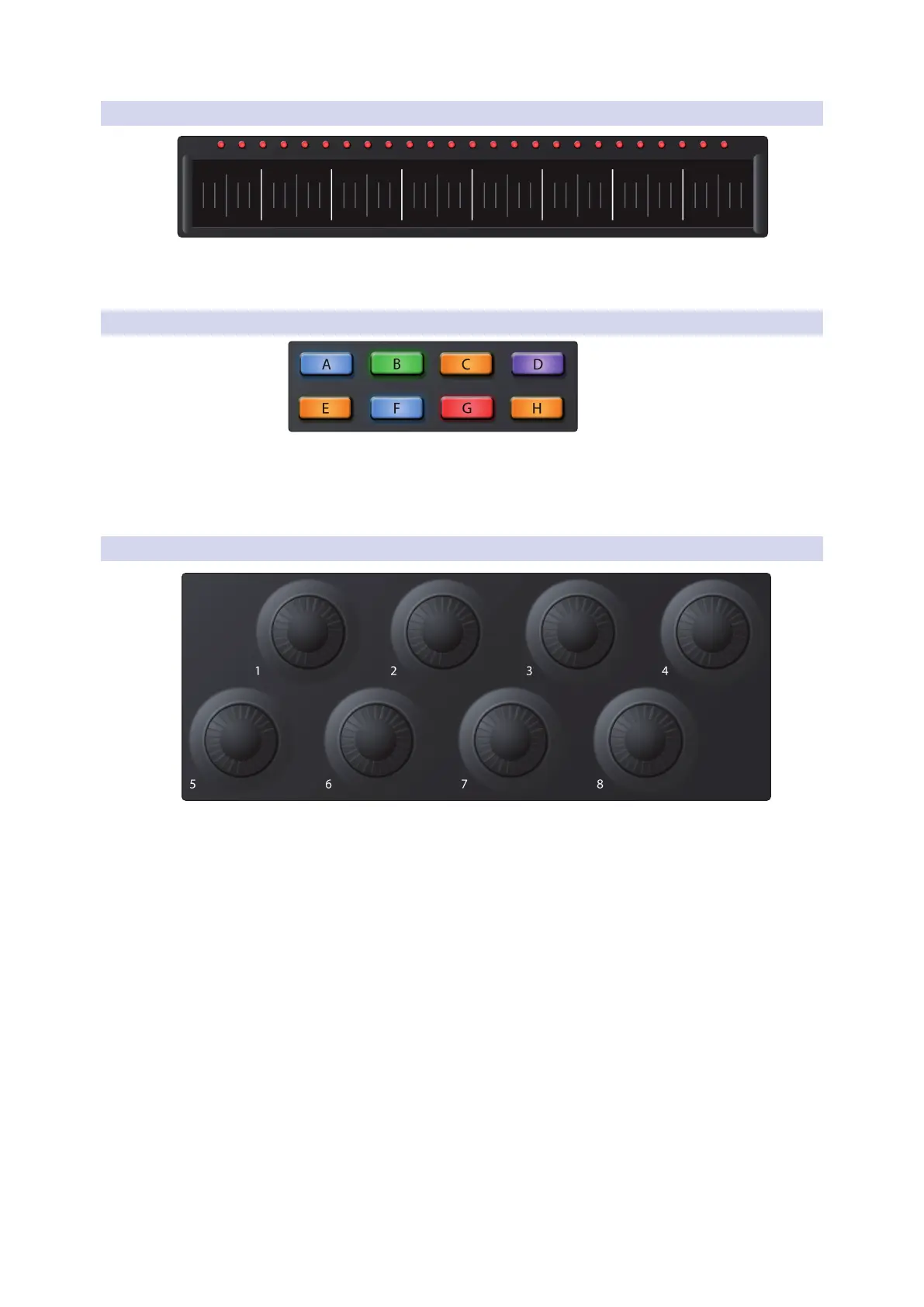
3.1.2 Touch Strip
The touch strip adds expressive control to ATOM SQ. The touch
strip can be assigned to musical functions like Pitch Bend,
Modulation Wheel, etc. See Section 3.2.1.3 for details.
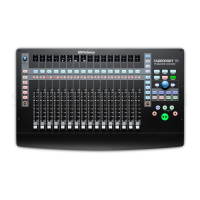
3.1.3 A-H Buttons
Use the A-H buttons to switch the current drum bank in Impact XT or change
the current Octave in Keyboard, Continuous, or Scale Only layout Modes.
In Keyboard, Continuous, and Scale Only layouts, the A button will always be orange.
This button is used as a momentary button for Sustain (press and hold for Sustain).
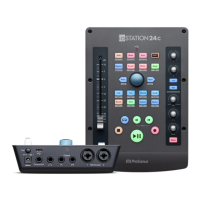
3.1.4 Encoders
The 8 large encoders on your ATOM SQ can back used to control plug-
in parameters when a plug-in is in focus, whether the plug-in is a
Virtual Instrument, Effect, or Note FX. Depending on which plug-in
is in focus, the parameter mapped to each encoder will vary.
All Studio One Native plug-ins have a default mapping, however, these
controls can be reassigned using the Control Link window. Some third-
party plug-ins may not have a default mapping, in this case, you must
use Control Link to assign the desired parameter to each encoder. All
custom assignments will work in any Studio One Song, so you only have
to make the assignment once to use it anytime you open the plug-in.
Power User Tip: Your ATOM SQ encoders have a built-in velocity multiplier, so the faster
you turn them, the more quickly they will reach the minimum or maximum of the
parameter range.



 To Next Page