18
3 Advanced Studio One Integration
3.2 Screen Controls
ATOM SQ
Owner’s Manual
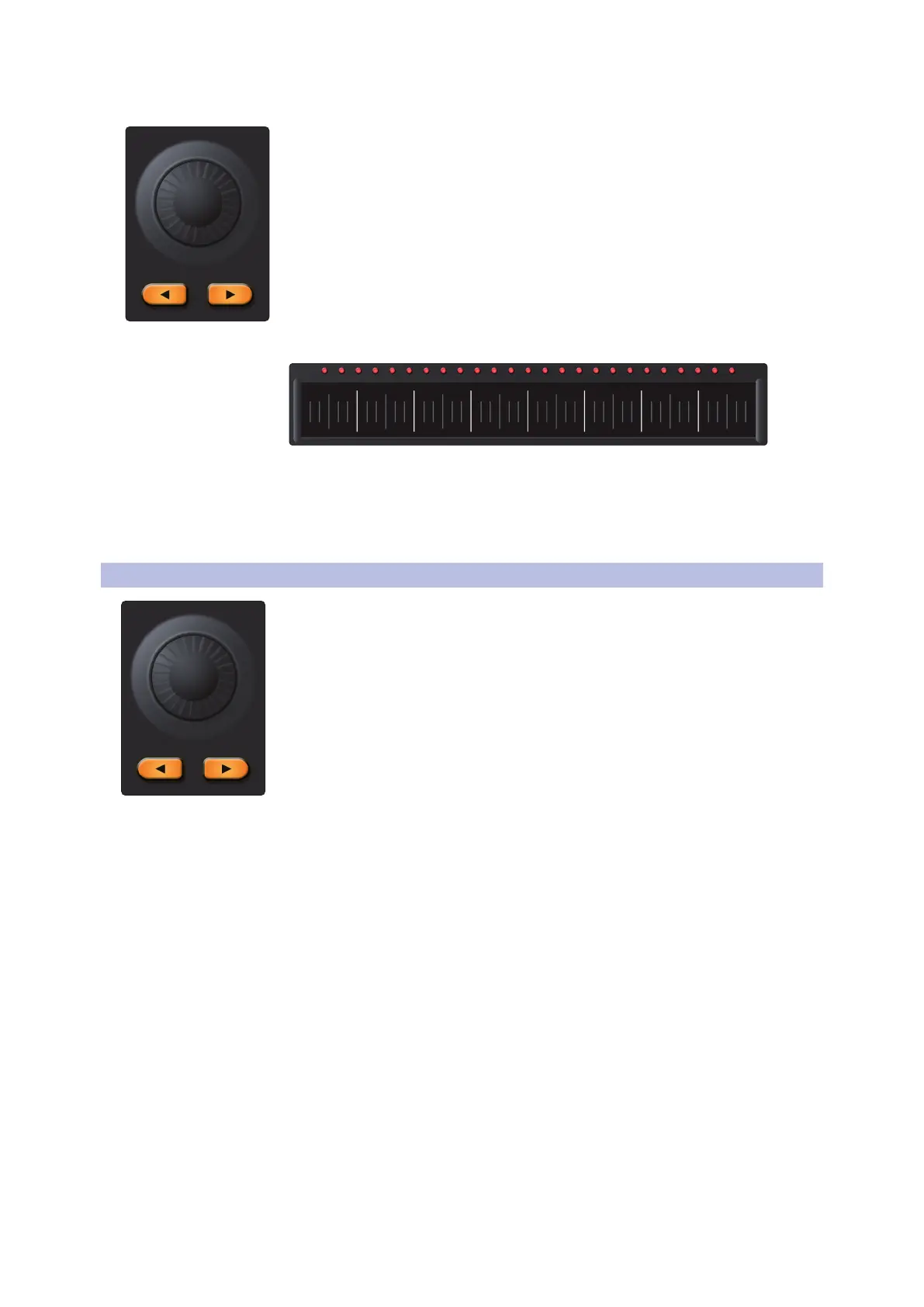
Screen Encoder
The Screen Encoder also features a global function to change presets. If an
Instrument, Effect, or Note FX Editor is in focus, pressing and holding the Shift
button while turning the Screen Encoder will change to the next or previous
preset. The name of the preset will also briefly show on ATOM SQ’s display.
Power User Tip: Be sure to save a custom preset before changing the preset or your work
will be lost!
Touch Strip
The Touch Strip will control Track Volume when used with the Shift Button. When
Shift is held, touching the strip and sliding to the left will decrease the selected
track’s volume and sliding to the right will increase the selected track’s volume.
Power User Tip: You can also change the touch strip’s primary assignment to Volume
from the “Performance Config” menu in Inst mode.
3.2 Screen Controls
ATOM SQ’s flexible screen puts many different commands and
controls at your fingertips. The Page Left and Page Right buttons
will page through additional screen commands, if available.
Power User Tip: To quickly jump back to the first page, press the Page Left button a
second time.
Use the button above or below a function to send a command, enable/
disable functions, or show/hide Studio One windows. Use the Screen Encoder
to change a selected screen parameter value like Octave, Rate, etc.
ATOM SQ will dynamically follow what function is currently in focus
in Studio One. Focus is indicated in two different ways:
• Arrangement, Browser, Editor, and Console. When one of these windows
is in focus on ATOM SQ, you will see a thin blue rectangle around it.
• Instrument, Effect, Note FX editors. When one of these editors in
focus on ATOM SQ, you see a bright yellow button labeled ATOM
SQ. It the button is not yellow, the editor is not in focus.



 To Next Page