16
3 Advanced Studio One Integration
3.1 Controls
ATOM SQ
Owner’s Manual
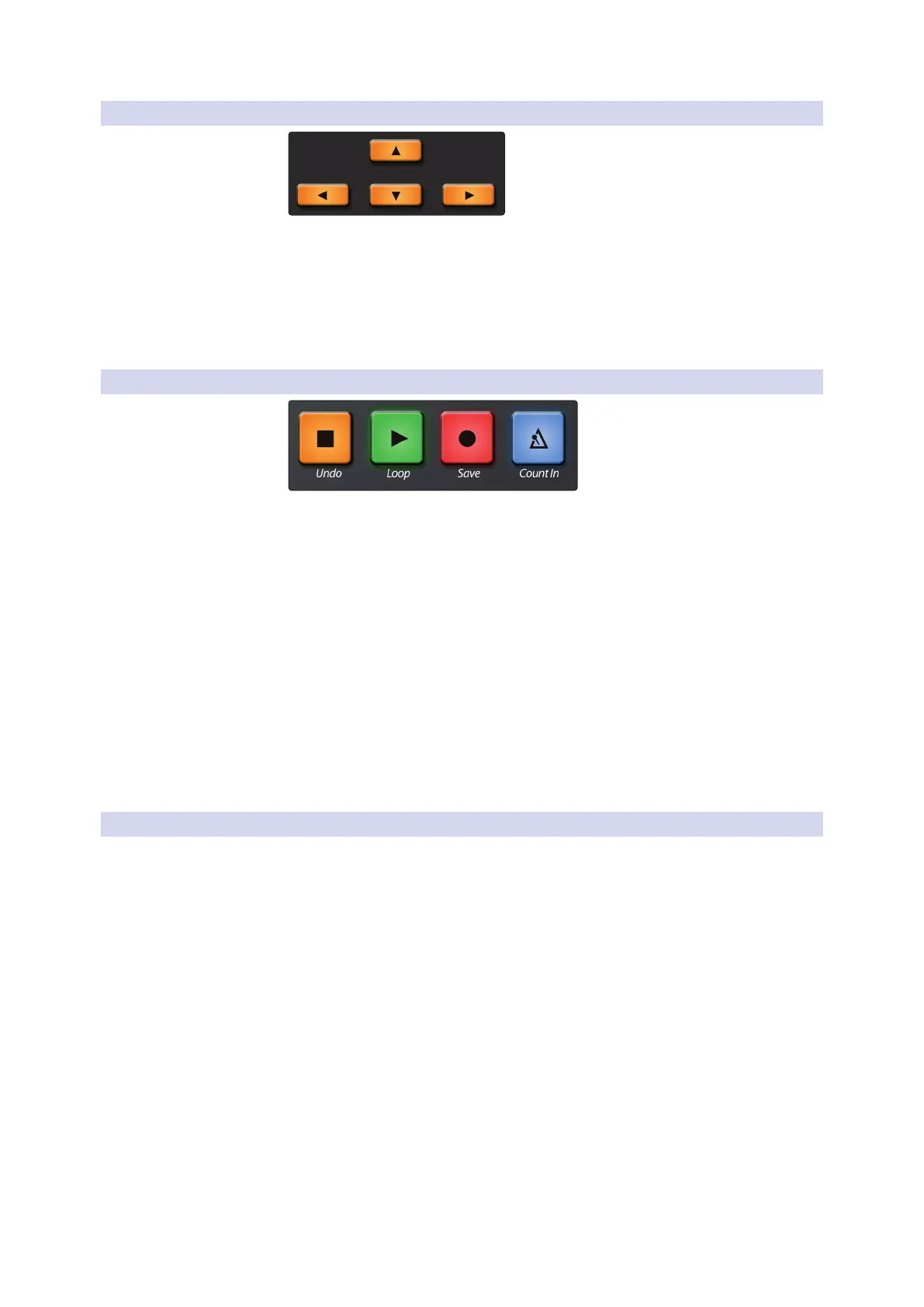
3.1.5 Navigation Buttons
The Up, Down, Left, and Right navigation buttons to the left of the Shift button
will change their functions depending on what is in focus in Studio One. They can
go to the next or previous track, navigate the Browser, or select events, notes, and
Arranger sections. Pressing and holding the ATOM SQ’s Shift button while pressing
a navigation button will have different behaviors depending on what is in focus at
the moment. For example, pressing and holding Shift while an Event is selected,
then pressing Navigation Left will add the Event on the left to the selection.
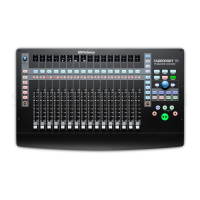
3.1.6 Transport Buttons
These are dedicated Transport buttons on ATOM SQ. Each button
has a primary and secondary command. To access the secondary
command, press and hold Shift while pressing a Transport button.
• Stop. Stops the transport.
• Shift + Stop. Undo the last command or action in Studio One.
• Play. Starts playback from the current position. Press Play to stop playback.
• Shift + Play. Enables or disables Loop. While enabled,
the Play button will illuminate blue.
• Record. Starts recording from current playback position. When the
Pattern Editor is active, press to enable Record / Step Record.
• Shift + Record. Saves the current Song.
• Metronome. Enables or disables the Metronome.
• Shift + Metronome. Enables or disables the Precount.
3.1.7 Global Controls
ATOM SQ keeps certain commonly used controls and commands available
at all times to minimize jumping back and forth through different menus.
These are accessed by pressing and holding down the Shift button while
pressing any of the A-H buttons or while turning any of the encoders.
A-H buttons
While accessing their global functions, the A-H buttons will illuminate orange.
To change these buttons to their global control functions, hold the Shift button
while pressing the desired button. These are functions that are fixed. Commands
are shown on ATOM SQ’s screen while pressing and holding the Shift button.



 To Next Page