30
3 Advanced Studio One Integration
3.2 Screen Controls
ATOM SQ
Owner’s Manual
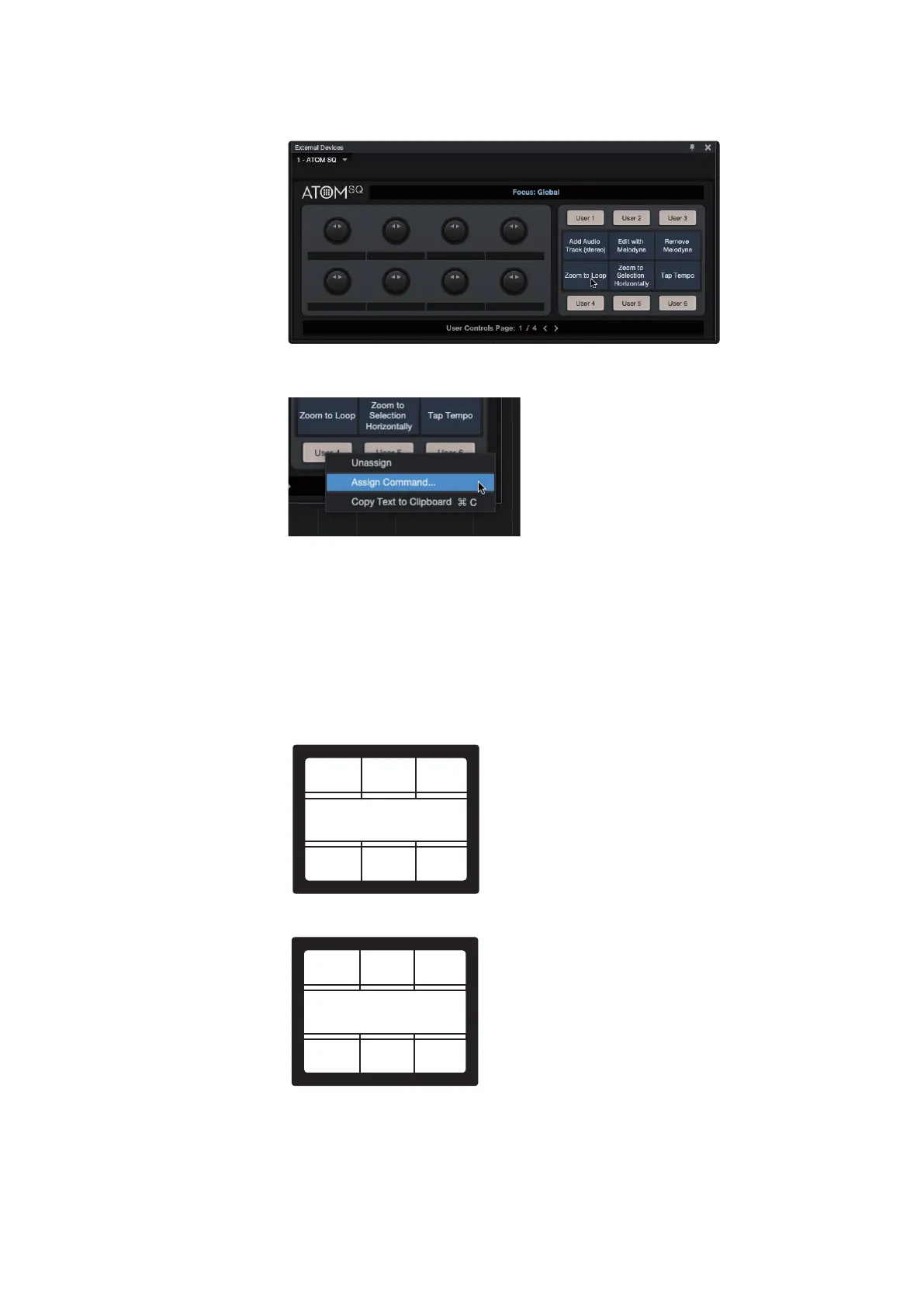
Double-click on ATOM SQ to bring up the Editor. User buttons have default
commands assigned, but these can be changed and customized.
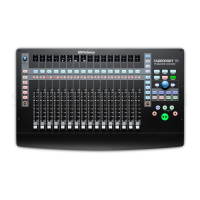
To assign a function to any of the ATOM SQ screen buttons, right-
click on the User #’x’ label and choose “Assign Command”.
Select a command from the list then press “OK”, or search for a specific
command or Macro. After pressing “OK” the selected command will
be assigned to that User button, and the name of the command will
appear in that space on ATOM SQ’s screen. User button assignments
will always be there regardless of the session being worked on.
While the External Device Editor is open, you can also view the
assignments for the focused object for 8 knobs on your ATOM SQ.
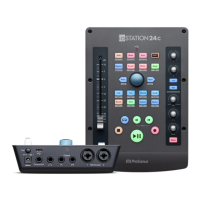
The default User Button assignments are as follows:
Page 1:
Page 1/4
User Controls: Global
Add Audio Edit in
Melodyne
Remove
MelodyneTrack
Loop
Tap
Tempo
Zoom to
Selection
Zoom
Page 2:
Page 2/4
User Controls: Global
Convert Convert
To Pattern
Clear
PatternTo Part
View
Score
View
Piano
View
Drum



 To Next Page