41
5 Studio One Artist Quick Start
5.2 Setting Up Studio One
ATOM SQ
Owner’s Manual
5.2.1 Configuring Audio Devices
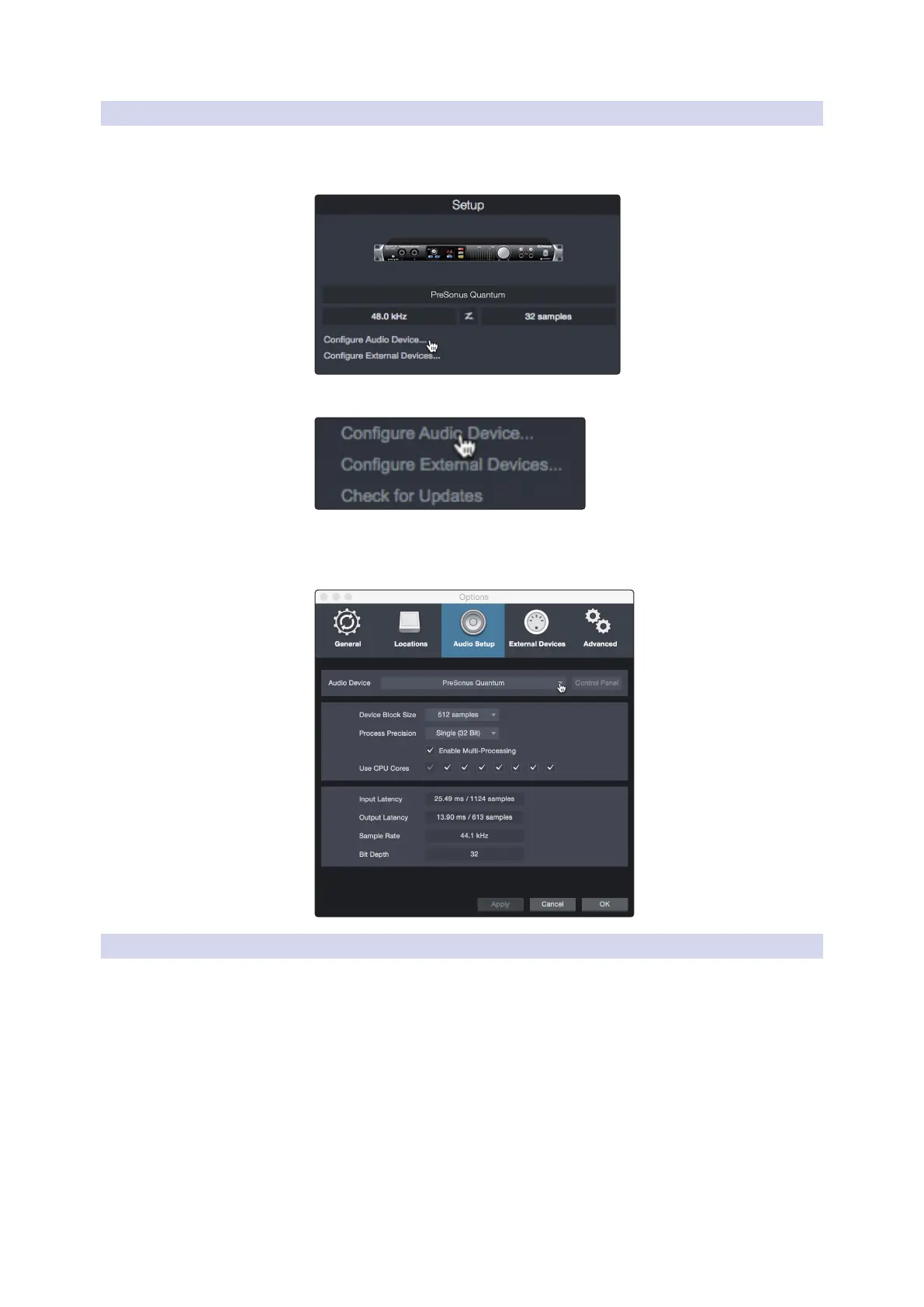
In the middle of the Start page, you will see the Setup area. Studio One
Artist automatically scans your system for all available drivers and selects
a driver. By default, it will choose a PreSonus driver if one is available.
1. Click on the Configure Audio Interface link to select your audio interface driver.
2. Select your audio interface from the Audio Device pull-
down menu. From this page, you can also adjust your device
buffer block size. Click OK when you are finished.
5.2.2 Configuring MIDI Devices
From the External Devices window in Studio One Artist, you can configure
your MIDI keyboard controller, sound modules, and control surfaces. This
section will guide you through setting up other MIDI keyboard controllers
and sound modules. Please consult the Reference Manual located within
Studio One for complete setup instructions for other MIDI devices.
If you are using a third-party MIDI interface or USB MIDI-controller
keyboard, you must install any required drivers for these devices before
beginning this section. Please consult the documentation that came
with your MIDI hardware for complete installation instructions.
Note: Studio One will automatically configure your ATOM SQ for control. No setup is
required.



 To Next Page