20
3 Advanced Studio One Integration
3.2 Screen Controls
ATOM SQ
Owner’s Manual
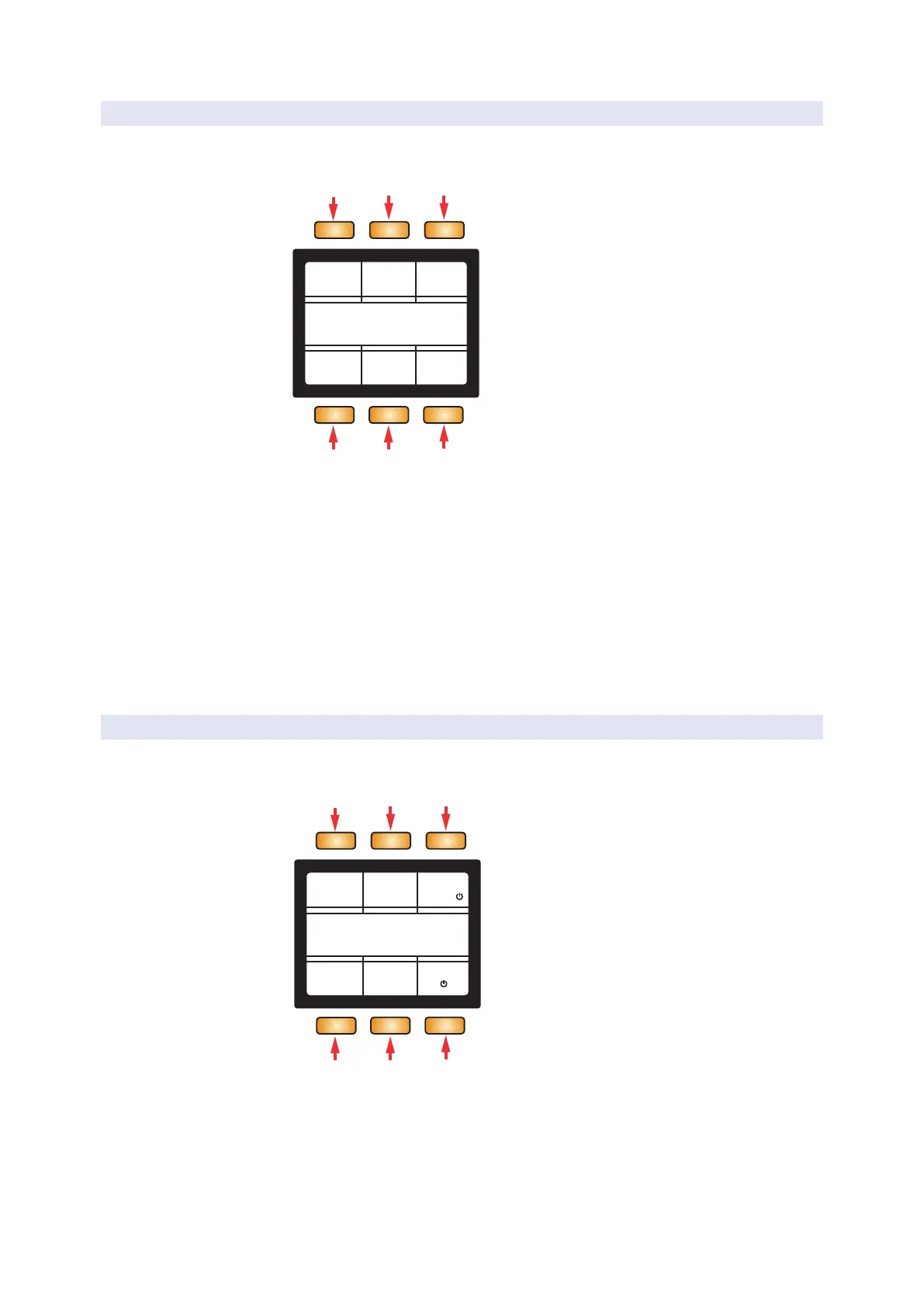
3.2.1.2 Instrument Track Editing Controls
Page Up to access the Track Editing Controls. From here you
can add Parts and Patterns, Chorder FX, and more.
Synth Lead
Track
Add Add Merge
Pattern Part Part
DoubleAdd
Events
Add
Chorder FX Arp FX
1 2 3
4 5
6
1. Add Chorder FX. Loads a Chorder Note FX onto the selected track.
2. Add Arp FX. Loads an Arpeggiator Note FX onto the selected track.
3. Merge Events. The currently selected Events will be merged together.
4. Add Pattern. Adds a one-bar Pattern Event at the current playhead position.
5. Add Part. Adds a one-bar Instrument Part Event at the current playhead position.
6. Double Part. Duplicates the current Event and merges the two
Events together. Note: If this command is used on a Pattern
Event, the Pattern will be converted to an Instrument Part.
3.2.1.3 Performance Configuration
Page Up again to access the Performance Configuration page. This page lets
you adjust the controls on your ATOM SQ to suit your performance needs.
Synth Lead
Performance
Strip +/- Note
1/16 100%
PressureGate
Repeat
Rate
Modwheel Pitchbend
4 5
6
1. Strip. Select Strip to use the Screen Encoder to change
the function of the Touch Strip as follows:
• Pitchbend. The Touch Strip will be assigned to the Pitch
Bend MIDI control and always reset back to center on
release, indicated by the red LEDs above the strip.



 To Next Page