137137
Owner’s Manual
Quick Start:
Level
Setting
OverviewHookupControlsConnecting
to a
Computer
TutorialsTechnical
Information
Trouble-
shooting
and Warranty
Scenes, Presets, System Menu,
and MIDI Control
Software: Universal Control, SL Remote, Capture, and Studio One Artist 7
Software: Universal Control,
SL Remote, Capture,
and Studio One Artist
Studio One Artist Quick Start 7.5
7.5.7 Adding Virtual Instruments and Plug-in Eects to Your Song
You can add plug-ins and instruments to your Song by dragging-
and-dropping from the browser. You can also drag an eect
or group of eects from one channel to another, drag in
customized eects chains, and instantly load your favorite virtual-
instrument patch without ever scrolling through a menu.
Opening the Browser
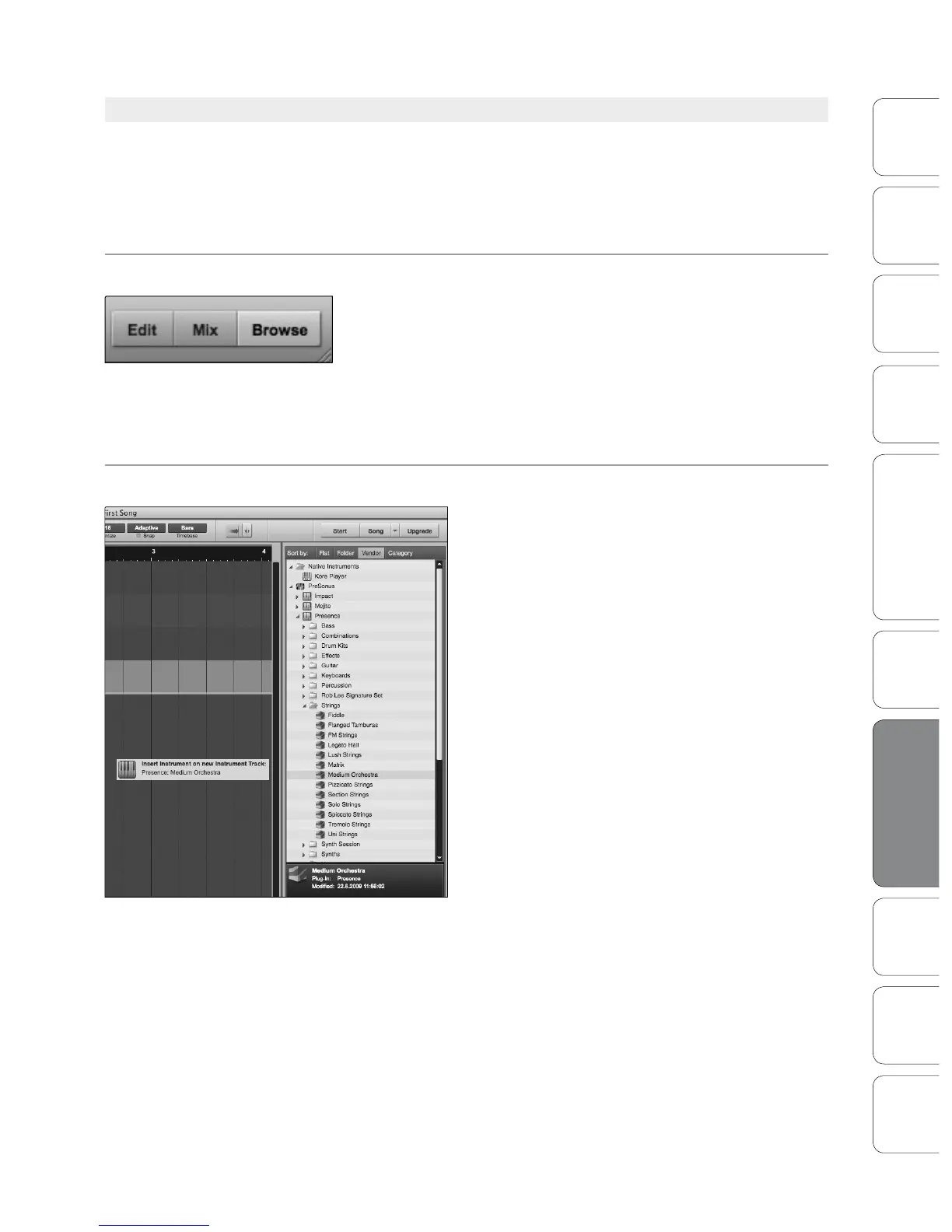
In the lower right corner of the Arrange window are three buttons. The
Edit button opens or closes the audio editor or the MIDI piano-roll editor,
depending on which type of track is selected. The Mix button opens and
closes the mixer window.
The Browse button opens the browser window, which displays all of
the available virtual instruments, plug-in eects, audio les, and MIDI
les, as well as the pool of audio les loaded into the current session.
Drag-and-Drop Virtual Instruments
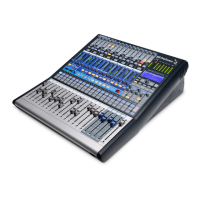
To add a virtual instrument to your session, click the
Browse and Instrument buttons to open the
instrument browser. Select the instrument or one of
its patches from the instrument browser and drag it
into the Arrange view. Studio One Artist will
automatically create a new track and load the
instrument as the input.











 To Next Page