7070
PreSonus StudioLive
™
24.4.2
Quick Start:
Level
Setting
Overview Hookup Controls Tutorials Technical
Information
Trouble-
shooting
and Warranty
Scenes, Presets, System Menu,
and MIDI Control
6 Connecting to a Computer
Connecting
to a
Computer
6.4 Using the StudioLive as an Audio Interface
6.4.5 Conguring the StudioLive For Core Audio (Mac Only)
Your StudioLive can be used as the main Core Audio device for a Mac, and you
can route the main outputs of your Mac to any of its available output streams.
By default, these streams are routed to Channels 1 and 2 on your StudioLive.
The obvious limitation of this is that you will use up two input channels on
your StudioLive just for Core Audio playback. Channels 25 and 26 are available
through the FireWire Return buttons inside the 2 Track In and Monitor sections
of the StudioLive, and we recommend that you use these channels for Core
Audio playback. The following instructions will help you congure your
StudioLive to be used as the main audio playback device for your Mac.
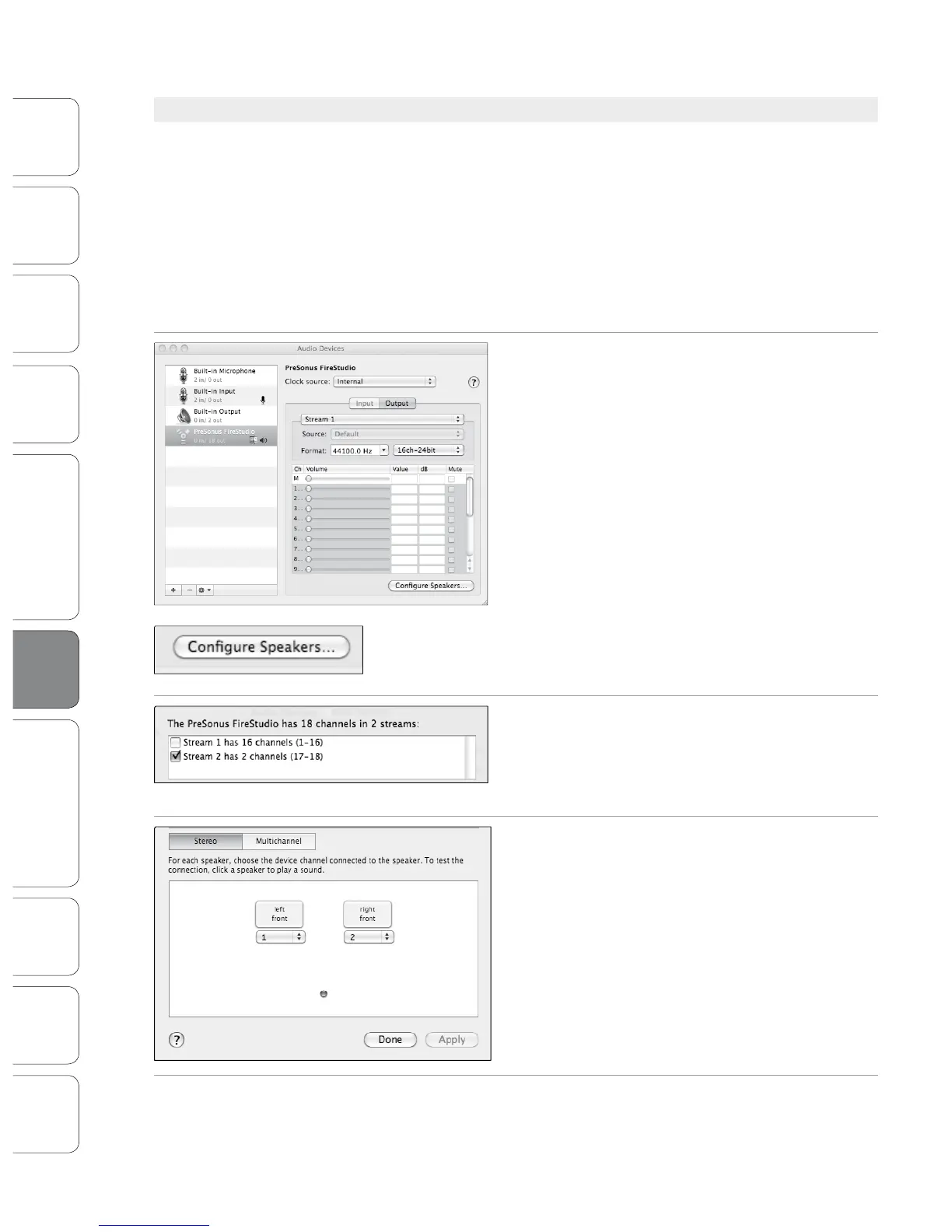
1. Go to MacHD | Applications | Utilities and launch
Audio MIDI setup.
Click on the Congure Speakers button.
2. Deselect Stream 1 and select Stream 2 instead.
3. Choose Channel 25 for the left speaker and Channel
26 for the right speaker.
4. When you are nished, click Apply and then Done.
Software: Universal Control,
SL Remote, Capture,
and Studio One Artist











 To Next Page