5757
Owner’s Manual
Quick Start:
Level
Setting
OverviewHookupControlsConnecting
to a
Computer
TutorialsTechnical
Information
Trouble-
shooting
and Warranty
Software: Universal Control,
SL Remote, Capture,
and Studio One Artist
Scenes, Presets, System Menu, and MIDI Control 5
Scenes, Presets, System Menu,
and MIDI Control
Graphic Equalizers 5.3
no frequency ripple. The StudioLive EQ is also capable of very sharp notches.
To widen a notch or a bump on a particular band, just bring the adjacent
bands closer to that band‘s gain and the bandwidth will change accordingly.
Making drastic adjustments too quickly, may create an audio artifact as the
new curve is redrawn and crosses over an audio peak. If you are hearing audio
artifacts while setting up your Graphic EQ, try creating a smoother curve.
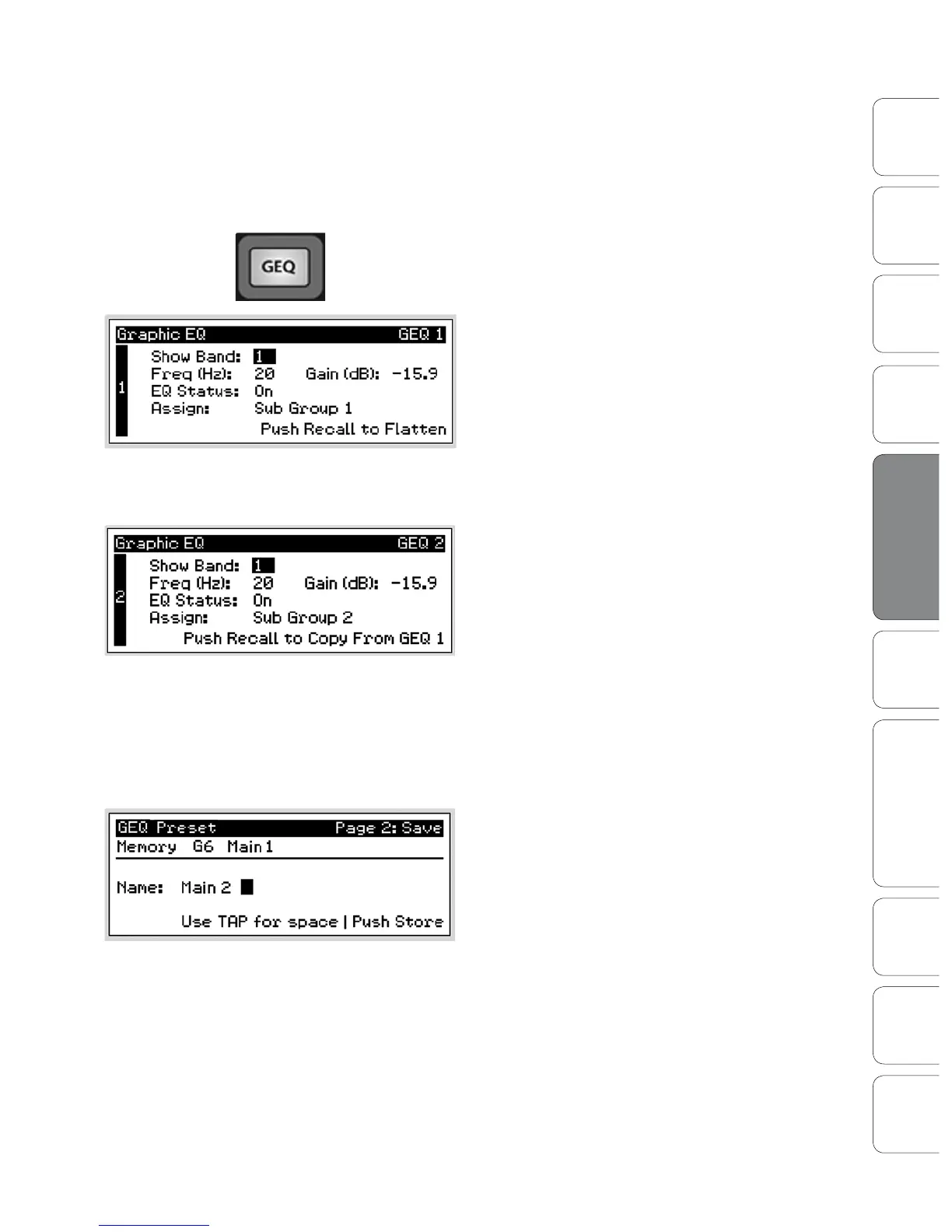
When you press the GEQ button on your StudioLive,
the Graphic EQ menu will be displayed on your LCD
screen There are 4 dual-mono (8 channels) Graphic
EQs in your StudioLive 24.4.2. These Graphic EQs are
assignable in stereo pairs. Each GEQ can be assigned
to the Mains, Subgroups 1-4, or Aux 1-10. The bus
assignment can only made from an odd-numbered
GEQ. The even-numbered GEQ will automatically be
assigned to the other half of the stereo pair. For
example, if you assign GEQ 1 to Subgroup 1, GEQ 2
will automatically be assigned to Subgroup 2.
Use the Page Up and Page Down buttons to navigate
between Graphic EQs. Use the Next and Prev buttons to
navigate through each GEQ screen and the Value knob
to change a parameter.
Each of the eight channels of Graphic EQ can be
controlled individually or odd-even pairs can
be controlled as a stereo unit. To copy the left
side (odd) GEQ settings to the right side (even),
simply page down to the right side and press the
Recall button. Pressing the Recall button while
using an odd numbered GEQ will atten it.
Power User Tip: In VSL or SL Remote, if you assign a Graphic EQ to a bus that has been Stereo Linked,
it will always function as a Stereo Graphic EQ. For example, if you have Aux 1 and Aux 2 stereo linked
and insert GEQ 3 on Aux 1, you will be able to control both sides of the Graphic EQ by simply adjusting
GEQ3. The Graphic EQ you assign to the Main bus always functions as a stereo Graphic EQ when
using either VSL or SL Remote to control your StudioLive. For more information, please see Section 7.
Like all other parameters on your StudioLive, your
Graphic EQ settings can be stored and recalled. If you
have created a GEQ setting that you would like to save
to the GEQ Preset library, press the Save button in the
Fat Channel while that GEQ is active. You will notice
that the LCD will display the GEQ Save menu.
To begin, use the Value encoder to scroll to an empty position in the GEQ
Preset library. Press the Next button again to navigate to the rst letter of the
preset name. Turn the Value Encoder clockwise or counter-clockwise to change
the letter. The StudioLive allows you to customize the name with uppercase
and lowercase letters, as well as a selection of numerals and punctuation
marks. You can insert a space by simply pressing the Tap button. Once you
are satised with your changes, press the Store button. It will illuminate while
the GEQ preset is being written to the StudioLive’s internal memory. Once
the GEQ preset is saved, the Store button will return to its unlit state.











 To Next Page