8080
PreSonus StudioLive
™
24.4.2
Quick Start:
Level
Setting
Overview Hookup Controls Connecting
to a
Computer
Tutorials Technical
Information
Trouble-
shooting
and Warranty
Scenes, Presets, System Menu,
and MIDI Control
7 Software: Universal Control, SL Remote, Capture, and Studio One Artist
Software: Universal Control,
SL Remote, Capture,
and Studio One Artist
7.2 Virtual StudioLive
Aux Send View
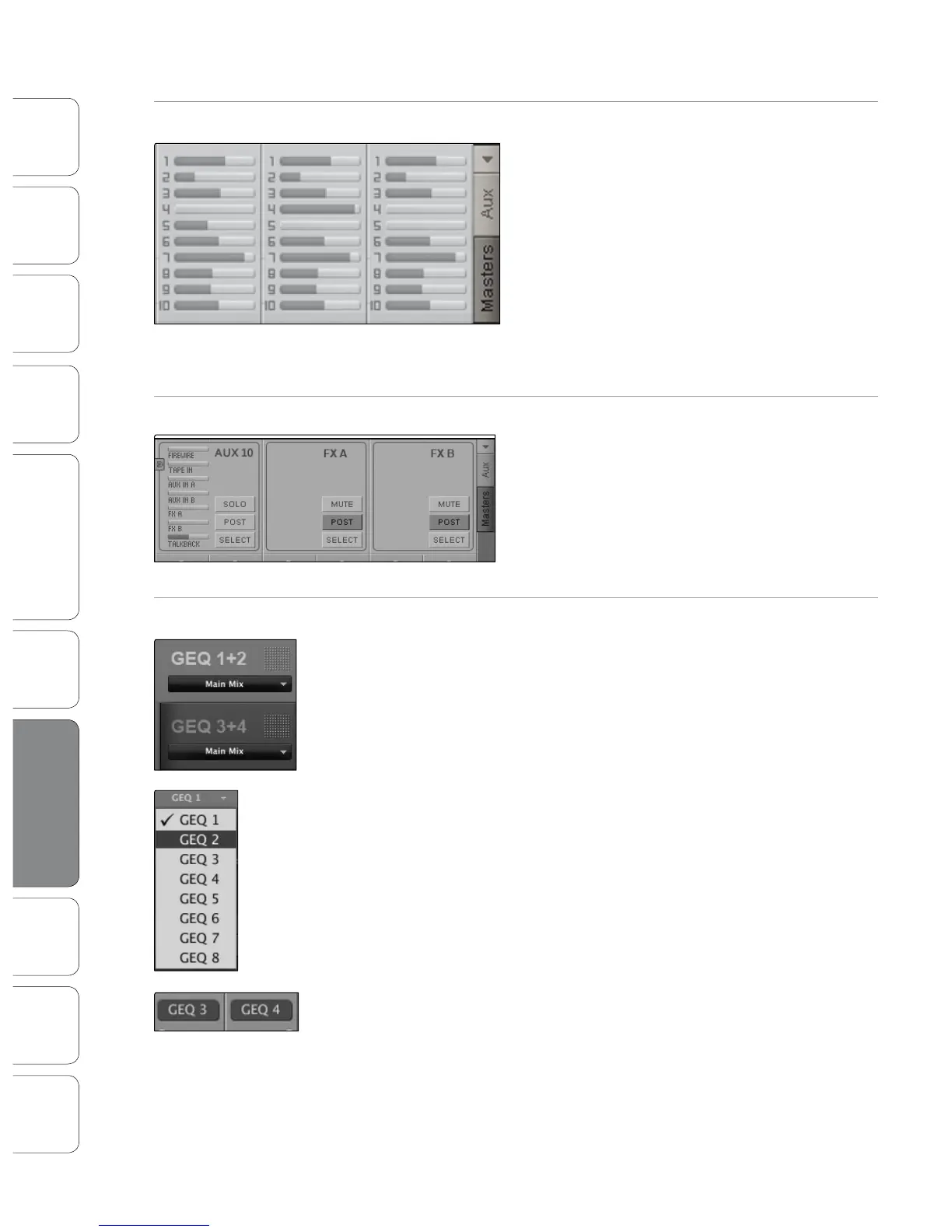
VSL provides two views for your StudioLive Aux
outputs and FX buses. The Aux Send view gives you an
overview of the send levels of every channel on your
StudioLive to every Aux output and FX bus.
Clicking on the arrow button will collapse the
Auxes, allowing you to view channel faders,
instead of knobs, on lower-resolution screens.
Power User Tip: To quickly set up an aux mix,
use your mouse to set the send level for Channel
1. Right-click on the Channel 1 send level and sweep your mouse across the other channel
sends for that Aux. The send level will be copied to every other channel for that Aux.
Masters View
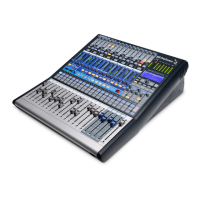
The Masters view displays the controls for each Aux
output and FX bus as they appear on the StudioLive.
The Masters view also displays the send levels for the
Aux Flip Mode Channels (Main FireWire Return, Tape
Input, Aux In A and B, FXA, FXB, and Talkback). From
within the Masters View, you can also Select each Aux
and FX bus to edit its Fat Channel insert.
GEQ in Focus
In general, most Graphic EQ settings are created prior to any live show
and are not adjusted after that. However, sometimes minor adjustments
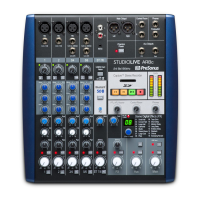
must be made later. VSL makes this quick and easy You will have noticed
that there is a GEQ above the Master section on the Overview tab You can
focus any GEQ here by one of three ways:
• Select a GEQ on the GEQ Tab. For example, if you leave GEQ 5/6 in focus
on the GEQ tab and switch back over to the Overview tab, you will still be
able to adjust it using the Focus GEQ above the Master Section.
• Select the GEQ from the GEQ Focus Menu. In the upper left corner of
the GEQ in Focus, you will nd a pull-down menu From this menu, you
can select any of the eight GEQs to pull into focus on the Overview tab.
• Click on a Focus GEQ button. Once a Graphic EQ has been inserted on an
Aux, Subgroup, or Main, a Focus GEQ button will be displayed above that
bus. (Note: For Auxes, Focus GEQ buttons are displayed in the Masters view
only.) Clicking on this button will pull that bus’s inserted Graphic EQ into
focus on the Overview tab.











 To Next Page