Promethean Annotate App
The Promethean Annotate App is perfect for adding annotations over anything displaying on your panel's
screen, empowering you to make the most of teachable moments. You may also use it over top of connected
devices.
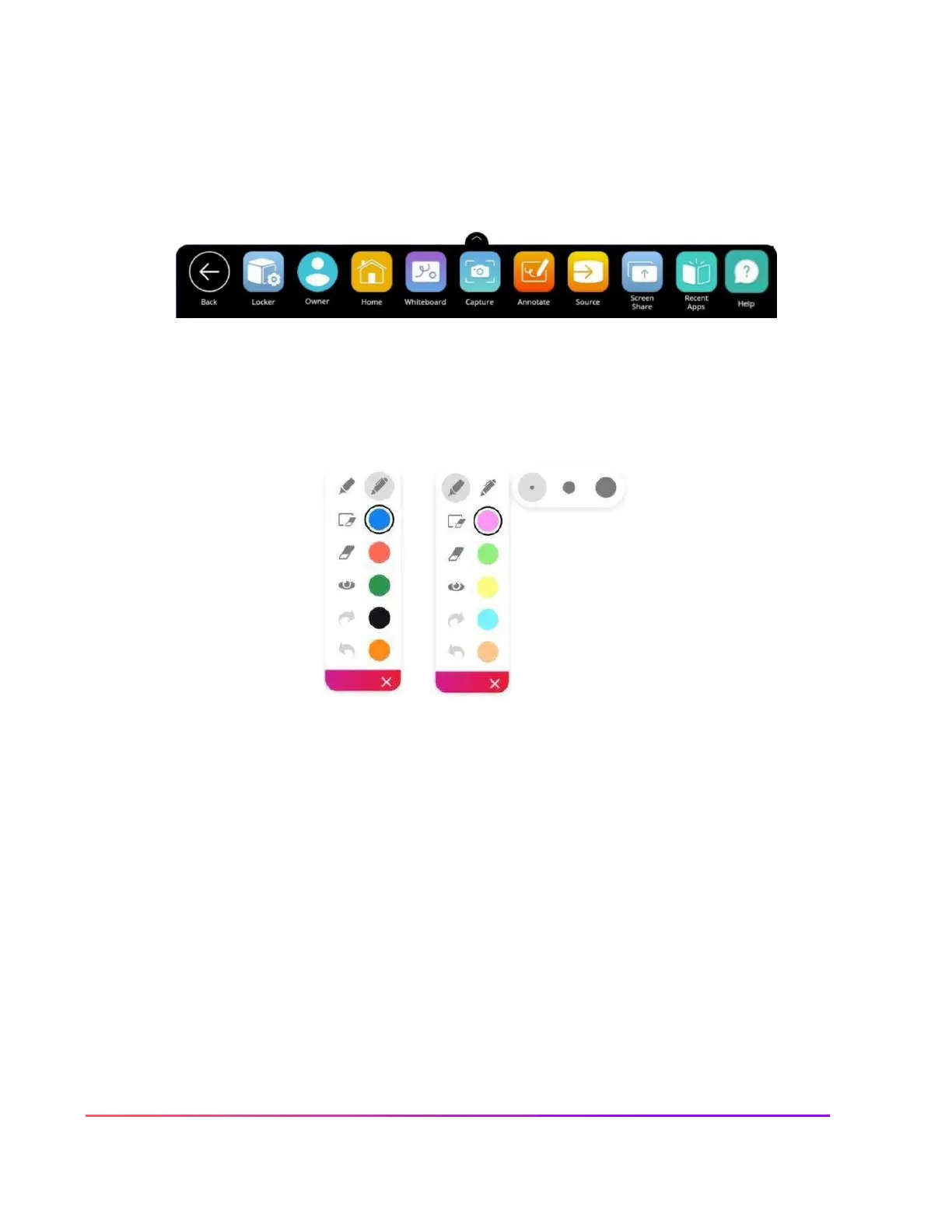
To access, tap the Unified Menu, then the Annotate app. It is also accessible from your Locker.
The toolbar appears. Drag to move it anywhere on your screen. Choose between a Pen and a Highlighter.
Tap the Pen or Highlighter button once more to change its width. Choose from five ink colors.
Use the Eraser to erase a bit of an annotation, or use Clear All Annotations to start fresh.
Tap the Eye button to exit annotate mode and interact with apps on your screen. Tap the Eye button once
more to return to annotate mode and continue annotating.
Use the Undo and Redo buttons to make quick corrections.
Tap the
X
to exit the app. All annotations will disappear on closing the app.





 To Next Page