Rearranging Apps
You may rearrange your installed apps within the Locker for quick access and to best accommodate your
teaching.
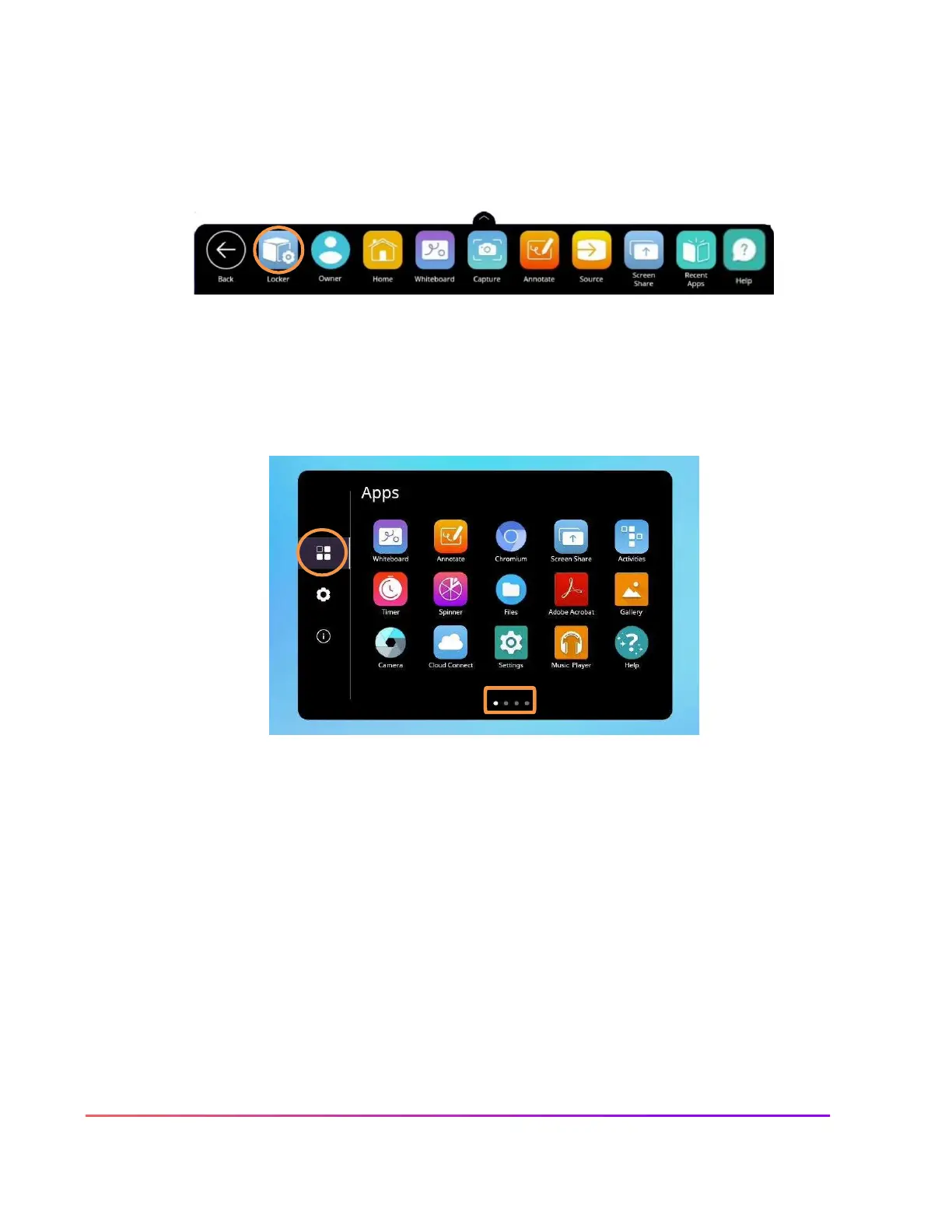
To rearrange apps, access the Unified Menu and tap Locker.
The Locker will automatically open to the Apps tab, but you also can access it by tapping the cube icon to
access Apps.
Depending on the number of apps you have installed, there may be more than one page. Pages are denoted
by small white dots at the bottom of the Locker window. Swipe right or left to navigate between these
pages.
To rearrange your apps, much as you do with your smart phone, simply press and hold the app while you drag
it to the desired location. You may move an app to a new location within a page, or to another page.
To create a new page within the Apps tab of your Locker, simply drag an app icon onto a page that is fully
populated. Organize your apps by function, subject area, apps for student use, and more!





 To Next Page