Connecting a Promethean Chromebox to Your ActivPanel
Your district may have chosen additional connected devices for your ActivPanel..
To connect your Promethean Chromebox to your ActivPanel, begin by ensuring you are running the
most up-to-date firmware. Please visit support.prometheanworld.com/update and/or
support.prometheanworld.com/article/1742 for more information.
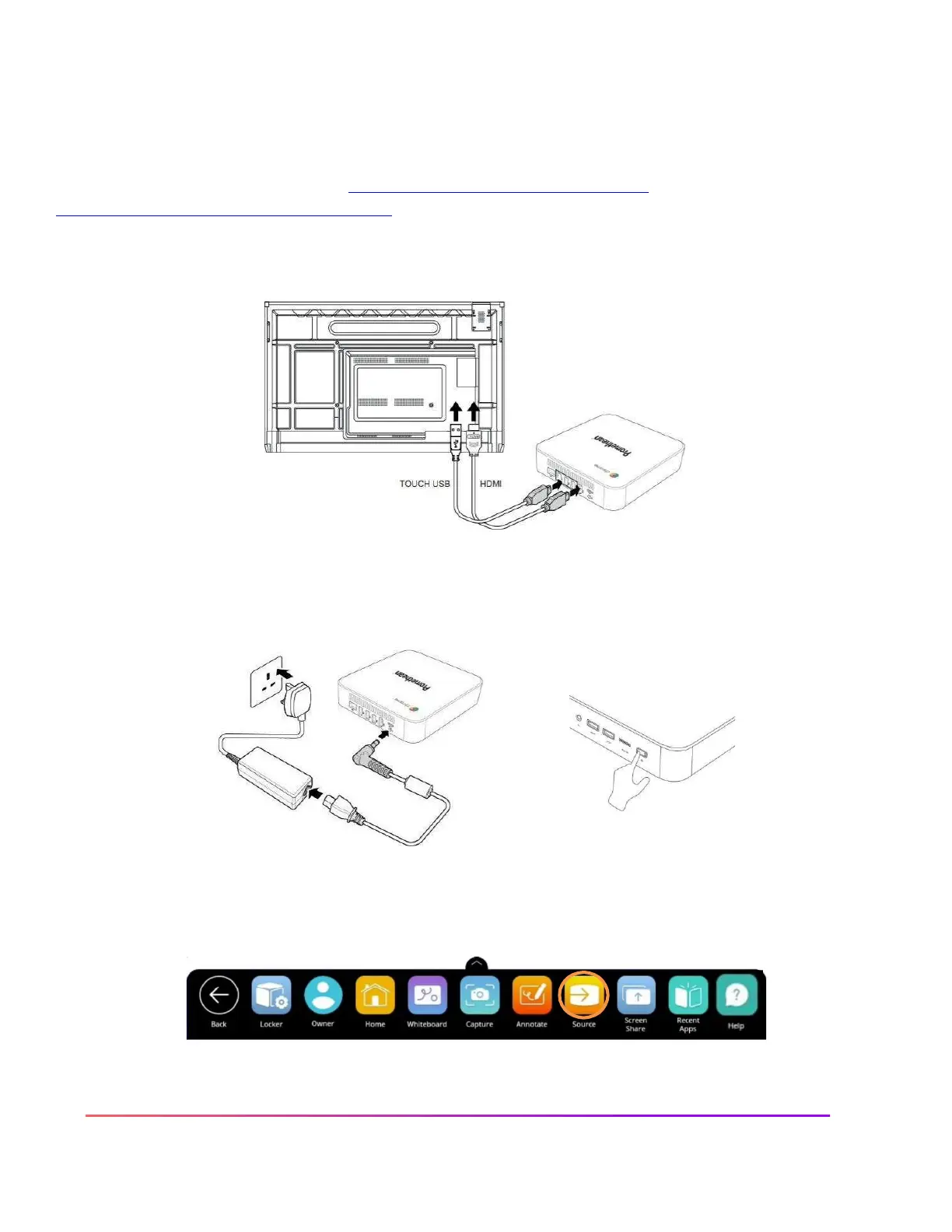
Connect your HDMI and USB cables to the HDMI 2 and USB 2 ports.
Plug in the power cable and power your Chromebox on. You will also need a Google account.
Access the Unified Menu and tap Source. Select HDMl2 to switch over to your Chromebox.





 To Next Page