Managing Apps
To manage apps installed on your Elements Series ActivPanel, for instance changing notification settings,
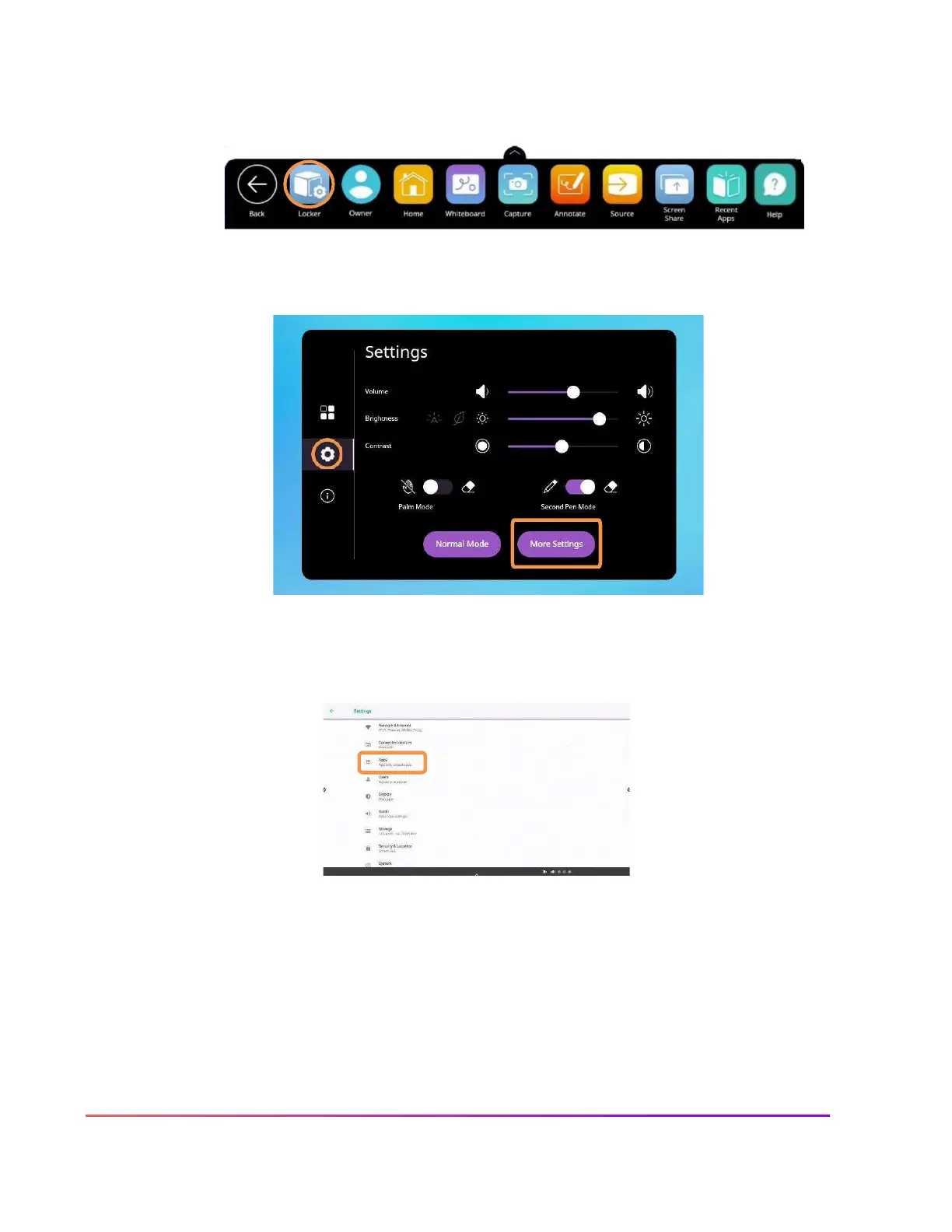
select the Unified Menu, then tap Locker.
Select the gear icon to access Settings. Tap More Settings.
Select Apps from the Settings menu.
Your apps are listed alphabetically. Scroll to the desired app you wish to view in more detail and tap its title.
On the App Info screen, you may need to scroll down to view all of the app's information.
Tap the back arrow in the top left corner to return to your list of apps. Alternatively, you can tap the Home
button from the Unified Menu to return to the home screen.





 To Next Page