N 93-531-79 ISSUE 1 NH Page 10 of 32 © Protec Fire Detection PLC 2012
6.0 Loading the 6100 Commissioning Software onto a PC
The 6100 commissioning software is supplied as a single executable file following the naming convention
‘6100 PC VX.XX.exe’ , no special installation is required and the file is simply copied onto the desktop of the
PC being used for commissioning.
If the PC is connected to the internet the 6100 commissioning software may check to see if a newer version
is available. If so, a warning box is displayed asking if an upgrade should be carried out. Only click ‘yes‘ if
you are sure an upgrade to the commissioning software is required.
7.0 Connecting and Disconnecting the 6100 from the PC
When the front cover of the 6100 is removed all system cabling, including mains cabling and
connections are accessible. DO NOT touch any connections or cabling.
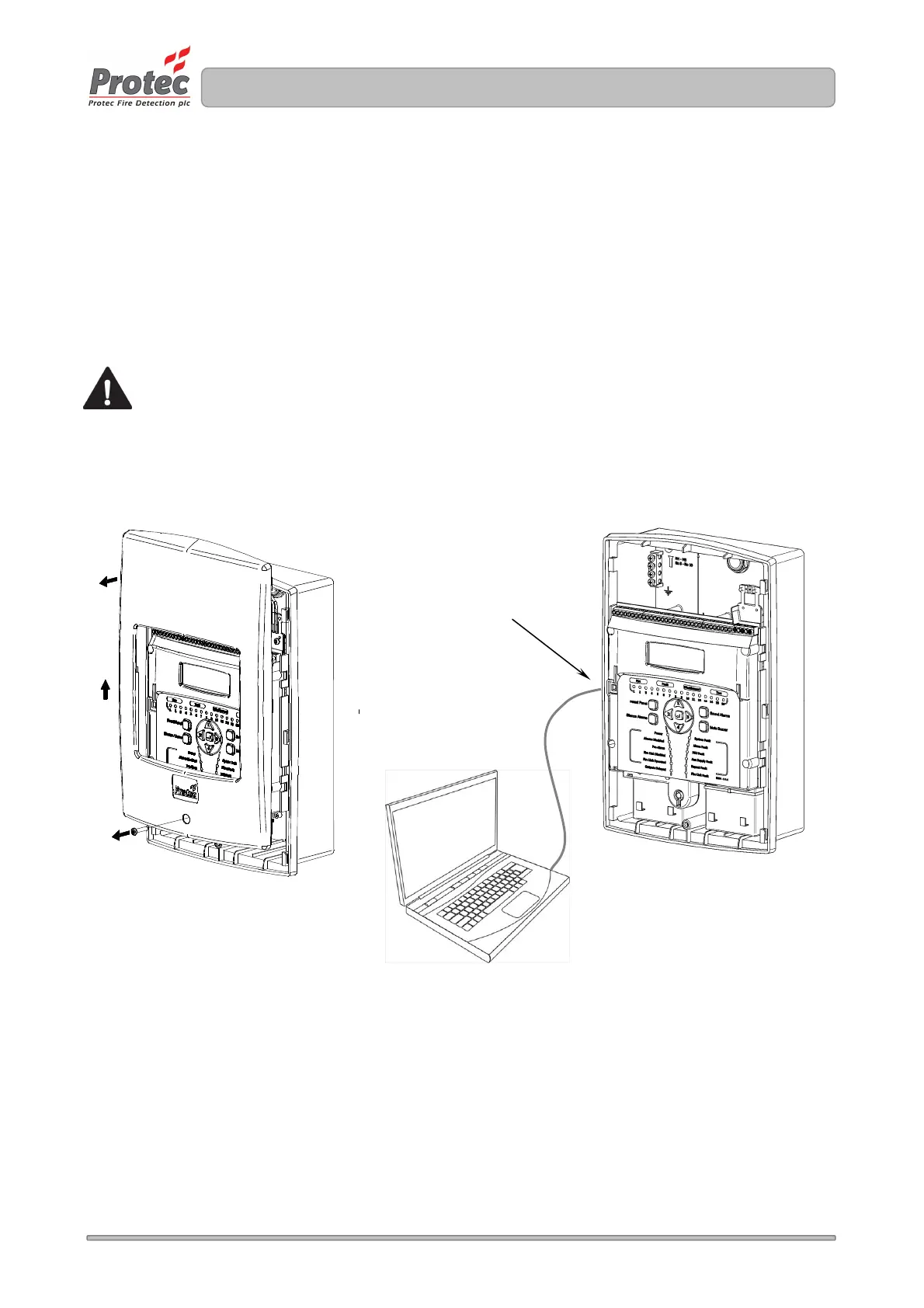
The PC connects to the 6100 using a standard USB cable ( see section 5.0 ). The USB port on the 6100 is
accessed by removal of the enclosure front cover, as shown in figure 7.0.
Figure 7.0. Removal of 6100 enclosure front cover, and USB connection to a PC
1
2
3
USB port location


 To Next Page