N 93-531-79 ISSUE 1 NH Page 11 of 32 © Protec Fire Detection PLC 2012
7.1 Connecting the PC to the 6100
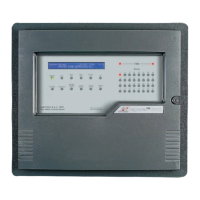
The USB communication port is located on the centre left of the 6100 PCB housing ( see figure 7.0 ).
Ensuring the 6100 is powered up connect the USB cable to a free USB port on the host PC, then carefully
plug the other end of the USB cable into the USB port on the 6100.
Using the menus on the 6100 ( consult the 6100 Installation and Commissioning Manual ) select the
CONNECT TO PC USING USB option and press the ↵
↵↵
↵ key to enter the menu.
When the 6100 panel is connected to the PC it WILL NOT operate as a fire alarm panel.
At the warning screen press the ↵
↵↵
↵ key to continue, or to exit press any of the ▲, ▼, ◄ or ► keys.
Note: When the 6100 is connected to a PC for the first time the PC must recognise the 6100 and load
appropriate software drivers, this can take up to 1 minute. Standard Windows drivers are used, no special
drivers are required. Further connections to the same PC will not require this phase.
Once connected to a PC the 6100 will display its PC connection screen, all further control is now performed
using the PC only.
7.2 Disconnecting the PC from the 6100
When all commissioning has been completed the following procedure must be followed to correctly
disconnect the PC from the 6100.
• Close the 6100 commissioning software.
• Disconnect the 6100 from the PC by using the Windows
®
‘ Safely Remove Hardware ‘ feature.
• Carefully remove USB lead from the 6100.
The 6100 automatically detects the USB lead has been removed and resets. The loop will be
re-powered and a full loop re-initialisation sequence will be instigated.
The reboot process may take up to 1 minute, during which time the 6100 may not respond to
fires or faults.


 To Next Page