2.1.6 DVD-RW installation
Securely fix DVD-RW by using bracket and screws provided herewith.
Please do not use any different DVD-RW cables (data cable and power supply cable) other than the ones we provide.
Otherwise, it may cause damage to the DVD-RW.
Only one DVD-RW can be used. Mount it at the SATA 3 port. ( H Series ) or SATA 4 port ( FH / MH / VH / AQH Series )
CAUTION
Install DVD-RW hard disk after DVR power off. Otherwise, it may cause permanent damage to the hard disk. To turn off DVR, please click (
)
SETUP>SYSTEM>Shutdown. Also, wait for 5 seconds before plugging in power supply again.
2.2 Connector Wiring
2.2.1 Video-In/Out Connections
ProVisual DVR H / FH Series
Connect a camera to ‘VIDEO IN’.
If user wishes to link camera input to another device, please connect the camera to ‘LOOP OUT’.
Assure the ‘VIDEO IN’ and ‘LOOP OUT’ connections are connected properly, not oppositely.
ProVisual DVR AQH Series
Connect cameras to ‘HD-SDI IN’ to channel 1 to 16.
ProVisual DVR-16214-AQH
Connect cameras to ‘HD-SDI IN’ to channel 1 and 2.
Connect cameras to ‘VIDEO IN’ to channel 3 to 16.
If user wishes to link camera input to another device, please connect the camera to ‘LOOP OUT’
Assure the ‘VIDEO IN’ and ‘LOOP OUT’ connections are connected properly, not oppositely.
(NOTE)
Only FH Series model supports LOOP OUT connection.
2.2.2 Monitor Connections (Video Out, VGA and Spot)
Use with CCTV monitor and computer monitor. Please connect the CCTV monitor to “VIDEO OUT” (except for DVR-400-
AQH Type), the computer monitor to ‘VGA’, respectively. If necessary, connect another CCTV monitor to ‘SPOT’
Multi Spot ( FH Series )
- This function supports Multi Channel Display on Spot Monitor
- Connect BNC cable between spot monitor and multi spot port of rear panel.
2.2.3 HDMI connections ( ProVisual DVR MH / VH / AQH Series )
Connect HDMI cable to HD out port of rear panel and HDMI port of HD output device.
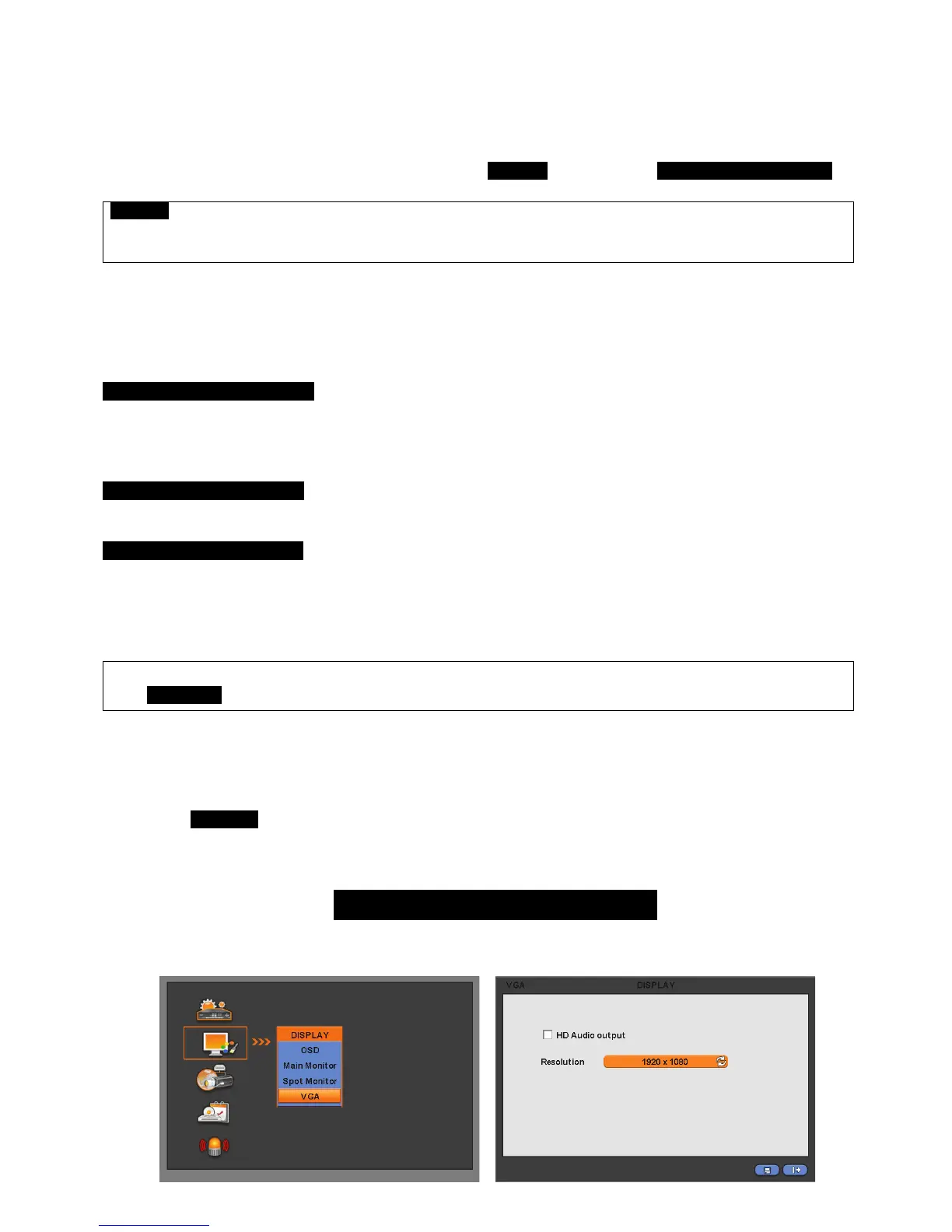
Please click ( ) SETUP> DISPLAY> VGA and the following screen will appear.


 To Next Page