ProVisual DVR-400-AQH
360x 240(288) 720x240(288) 720x480(576) 1280 x 720 1920 x 1080
4 Channel DVR
120(100) 120(100) 120(100) 120 100
ProVisual DVR-16214-AQH
HD-SDI Input (CH 1~2)
360x 240(288) 720x240(288) 720x480(576) 1280 x 720 1920 x 1080
2 Channel
60(50) 60(50) 60(50) 60 50
Analog Input (CH 3~16)
NTSC(PAL) 360x240 (360x288) 720x240 (720x288) 720x480 (720x576)
14 Channel
420 (350) 420 (350) 210 (175)
Click ( ) each frame on ‘Quality’ column to select recording quality of a corresponding camera. User may select its
recording quality from Super, High and Std.
Click ( ) each frame on ‘Duration’ column to select recording duration (i.e., 1 second ~3 hours) of a corresponding camera.
User may change the setting values of Resolution, Frames, Quality and Duration at a time by clicking the menu tab.
Choose ‘OK’ to confirm the setting.
CAUTION
ALTHOUGH USERS TURN ITS SYSTEM SETTING TO DEFAULT, THE ANALOG OUTPUT WILL STAY PREVIOUS OUTPUT METHOD
AND NOT EFFECT BY THE DEFAULT SETTING.
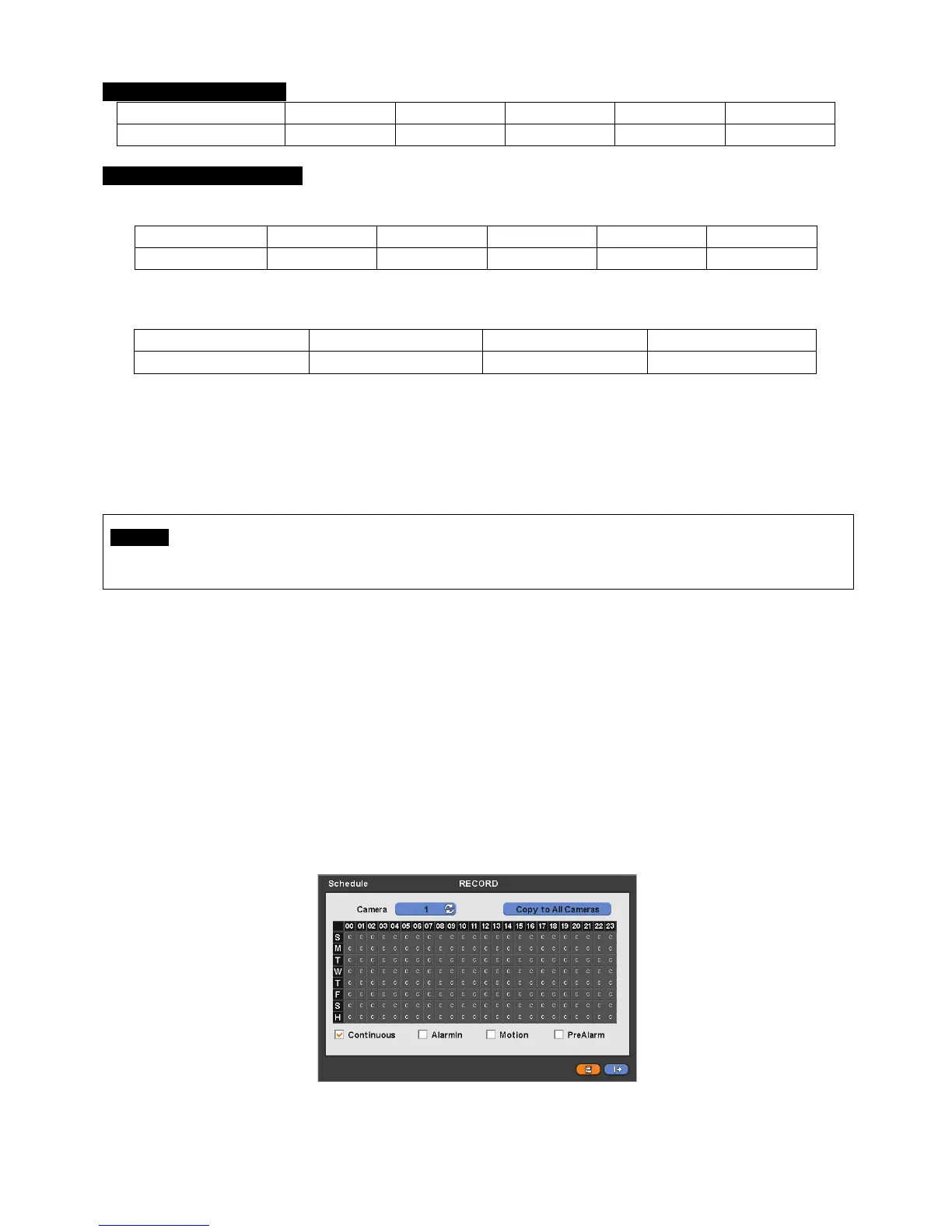
4.5.2 Schedule
Please click ( ) RECORD>Schedule.
Each weekday is composed of 24 ‘Time blocks’. Each block represent 1 hour.
Click ( ) Camera frame to select Camera No. 1.
Please set the recording mode as follows:
① Mark a check box the desired recording mode in the schedule (i.e., Continuous, Alarm, Motion and PreAlarm)). If user
wants to stop recording, please clear all check boxes.
② Click block, row, column or all (square box) to register desired recording mode.
- Click ( ) a block and only the block will be registered.
- Click ( ) a row (S~H) and the entire row will be registered.
- Click ( ) a column (00~23) and the entire column will be registered.
- Click ( ) a square box (top-left side between ‘S’ and ‘00’) and all the rows/columns will be registered.
Repeat the procedure for Camera Nos. 2 to 16. If user wants every camera to have the same mode, please click ( ) Copy
to All Camera.


 To Next Page