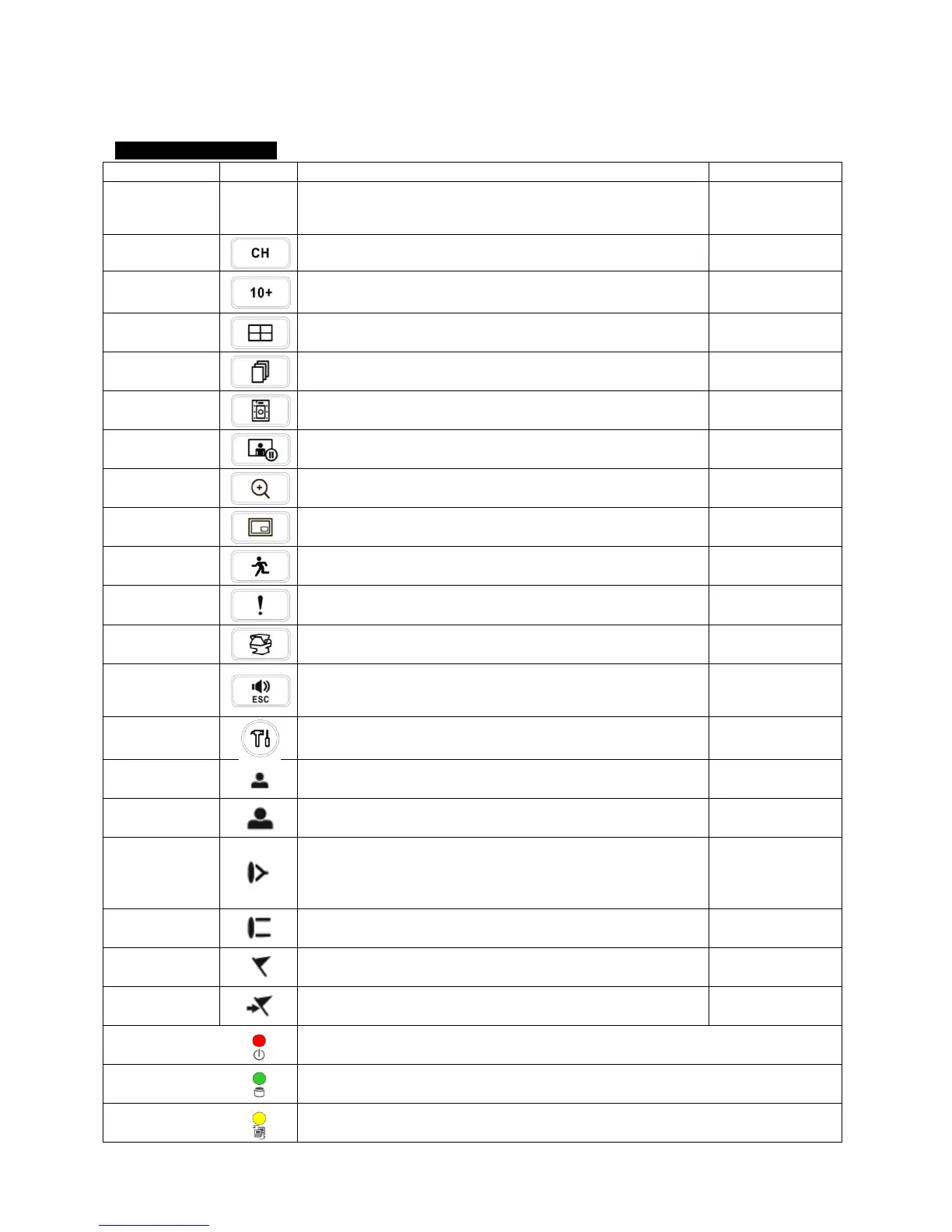
3. Input Device and Screen Icons
3.1 Key and LEDs
ProVisual H Series DVR
▲, ▼, ◄, ►
• Control Pan/Tilt rotation of up/down/left/right in PTZ mode
•Up/Down/Left/Righ
t on screen cursor
• Camera select keys : (4/8 channel DVR)
11 ~ 16
• Camera select keys : (16 channel DVR)
DISPLAY
• Select 1/4/9/16 channel display
SEQUENCE
• Channel sequence mode on/off (Main Monitor)
ARCHIVE
• Copy video data into the external storage device
FREEZE
• Screen freeze mode on/off
ZOOM
• Picture In Picture display on/off
EVENT
• System Log display on/off
EMERGENCY
• Emergency recording on/off
PTZ
• Pan/Tilt control mode on/off
AUDIO/ESC
• Audio on/off (Viewing/Playback)
• Select audio channel: Press AUDIO key and then channel key
• Enter the Main Menu (Setup mode)
REW
• Fast backward playback (changes up to x128 with each press)
• Zoom-Out on PTZ mode
BACKWARD
• Frame backward playback
• Zoom-In on PTZ mode
PLAY/PAUSE
• Viewing mode: Instant playback (playback the recorded video
from the last one minute)
• Playback mode: 1X PLAY/PAUSE
FORWARD
• Frame forward playback
• Focus Far in PTZ mode
FF
• Fast forward playback (changes up to x128 with each press)
• Save Preset in PTZ mode
SEARCH
• Video search mode on/off
• Go to Preset in PTZ mode
Power LED
(Red)
• Light off: DVR off
• Light on: DVR on
HDD LED
(Green)
• Light off: Stop recording
• Blink : Recording/Playback modes (HDD Access), Archive in operation
Network LED
(Yellow)
• Light off: failed to connect to Ethernet
• Blink: Connected to Ethernet


 To Next Page