5. OPERATION INSTRUCTION
5.1 Viewing
5.1.1 First Image
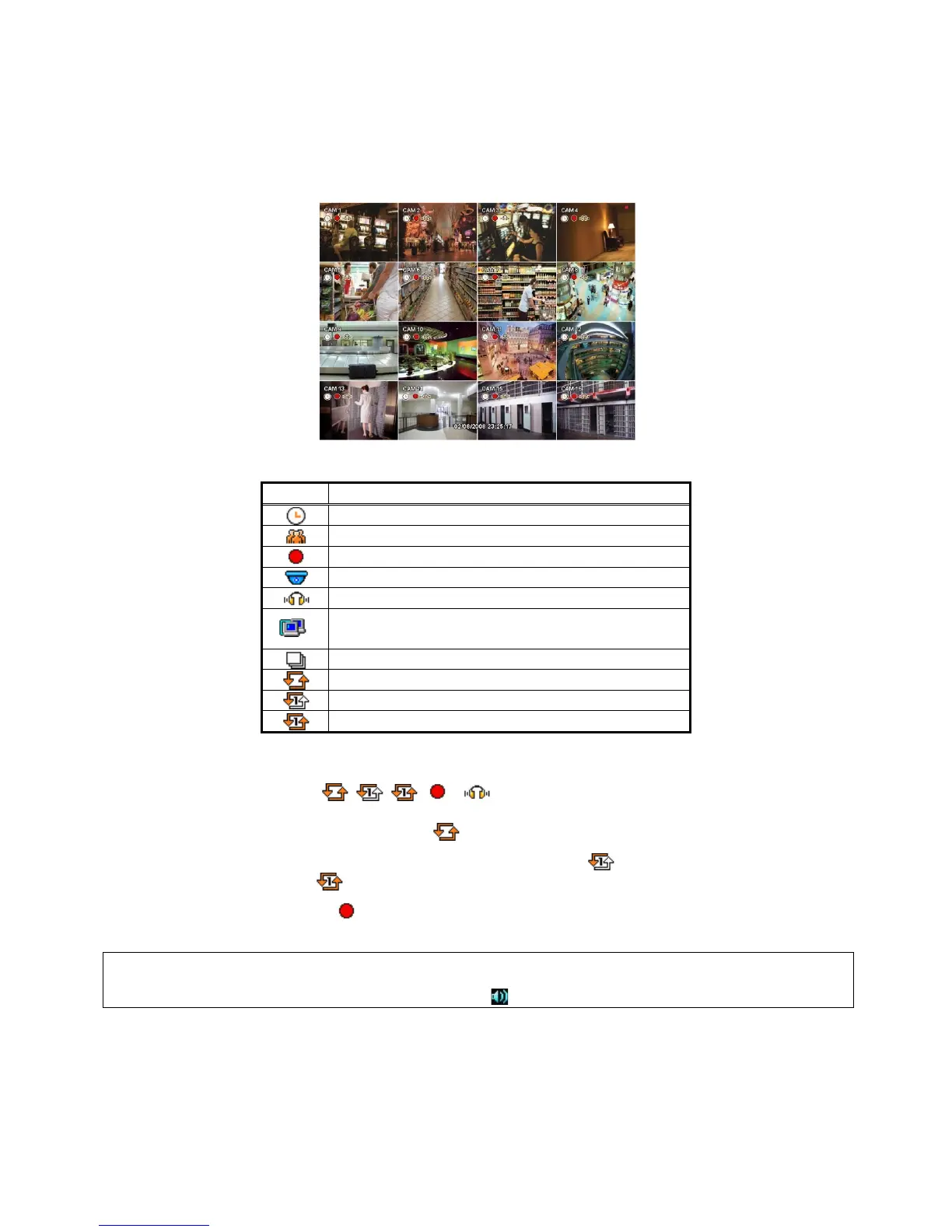
Power on DVR and the following live video will appear, while viewing and recording at the same time.
The screen will display date/time and icons below.
Icon Description
Setup in HDD None Overwrite mode(HDD Full)
On the right bottom side of the screen, disk usage will show by %.
On the left low side of the screen, , , , , icon will show as the progress.
At the normal state, HDD Overwrite mode is on and icon shows.
When Overwrite mode is off (see 4.2.1 Information>Record>Overwrite Setting), will show. And when the disk becomes
full, the icon will be changed into .
Click Emergency recording button, icon will show.
(NOTE)
When front key does not work well, please check whether the audio icon
is activated on the screen.
5.1.2 View Format
The available view formats when the Main Monitor is in viewing mode include Full Screen, Split Screen, Channel
Sequencing Screen and PIP screen.
- Full Screen: Please press camera select key (1~16) to view the corresponding camera image in full view format.


 To Next Page