5.1.6 System Log
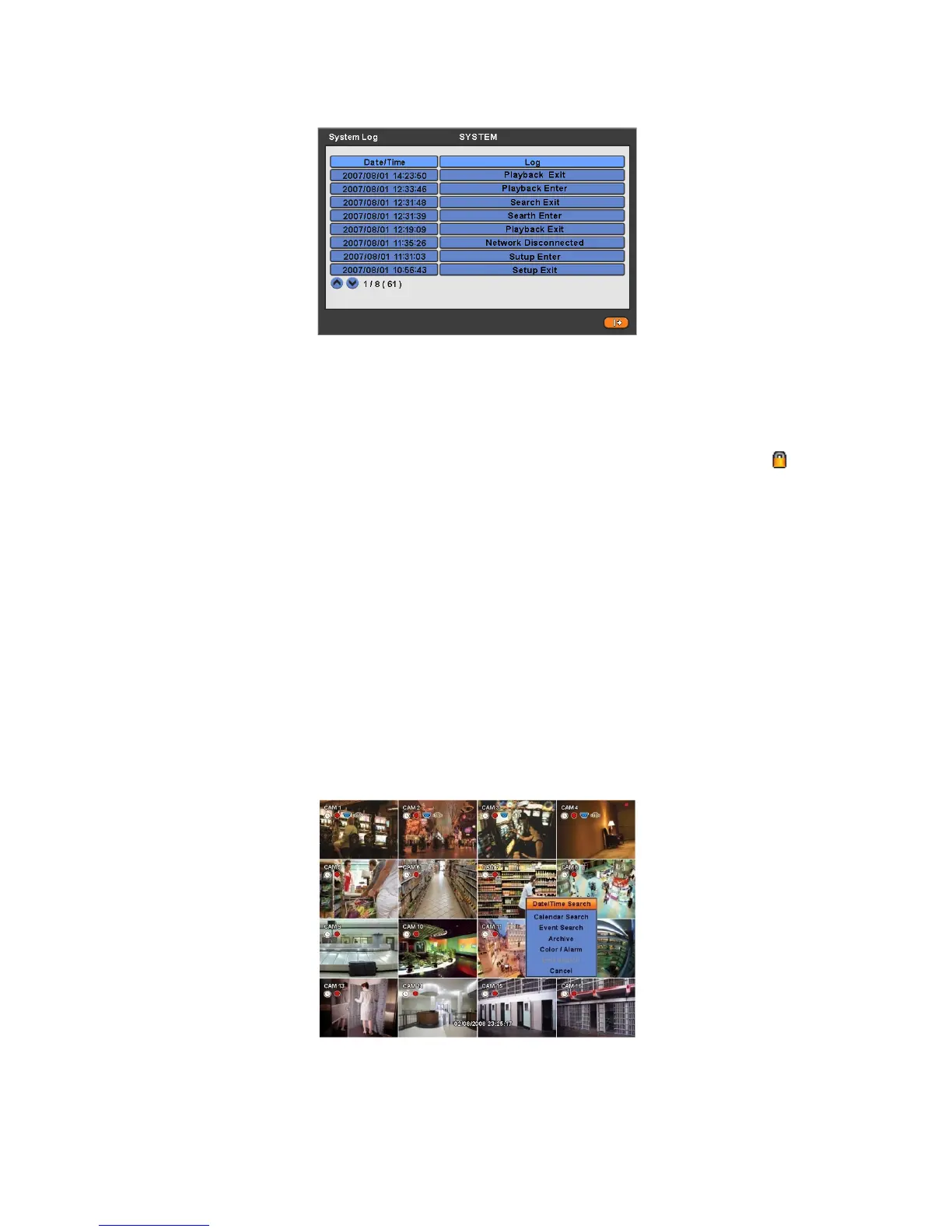
Press EVENT key and the System Log screen will appear.
Please refer ‘SETUP>SYSTEM>System Log’ to learn different events listed on the System Log and see how to delete the
System Log.
5.1.7 Key Lock
Press AUDIO>FF>FORWARD keys in sequence to operate the key lock function. This function is indicated by icon in
the lower portion on the right-hand side of the screen.
Once the Key Lock function is activated, user cannot use any key. If wish to use a key, please enter the correct password to
release the key lock function. If Password is not required, simply press ENTER key.
5.1.8 Emergency Recording
When user presses EMERGENCY key, recording starts right away regardless of preset recording mode.
Emergency recording is not operated while SETUP.
Press Emergency key one more time to stop the emergency recording.
5.2 Search
This involves searching recorded video to playback the wanted video of a specific date and time.
Press SEARCH key on the viewing screen, or Click Search menu at “Function Keys” and the following Search menu will
appear.
There are three ways to search video, i.e., by date/time and by calendar.
- Date/Time Search: search by inputting date/time.
- Calendar Search: search by using calendar.
- Event Search: search by event.


 To Next Page