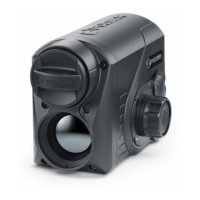
• Once paired, the Remote Control can operate the Pulsar device.
• Going forward, the Remote Control will automatically connect to the paired device when within visible
range.
• The name of the remote control and its battery charge level will appear in the list of paired devices at
the bottom of the display in the Bluetooth section of the menu.
STREAM VISION
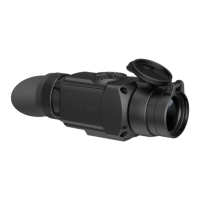
The Proton FXQ30 thermal imaging attachments support Stream Vision technology, which enables the
transmission of an image in real time from the attachment to your smartphone or tablet via Wi-Fi.
You can find further guidelines on Stream Vision here.
Download from Google Play
Download from App Store
Find answers to frequently asked questions about using Stream Vision here.
FIRMWARE UPDATE
1. Download free of charge Stream Vision App on Google Play or App Store.
2. Connect your Pulsar device to your mobile device (smartphone or tablet).
3. Launch Stream Vision and go to section “My Devices”.
4. Select your Pulsar device and press “Check Updates”.
5. Wait for the update to download and install. Pulsar device will reboot and will be ready to operate.
Important:
• if your Pulsar device is connected to phone, please turn on mobile data transfer (GPRS/3G/4G) to
download update;



 To Next Page