Operation User Action Result
Advanced
system
reset
Press and hold
the button for
15 seconds.
The default factory settings are restored.
To retrieve old data after an advanced system reset, recreate
the previous folder structure on the NAS.
USB One Touch Copy Button
The USB One Touch Copy button allows you to copy data backups from a USB device to the NAS or
from the NAS to a USB device.
This feature supports incremental backups. The NAS only copies les that were modied or added
after the last backup.
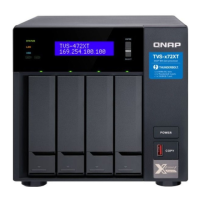
LCD Panel
The LCD panel allows you to perform the following operations:
• Restart and power o the NAS
• Congure or change the LCD panel password
• View and congure network settings
• View information on the system, physical disks, and volumes
Viewing TCP/IP Settings
You can view the following settings for each network adapter on the NAS:
• IP address
• Subnet mask
• Default gateway
• Primary DNS
• Secondary DNS
1. Press Enter or Select.
The panel displays the NAS name and QTS version.
2. Press and hold Enter for two seconds.
The panel displays Main Menu 1. TCP/IP.
3. Press and hold Enter.
The panel displays the IP address of the rst network adapter.
4. Press and hold Select to view the next TCP/IP screen.
5. Optional: Repeat step 4 as necessary.
TVS-x72XT User Guide
Basic Operations 53



 To Next Page