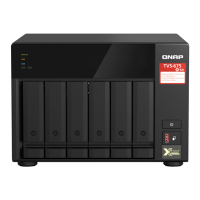
4. Click Remote NAS.
5. Click Add New Account.
The Create a Storage Space window appears.
6. Select the destination NAS as the destination storage space and specify the following:
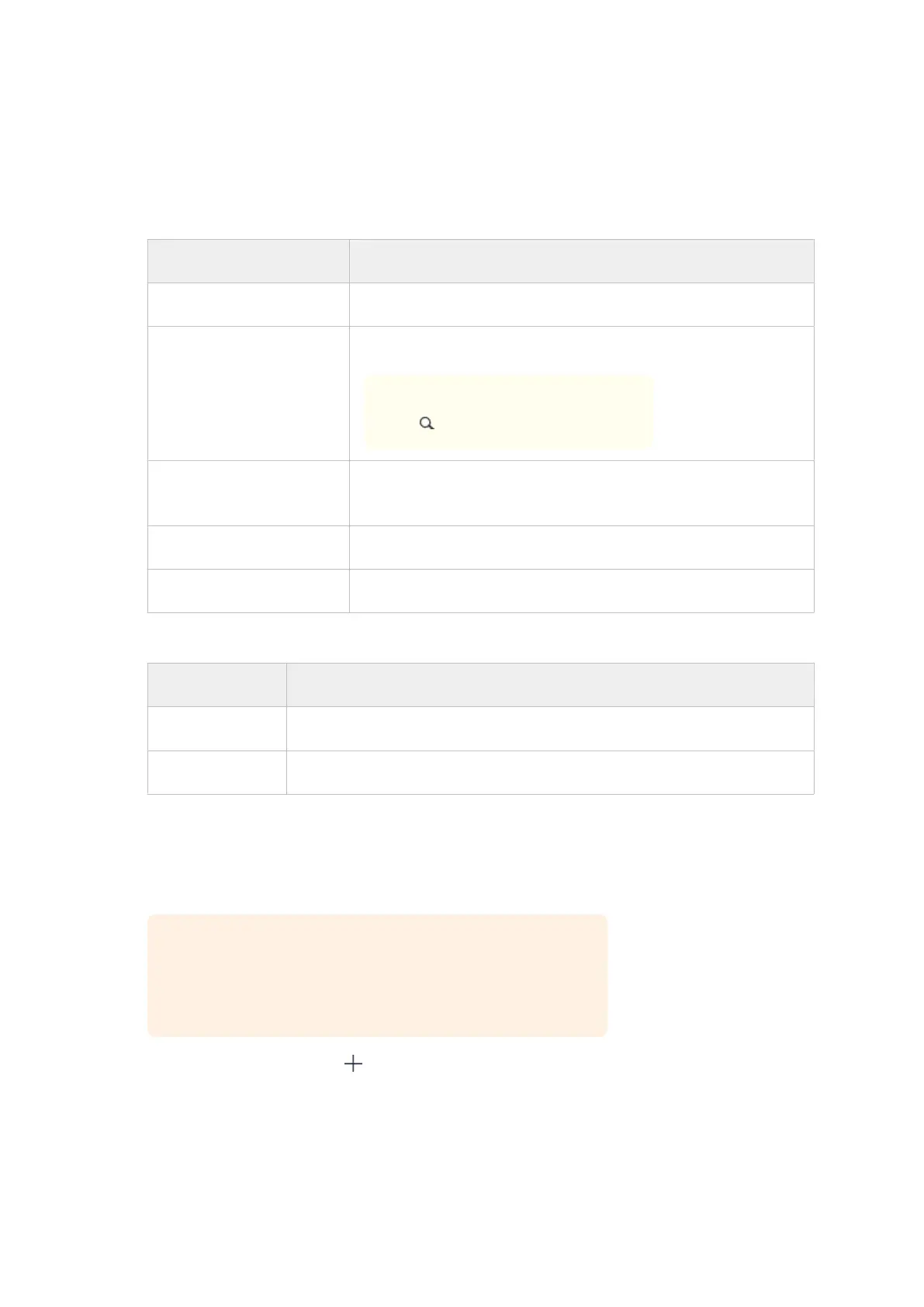
Setting Description
Name The name used to identify the storage space.
IP address / Host name The IP address or hostname used to access the storage space.
Tip
Click to scan for available devices.
Port The port number used to access the storage space.
This value must be between 1 to 65535.
Password The password used to access the storage space.
Use SSL connection Requires SSL connection when accessing the remote NAS.
7. Optional: Test the connection.
Test Description
Detect Server Tests the accessibility of the selected storage space.
Speed Test Tests the network connection speed of the selected storage space.
8. Click Create.
9. Click Select.
10. Select the paired folders.
Important
• All subfolders and les in the selected folder are selected.
• You can only sync up to 16 paired folders per job.
a.
Under the source, click .
A dialog box opens.
b. Select a folder.
c. Click OK.
The dialog box closes.
TVS-x72XT User Guide
NAS Migration 65



 To Next Page