To activate an action button, highlight the button by using the Scroll keys and press the
Enter key.
To go back to the previous menu, press the Escape key.
Chart views
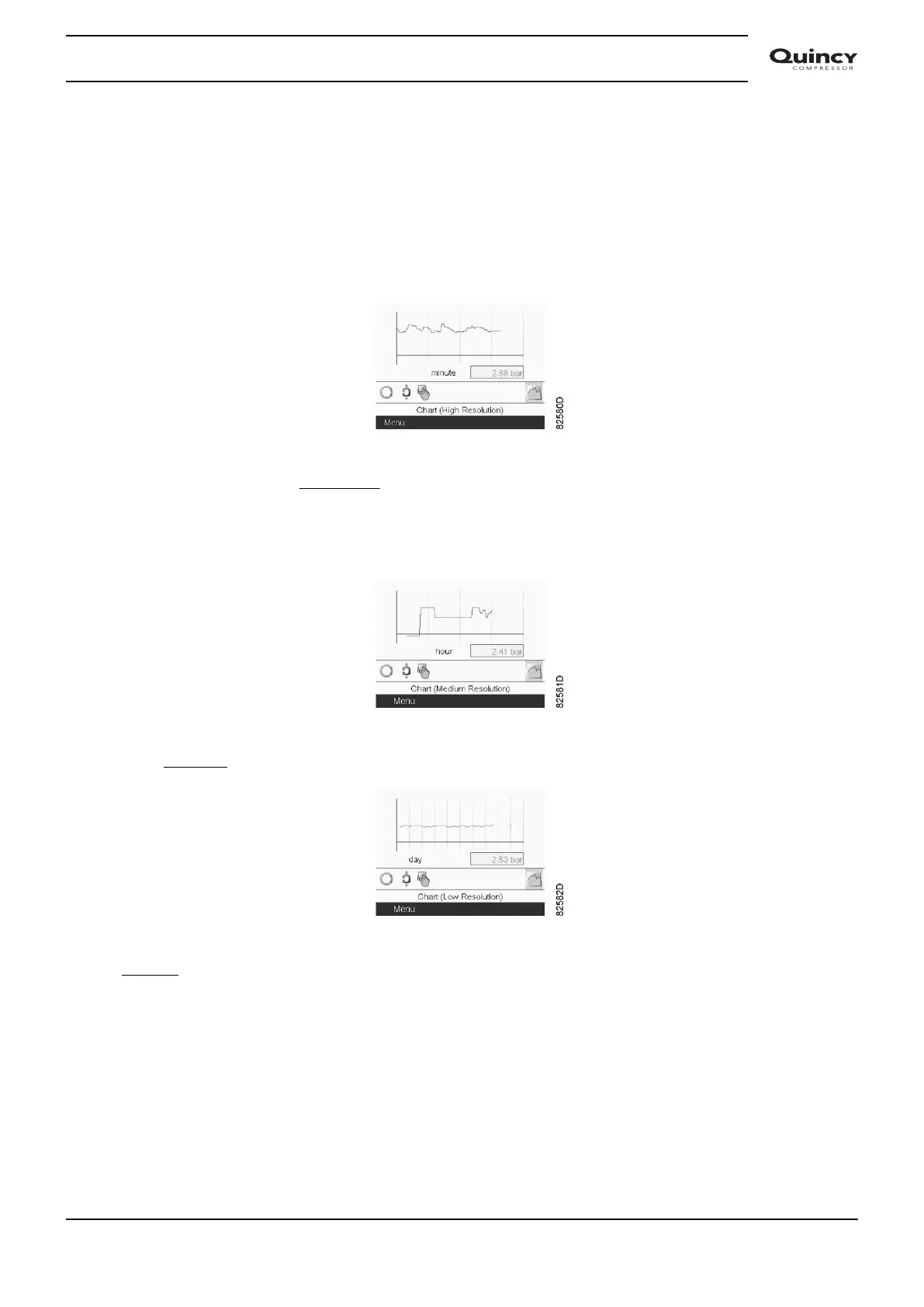
Instead of viewing values, it is also possible to view a graph of one of the input signals (see
section Inputs menu) in function of the time.
When Chart (High Resolution) is selected, the chart shows the variation of the selected input (in
this case the pressure) per minute. Also the instantaneous value is displayed. The screen shows
the last 4 minutes.
The switch button (icon) for selecting other screens is changed into a small Chart and is
highlighted (active).
When the Chart (Medium Resolution) is selected, the chart shows the variation of the selected
input per hour. The screen shows the last 4 hours.
When the Chart (Low Resolution) is selected, the chart shows the variation of the selected input
per day. The screen shows the evolution over the last 10 days.
Selection of a main screen view
To change between the different screen layouts, select the far right icon in the control icons line
(see value lines display icon or chart display icon in section Used icons) and press the Enter key.
A screen similar to the one below opens:
Instruction book
2920 7190 02 35



 To Next Page