Q150T Sample Preparation System
Q150T - Instruction Manual 23 10473 - Issue 5
4.2.1 Creating a New Profile
To create a new profile:
1. With Profile Editor displayed, tap on Profiles at the root of the profile ‘tree’.
2. Tap on the New button.
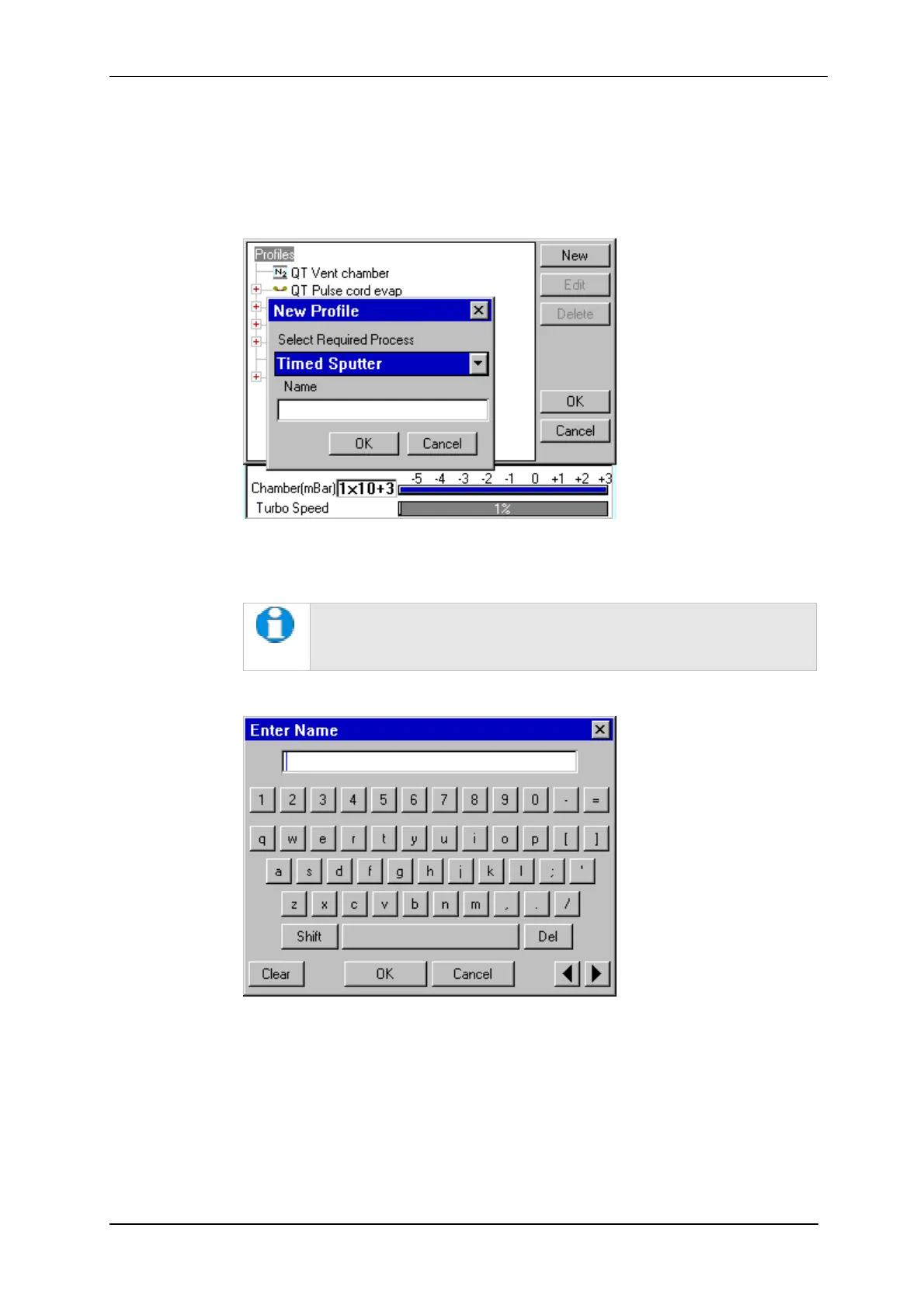
3. The New Profile dialog box is displayed (see Figure 4-2).
Figure 4-2. Creating a new profile
4. Choose the type of profile you want from the Select Required Process drop-down
list).
See Table 2 for a list of all the available processes. Note that the
processes listed are different for Q150T E, Q150T S and Q150T ES
models.
5. Enter a name for the profile: tap in the Name field to display the on-screen
keyboard (Figure 4-3) in the Enter Name dialog box.
Figure 4-3. Entering a new profile name
6. Tap on the OK button to confirm the changes to the profile. Alternatively, tap on
the Cancel button to close the dialog box without creating a new profile.
7. The new profile is created using the default settings for the chosen process type.
8. Now refer to the Editing Profile Parameters section, below.


 To Next Page
 Loading...