EasyManua.ls Logo

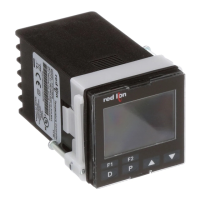
red lion PXU11A20 - User Manual

red lion PXU11A20
47 pages
Print Icon
To Next Page IconTo Next Page
Loading...
PXU Series
Temperature/Process Controllers
For Firmware Version 1.5 or Above
Hardware Guide | Jan 2018
LP0932 | Revision E

Questions and Answers

  • J
    Jessica MontesAug 4, 2025
    Why can't I access programming on my Red Lion Controller?
    • J
      Jason BullockAug 5, 2025
      If you cannot access programming on your Red Lion Controller, it could be because an active User Input is programmed for PLOC; deactivate the User Input. Alternatively, you may have entered an incorrect access code. Enter the proper access code at the CodE 0 prompt (111 or -111 is the universal access code).
  • C
    christine52Aug 9, 2025
    Why is there no display on my Red Lion Controller?
    • B
      Barbara DavisAug 9, 2025
      If there is no display on your Red Lion Controller, it could be due to several reasons. First, check if the power is off. Second, a brown-out condition might be present, so verify the power reading. Third, there might be a loose connection or improper wiring, so check all connections. Lastly, ensure the controller is fully seated into the case by checking the installation.
  • J
    Julia AndersonAug 13, 2025
    What to do if red lion PXU11A20 Controller shows '????' in the top display?
    • F
      fjenkinsAug 13, 2025
      If your Red Lion Controller displays '????' in the top display, it could be due to several reasons. It may be that the input exceeds the range of the controller, so check the input parameters. Alternatively, the temperature might exceed the range of the input probe, so change to an input sensor with a higher temperature range. Also, the transmitter or probe could be defective or incorrect, so replace them. Finally, the temperature may be too high for the probe, so reduce the temperature.
  • L
    lauraperezAug 17, 2025
    What to do if red lion PXU11A20 shows ' . . . ?. . .' or 'IN' in display?
    • C
      Candice BuckAug 17, 2025
      If your Red Lion Controller displays ' . . . ?. . .' or 'IN', it might be because the display value exceeds the 4-digit display range, so check the input parameters. Another reason could be a defective or miscalibrated cold junction circuit, so change the display resolution or scaling.
  • W
    wagnerkennethAug 22, 2025
    Why is my red lion PXU11A20 Controller sluggish or not stable?
    • A
      Ashley LevyAug 22, 2025
      If your Red Lion Controller is sluggish or not stable, it could be due to incorrect PID values. Also, the probe location could be incorrect; evaluate its placement.
  • J
    Julia KaneAug 26, 2025
    What to do if red lion PXU11A20 shows '????' in display?
    • B
      Brian MorenoAug 26, 2025
      If your Red Lion Controller displays '????' in the display, it could be due to a disconnected probe, so check the probe wire or change the probe. Another reason might be a broken or burned-out probe, so check the sensor input type selection.
  • M
    Michael ForbesAug 30, 2025
    What to do if Red Lion Controller shows '????' in top display?
    • T
      Travis DanielsAug 30, 2025
      If your Red Lion Controller displays '????' in the top display, it could be because the input is below the range of the controller, so check the input parameters. It may also be that the temperature is below the range of the input probe, so change to an input sensor with a lower temperature range. Also, the transmitter or probe could be defective or incorrect, so replace the transmitter or probe. Finally, the temperature may be excessively low for the probe, so raise the temperature.

Summary

Safety Summary

Ordering Information

General Specifications

EMC Installation Guidelines

Setting the Jumpers

Installing the Controller

Wiring the Controller

Wiring Connections

Explains how to make wiring connections to the rear screw terminals safely.

Control and Alarm Output Connections

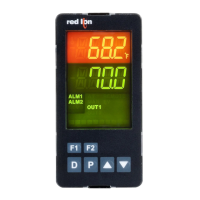
Front Panel Keys and Display

Describes the function of front panel keys and the top/bottom displays.

Programming Loops

Programming Loop Navigation

Display Loop

Explains how to navigate and view parameters in the Display Loop.

Parameter Loop

Details how to access and change parameters in the Parameter Loop.

Parameter Descriptions

PID Group

Explains selecting PID groups for different setpoint configurations.

Active Setpoint Value

Describes how to view and change the active setpoint value.

Controller Status

Details indicators for profile run status like Run, Stop, Pause, and Delay.

Profile Status

Explains the four-digit display indicating profile run status and segment details.

Module 1 - Input Parameters

Input Type

Selects the appropriate input type (TC, RTD, VDC, mA) for the connected sensor.

Input Parameter Details

Setpoint Low Limit

Restricts the setpoint value from going below a safe operating area.

Setpoint High Limit

Restricts the setpoint value from going above a safe operating area.

Remote Input Type

Selects the input type for the remote setpoint signal.

Module 2 - Output Parameters

Control Action

Determines the action (Reverse or Direct) for each output.

Control Mode

Selects the control mode for the output, such as PID or On/Off.

Setpoint Control Mode

Selects how the controller uses setpoints: fixed, profile, or remote.

Module 3 - Lockout Parameters

Parameter Lockout Configurations

Sets access levels for various parameters to control user visibility and editability.

Module 4 - Alarm Parameters

Alarm Action Configurations

Sets alarm actions, annunciators, reset modes, and standby options.

Alarm Parameter Details

Available Alarm Actions

Lists various alarm actions like Absolute High/Low, Deviation, Band Acting.

Alarm 1 Actions

Configures action, annunciator, reset mode, standby, value for Alarm 1.

Alarm 2 Actions

Configures action, annunciator, reset mode, standby, value for Alarm 2.

Alarm Parameter Details Continued

Alarm 3 Actions

Configures action, annunciator, reset mode, standby, value for Alarm 3.

Module 5 - Control Parameters

PID Group Parameter Programming

Selects and edits PID parameter groups for specific setpoints.

Reference Setpoint SP1-SP6

Associates setpoint values with PID groups for automatic selection.

Module 6 - Profile Module Parameters

Module 7 - Serial Communications Parameters

Communications Protocol Configuration

Configures communication type (RTU/ASCII), baud rate, data bits, parity, and unit address.

Serial Communications

Crimson Software Configuration

Guides on using Crimson software for PXU configuration and data transfer.

PXU Modbus Register Table

Lists frequently used Modbus registers for PXU data access and control.

Module 9 Factory Service Operations

Troubleshooting

Control Mode Explanations

On;Off Control

Describes how the process oscillates around the setpoint with ON/OFF control.

PID Control

Explains PID control using Proportional, Integral, and Derivative parameters.

PID Tuning Explanations

Auto-Tune

Details the user-initiated function to automatically determine PID parameters.

Manual Tuning

Provides an alternative method for tuning PID parameters when Auto-Tune is insufficient.

Setpoint Profile Operation

Profile Overview

Describes the PXU's capability for ramp/soak profile operation with segments and timing.

Setpoint Profile Configuration

Details how to set up profiles, including SEPE parameter and Line 2 display parameters.

Setpoint Profile Operating Modes

Explains modes like Run, End/Stop, Pause, and Delay for profile execution.

Controlling a Profile

Profile Control Operations

Covers profile start, end/stop, and advance operations via various methods.

PXU Modbus Register Table

red lion PXU11A20 Specifications

General IconGeneral
ModelPXU11A20
CategoryController
Operating Temperature0 to 50 °C
CertificationsCE, UL
Output 1Digital
Output 2Analog
Supply Voltage24V DC
DisplayLCD
Communication ProtocolModbus
Power Consumption5 W
Storage Temperature-20 to 75 °C
Humidity5% to 95% non-condensing
Enclosure RatingIP20

Related product manuals