40 | System Testing & Operation
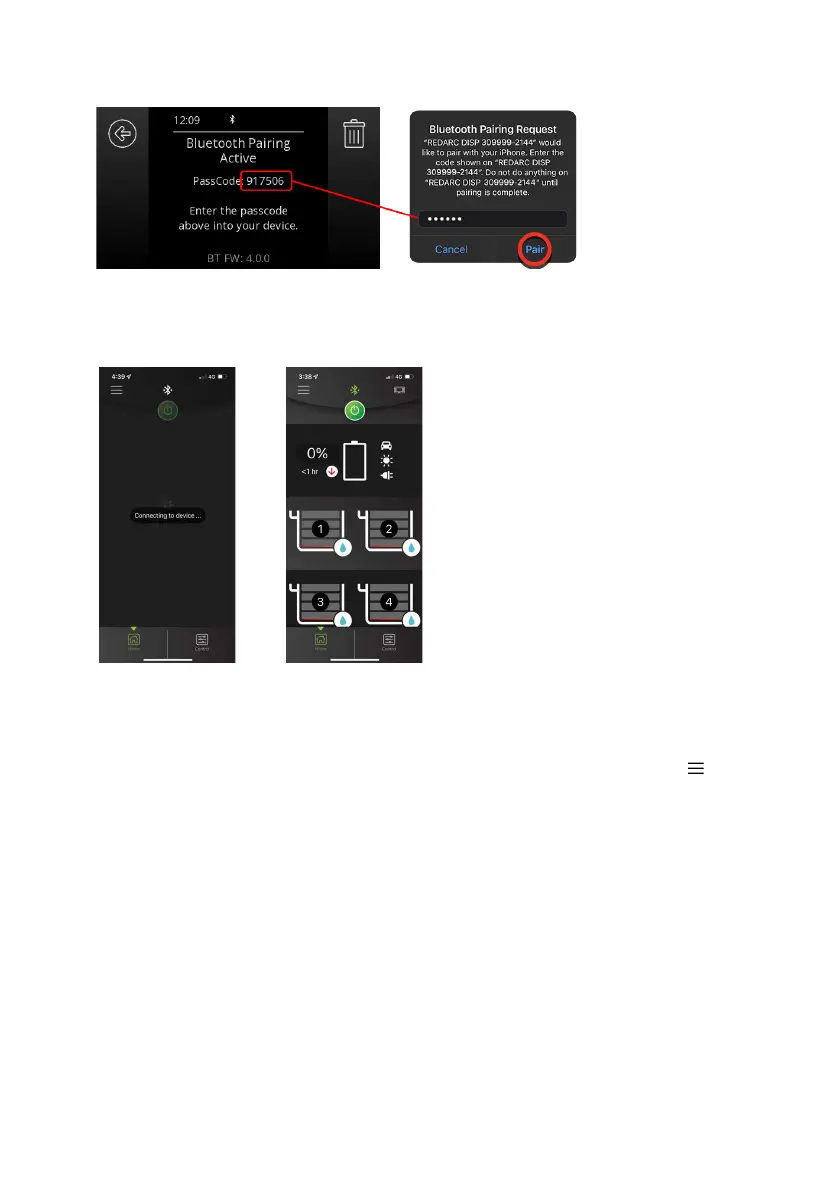
6. Enter the Passcode shown on the Display into the input field, then tap Pair.
7. Once you smartphone is successfully paired, the Device Status screen will be displayed. This
can take a few minutes.
SUBSEQUENT CONNECTIONS
Once a smartphone has been paired with the RedVision
®
Display, it will automatically reconnect
when the RedVision
®
App is opened and that Display is selected — Tap the Menu icon ( ) at the
top right, then select the Display from the list of Devices.
PAIR MULTIPLE SMARTPHONES
The RedVision
®
Display can be paired to multiple smartphones, however it can only be
monitored/controlled by one smartphone at a time. When the RedVision
®
App is minimised on
one smartphone, the RedVision
®
App can be opened on another smartphone and will connect
automatically if it has previously been paired.
To pair another smartphone, repeat the steps 'Pair the RedVision® App to the Display'(page39).


 To Next Page