5.4
R-LINK STORE (1/4)
Downloading and installing
applications from R-Link
Store
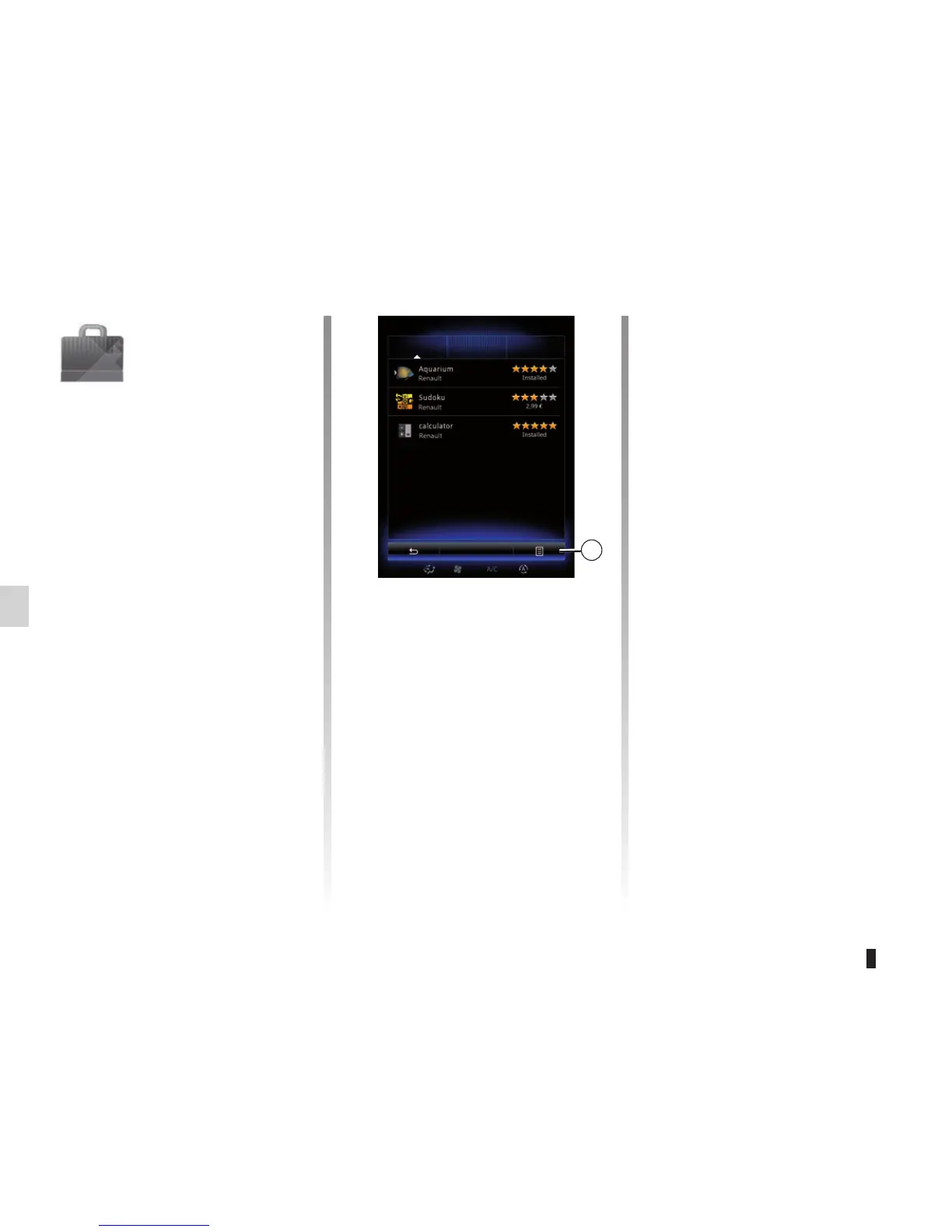
The available apps are classified in
three tabs:
– “Select”: presents a selection of
apps;
– “Best”: classifies apps by order of
popularity;
– “Category”: shows apps by theme
(entertainment, maps, etc.)
Select an application to get a descrip-
tion.
The pop-up menu 1 grants access to
the following elements:
– “Find”: enables you to search for an
element using a keyword;
– “Update list”: enables you to search
for available updates for apps, serv-
ices and content installed;
– “My products”: gives a summary of
the elements bought along with the
expiry dates for the products con-
cerned;
– “Legal information”: displays the
legal information about R-Link Store.
R-Link Store
Select
Best
Category
Find
1
“R-Link Store”
Menu
From the home screen, press Menu,
Apps then R-Link Store to access the
online store. It enables you to purchase
apps, services and content. R-Link
Store can be accessed directly from
your multimedia system or from an
Internet-enabled computer.
Note: Some products can only be pur-
chased from R-Link Store via a com-
puter connected to the Internet. In this
case, a message will be displayed to
notify you. Please refer to “Downloading
and installing applications from a com-
puter” in this section.
Note: Some applications require pay-
ment. For further information about
buying apps, please see the general
conditions of sale.



 To Next Page