R 17A User’s Manual – Page 97
Autosave
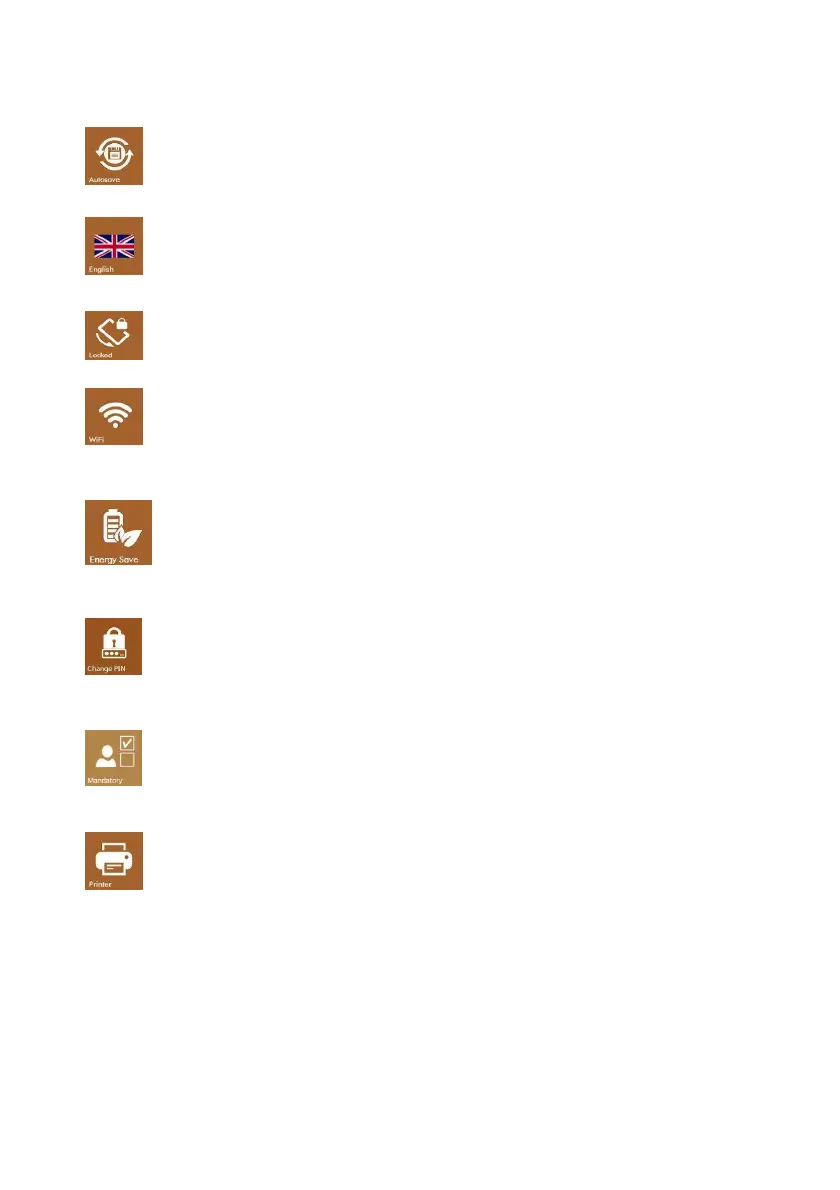
Press the AUTOSAVE icon (see adjacent image) to enable the autosave mode. If enabled, once
selected a patient, every performed test will be automatically stored into the data-base after
pressing the EXIT icon; if disabled a pop up window will be displayed asking for confirmation.
Language
Through the LANGUAGE button (see adjacent image) you can select the interface language.
By pressing this icon a menu with all the available languages will be opened.
Rotation block
Some of the tests provide for their visualization either horizontally or vertically: the
visualization is automatically set by rotating the instrument. This option allows to block the
rotation keeping the display horizontal.
Wi-Fi
By pressing the WIFI icon (see adjacent image) a window allowing the connection to a Wi-Fi
network will. This icon is active only when a Wi-Fi USB dongle is inserted in the USB host port.
This option can be used to check the connection with the wireless printer.
Power management
In order to improve the battery operating autonomy, you can set 3 different power modes:
energy saving, balanced mode and performing mode. Based on the selected mode the
display backlight and the unit automatic switching off will change. When the unit is
connected to the power supply and the performing mode is selected, the display remains
constantly backlit.
PIN code change
By pressing this icon, you can change the PIN code by typing in any 4-digit numeric code or
disable the PIN code request at power on. Please note that in order to change or disable the
PIN you need to type in the one currently in use first.
Patient data mandatory fields
Pressing this key gives access to a menu where it is possible to define the minimum fields
necessary for the creation of a new patient. It is possible to set only a numeric code or activate
the fields like name, surname, etc.
Print-out
By pressing the PRINT icon (see adjacent image) you can set the print options for the optional
portable printer.
You can select the printing-out of the following fields:
Unit serial number and logo
Patient’s data
Calibration expiry date
Lines for comments after the heading
Lines for comments after every test



 To Next Page