MINI 3D Scanner User Manual
9 COPYRIGHT ©2022 REVOPOINT 3D ALL RIGHTS RESERVED
2. New Scan
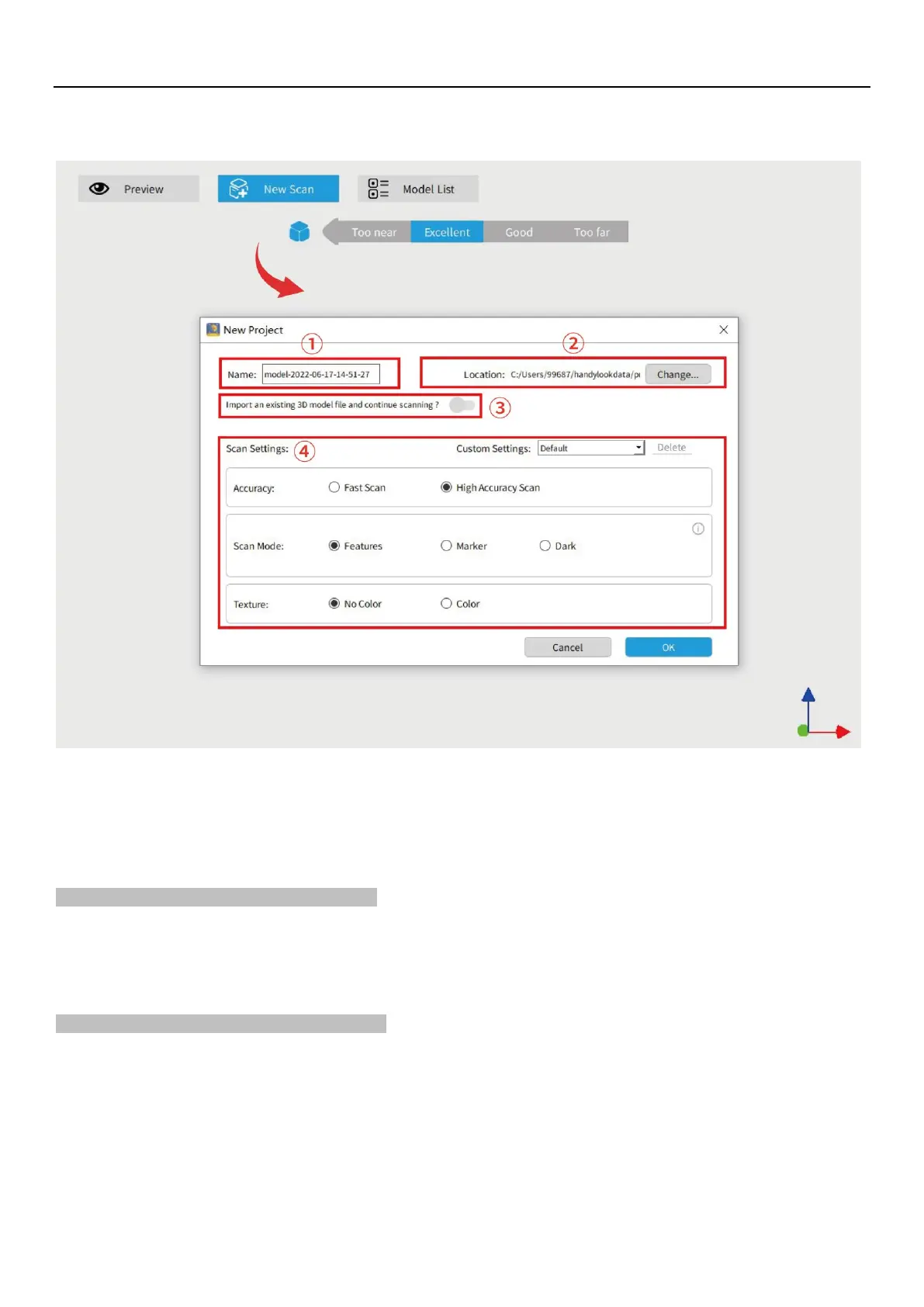
①
Name
: Display the default name of the model to be created. Rename as needed.
②
Location:
Display the file folder of the model to be saved. Change as needed.
③
Import an external model:
Turn on and click “Browse” to import a 3D model in .PLY, .OBJ or .STL formats
into Revo Scan to continue scanning and capture more details.
④
Scan Settings:
Accuracy: Fast Scan and High-Accuracy Scan
Fast Scan:
Faster scanning, but the accuracy in this mode is relatively lower than with High-Accuracy scans.
High Accuracy Scan:
Added to meet users' needs for higher-precision data capturing. In High Accuracy mode, the
processing time for point cloud fusion/mesh/texture operations will be relatively longer.
Scan Mode: Include Feature, Marker and Dark
Feature:
Designed to scan objects with unique shapes such as sculptures and easily identifiable features.
Marker:
Designed to scan objects that have large, smooth areas or regularly-repeating features. Flat planes like a board
or symmetrical objects like balls or bowls are usually suitable to scan with this mode. Models scanned in
handheld mode should have tracking markers distributed across the object irregularly to avoid repeating
patterns. The scanner determines the relative location of each frame of the point cloud by identifying the
unique patterns formed by the markers. It’s recommended to keep three or more tracking markers (red dots in


 To Next Page