MINI 3D Scanner User Manual
23 COPYRIGHT ©2022 REVOPOINT 3D ALL RIGHTS RESERVED
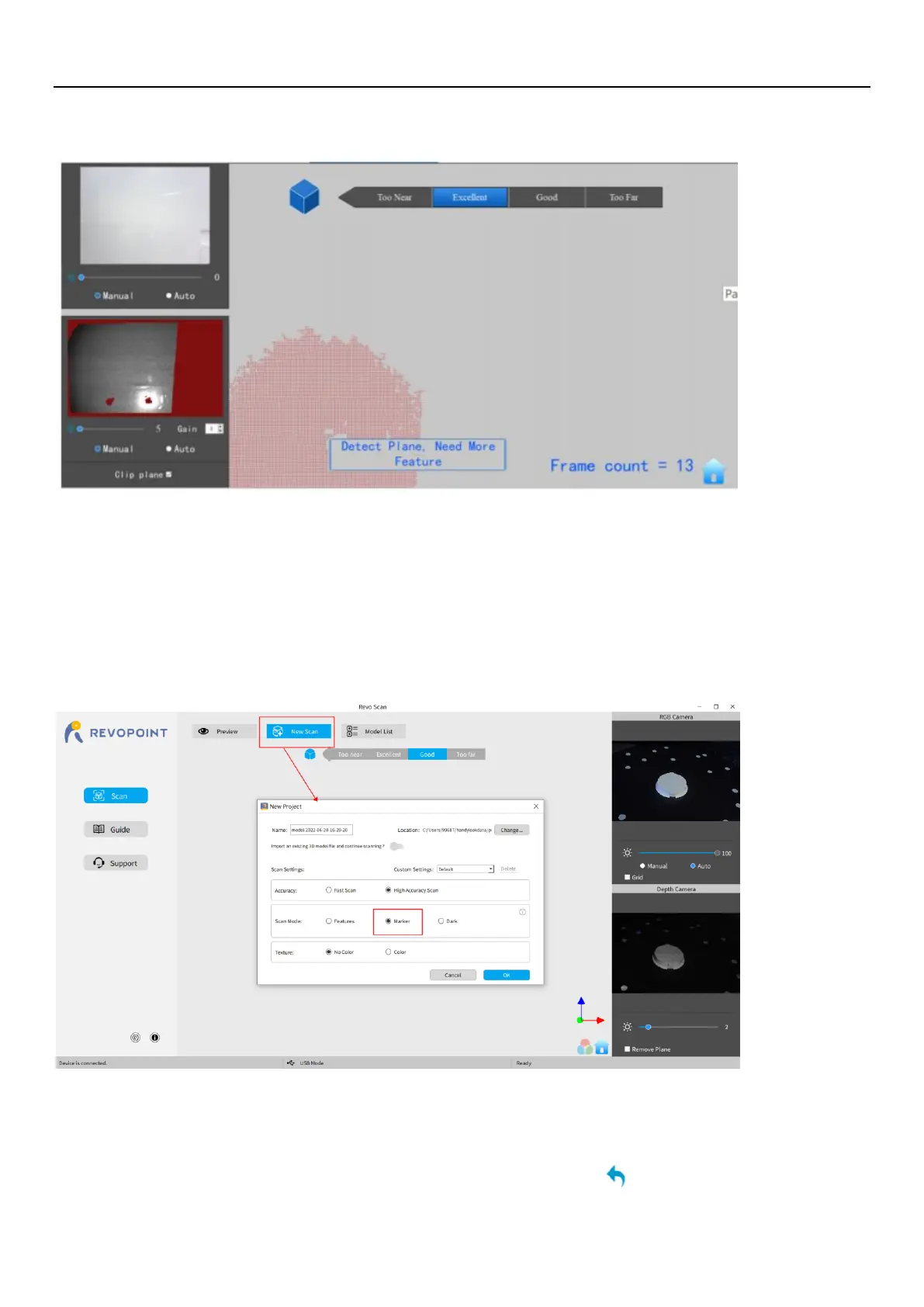
Detect Plane
Scanning a plane or objects lacking features can cause the scanner to loose tracking resulting in a prompt displaying the
“Detect Plane, Need More Feature” error. If no usable data has been scanned, the best course of action is to Stop scanning,
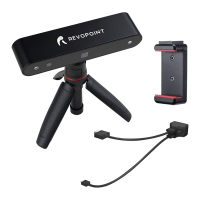
select Restart to clear out the useless data, then start a new project, This time select Marker Mode and place additional
tracking markers on surface or surrounding area to increase the number of tracking markers in the main viewport so that 3
or more trackers are visible during the scanning process. If a significant amount of scan data has been acquired, then pause
the scan, use Undo as necessary to eliminate misaligned points, then Stop, Complete and Export the scan data before
continuing in Marker mode.
Undo/Redo scan
If a point cloud alignment error appears during scanning, you can click “Undo” repeatedly to the point that the 3D


 To Next Page