MINI 3D Scanner User Manual
19 COPYRIGHT ©2022 REVOPOINT 3D ALL RIGHTS RESERVED
Mesh
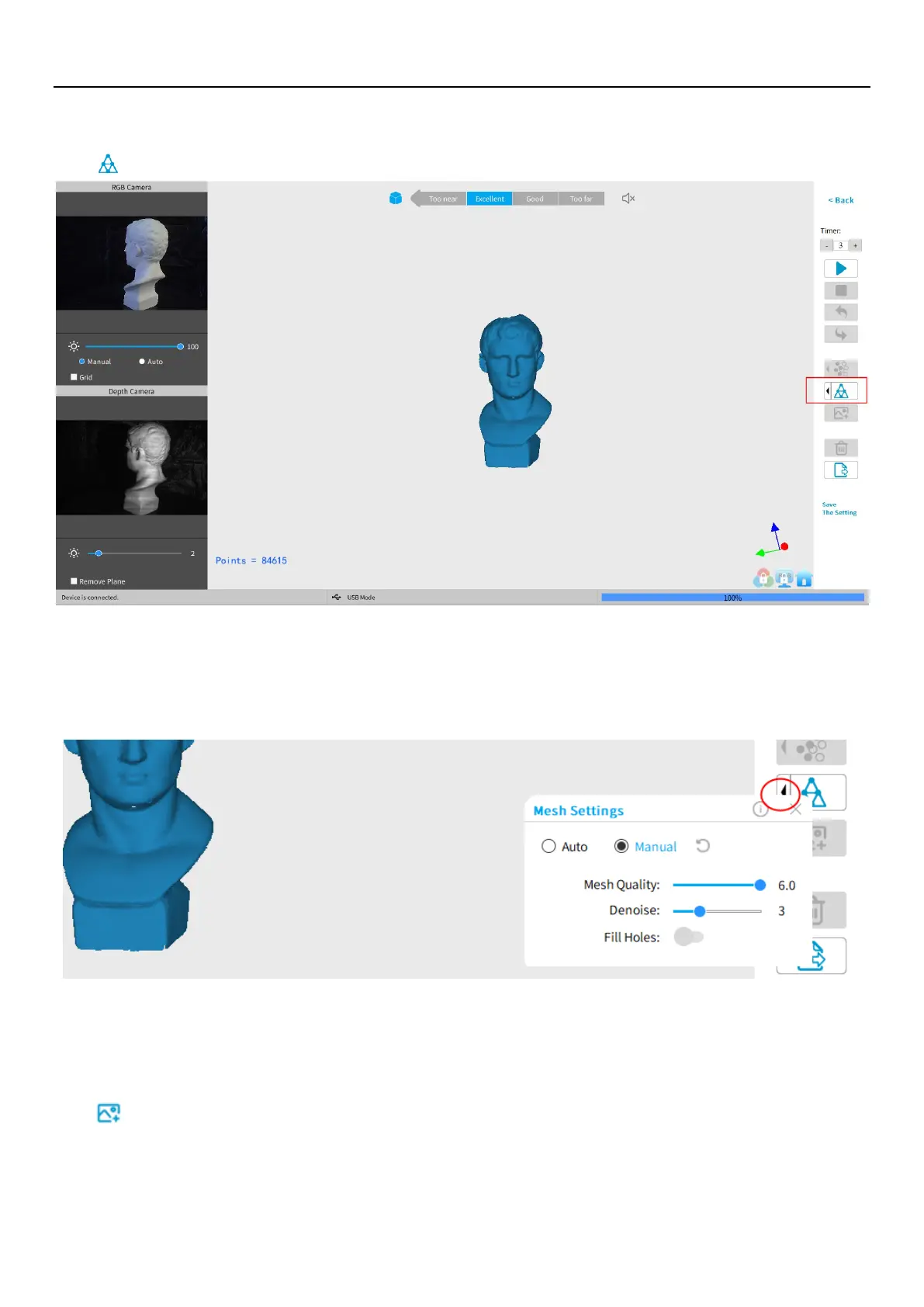
Click to start converting the scanned point cloud data into a mesh.
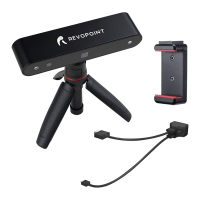
Setting for Mesh Quality Denoise, and Fill Holes are provided in the drop-down box for both Auto and Manual modes:
With higher Mesh Quality settings, more details are captured in the resulting model, at the expense of longer processing
times. The higher the Denoise setting, the smoother the result. Depending on the object, high levels of noise reduction may
result in lost detail. The Fill Holes feature can produce undesirable results if the holes in the point cloud are too large.
Texture
The Texture function only applies to scans made with the "Color" option selected (see New Scan options on p. 9).
Click to apply texture to the model.


 To Next Page