MINI 3D Scanner User Manual
COPYRIGHT ©2022 REVOPOINT 3D ALL RIGHTS RESERVED 6
Hardware Connection
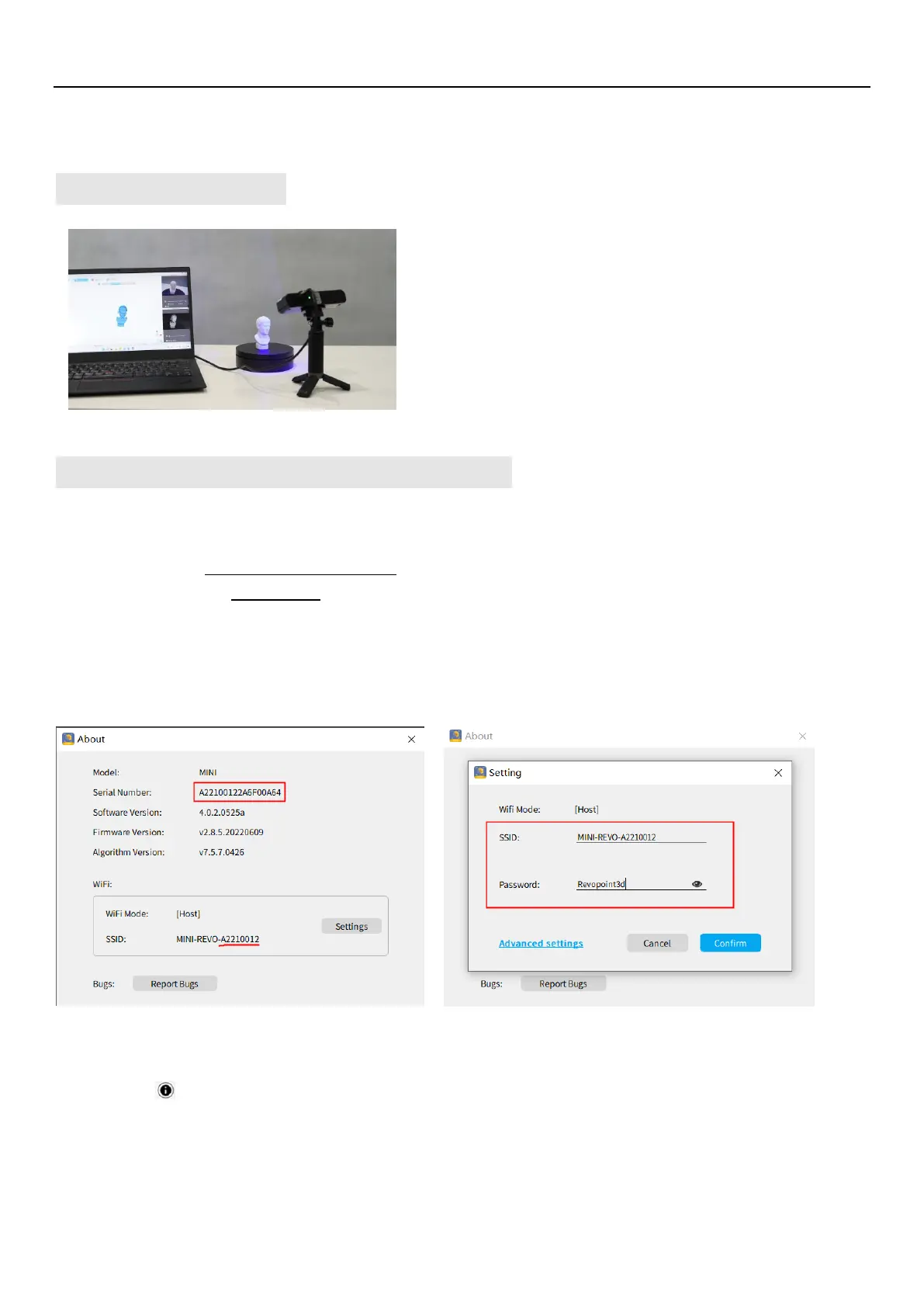
Laptop Connection
Wireless Connection to a Smartphone
For Wi-Fi settings, Host mode is default. In this mode, a smartphone is capable of connecting to the Wi-Fi signal
transmitted from by the MINI 3D scanner.
The default SSID is: MINI-REVO-XXXXXXXX
The default Password is: Revopoint3d
Note: Capitalize the first letter of “Revopoint”.
For example: If the Serial Number of one MINI 3D scanner is:
A2210012
2A6F00A64.
The Default SSID: MINI-REVO-A2210012
The Default Password: Revopoint3d
How to revise the SSID and Password:
1. Connect MINI 3D scanner to a PC via USB cable and Open the Revo Scan Application ;
2. Click About --
→
Settings;
3. Delete the default SSID and Password to enter the new desired ones.
Note: For an SSID, enter 1-32 characters; for a Password, enter 8-32 numbers, English letters or punctuation marks in any
combination (no space characters).
Make sure the MINI scanner is connected to a USB
3.0 or above port. USB 2.0 is insufficient at
supplying adequate current to the device and will
result in repeated power resets and connectivity
issues.


 To Next Page