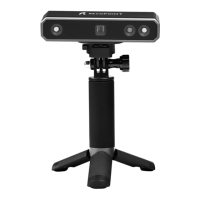
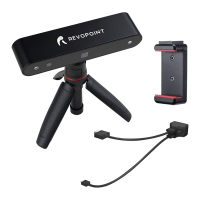
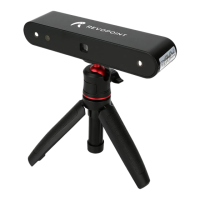
MINI 3D Scanner User Manual
COPYRIGHT ©2022 REVOPOINT 3D ALL RIGHTS RESERVED 2
Table of Content
Product Profile ........................................................................................................................................................................... 3
Introduction ....................................................................................................................................................................... 3
Specifications .................................................................................................................................................................... 4
Packing List ....................................................................................................................................................................... 5
Hardware Connection ................................................................................................................................................................ 6
Laptop Connection ............................................................................................................................................................ 6
Wireless Connection to a Smartphone ........................................................................................................................... 6
Indicator Legend ................................................................................................................................................................ 7
Software Installation .................................................................................................................................................................. 7
System Requirements ........................................................................................................................................................ 7
Install Software .................................................................................................................................................................. 7
Revo Scan- UI Introduction ....................................................................................................................................................... 8
1. Main Menu Panel .......................................................................................................................................................... 8
2. New Scan ...................................................................................................................................................................... 9
3. Scanning UI ................................................................................................................................................................. 10
4. Model List ................................................................................................................................................................... 12
Revo Scan - Workflow ............................................................................................................................................................ 12
Confirm "Device is connected" ....................................................................................................................................... 13
Click New Scan to select Accuracy, Scan Mode and Texture ......................................................................................... 14
Confirm distance to be "Excellent" ................................................................................................................................. 14
Adjust the brightness in the RGB Camera and Depth Camera ........................................................................................ 15
Start or Pause Scanning ................................................................................................................................................... 16
Complete/Restart Scanning ............................................................................................................................................. 17
Mesh ................................................................................................................................................................................ 19
Texture ............................................................................................................................................................................. 19
Export .............................................................................................................................................................................. 20
Operation Tips ......................................................................................................................................................................... 22
Lose Track ....................................................................................................................................................................... 22
Too Few Points ................................................................................................................................................................ 22
Detect Plane ..................................................................................................................................................................... 23
Undo/Redo scan............................................................................................................................................................... 23
Continue Scan .................................................................................................................................................................. 24
Batch Processing ............................................................................................................................................................. 25
Keyboard Shortcuts ......................................................................................................................................................... 25
Warning ................................................................................................................................................................................... 26
Support & Help ....................................................................................................................................................................... 27
Contact Us ............................................................................................................................................................................... 27


 To Next Page
 Loading...