MINI 3D Scanner User Manual
COPYRIGHT ©2022 REVOPOINT 3D ALL RIGHTS RESERVED 8
Revo Scan- UI Introduction
In this section, we will introduce the user interface.
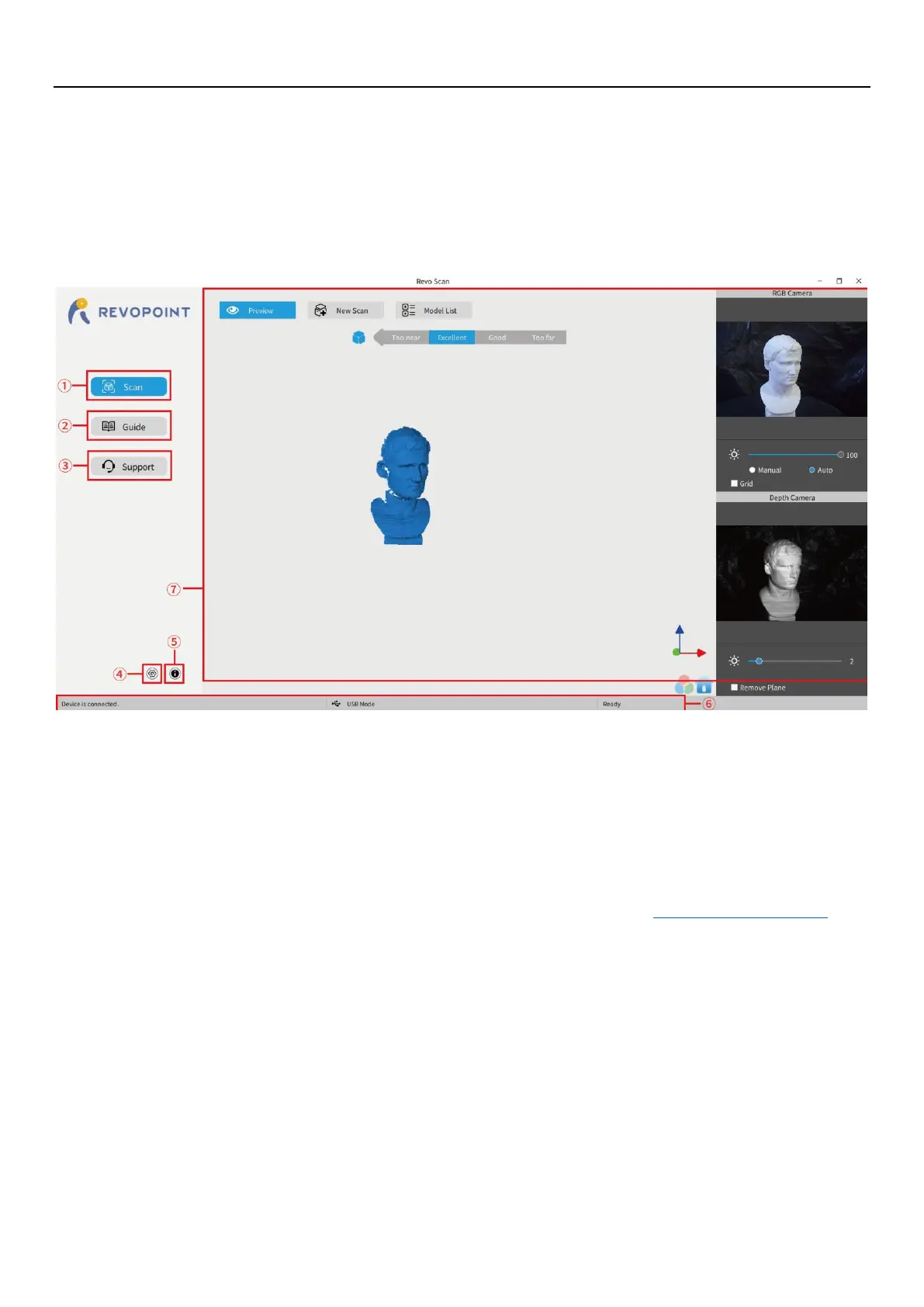
1. Main Menu Panel
①
Scan:
Access the Preview, New Scan and Model List functions. The ‘Preview’ command displays the scanning
as currently configured. The ‘New Scan’ command brings up the configuration popup (see Section 2 on
page 9). The Model List command lists the library of stored scans with the option to perform various
operations on individual files or process multiple files in Batch mode.
②
Guide:
Present the User Manual, Quick Start Guide and Scanning Tips, plus a link to the latest software.
③
Support:
Provide links to the Online Help, FAQ and Forum, plus a link for Feedback. The Online Help allows our
Customer Service Team to support users in a timely manner to product specific questions and feedback
can be submitted to the Revopoint support team via the following email support@revopoint3d.com.
④
System Settings:
Specify language and data storage location, plus the hardware accelerated rendering switch for the
computer’s GPU.
⑤
About:
Display the version information for the scanner and Revo Scan, confirm or configure Wi-Fi and report
bugs.
⑥
Status Bar:
Display the MINI’s connection status, connection mode and scan readiness.
⑦
Display the content for the operation specified in
①
,
②
or
③
.


 To Next Page