Troubleshooting
111
9
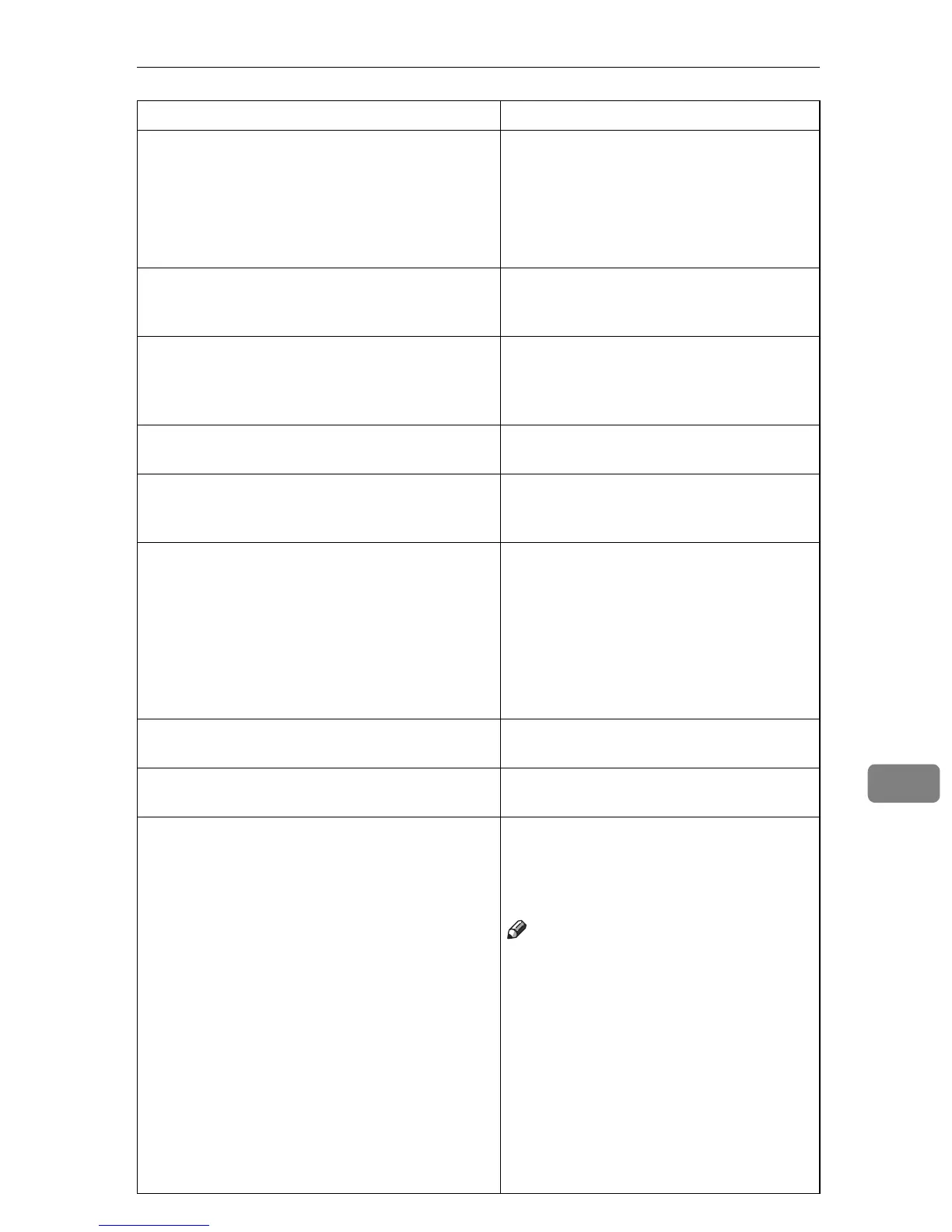
[Cannot find the scanner. Check if the scanner main
power is on.]
• Check whether the main power switch
of the machine is turned off.
• Check whether the machine is connect-
ed to the network correctly.
• Deselect the personal firewall function
of the client computers.
[Cannot specify any more scanning area.] The maximum number of scanning areas
that can be stored is 99. Delete unneeded
scanning area.
[Clear Misfeed(s) in ADF.] Remove the originals jamming. When the
originals are misfed, place them again.
Check whether the originals are proper to
be scanned by the machine.
[Cannot add any more scanning mode.] Check whether the client computer can use
the TCP/IP protocol.
[Error has occurred in the scanner.] Check whether the scanning settings made
with the application exceed the setting
range of the machine.
[Error has occurred in the scanner driver.] • Check whether the network cable is
connected correctly to the client compu-
ter.
• Check whether the Ethernet board of
the client computer is recognized cor-
rectly by Windows.
• Check whether the client computer can
use the TCP/IP protocol.
[Fatal error has occurred in the scanner.] An recoverable error has occurred in the
machine. Call your service representative.
[Insufficient memory. Close all other applications, then
restart scanning.]
Close all the unnecessary applications run-
ning on the client computer.
[Insufficient memory. Reduce the scanning area.] • Reset the scan size.
• Lower the resolution.
• Set with no compression. See p.21
“Send Settings”.
Note
r “The Relationship between the Resolu-
tion and the Scanning Area” chart in
Help for halftone scanning might not al-
ways apply. Scanning cannot be per-
formed if large values are set for
brightness when using halftone or high
resolution.
r When a paper misfeed occurs in the ma-
chine during printing, scanning cannot
be performed. In this case, after the mis-
fed paper has been removed, proceed
with scanning.
Message Causes and solutions



 To Next Page