Original Orientation and Scan Area
41
3
Mixed size selection
A When originals of different
sizes are placed, select [Mixed
Size].
Note
r If [Mixed Size] is selected and
[Auto Detect] is selected for
scan size, the maximum size
detected is set as the scan
size. For originals smaller
than this size, a blank space
will appear in the resulting
image.
r Originals of different width
may be sometimes scanned a
little slantways because the
guide of the original cannot
be fitted to the size of the
small original.
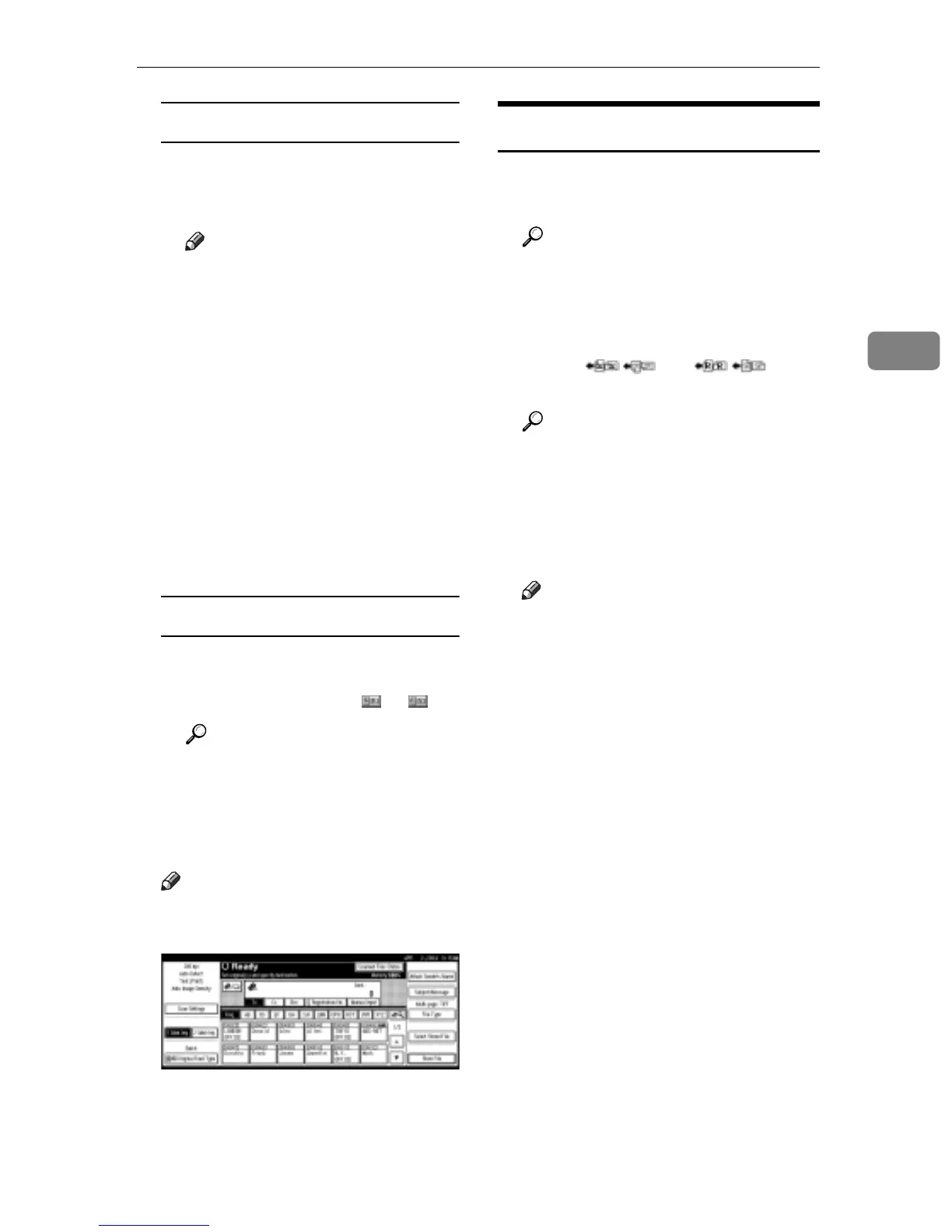
Orientation selection
A Press the key for the same ori-
entation as the actual orienta-
tion of the original, or .
Reference
p.35 “Specifying original ori-
entation and setting origi-
nals”
C Press [OK].
Note
r The current settings are dis-
played.
For a Network TWAIN Scanner
A Open the Scanner Properties dia-
log box.
Reference
p.96 “Scanning Originals”
B Select the position from the [Docu-
ment:] list in the [Document] area.
C Select [ / ] or [ / ] from
the [Orientation:] list.
Reference
p.35 “Specifying original orien-
tation and setting originals”
D When the originals are placed in
the ADF, select [Simplex] or [Du-
plex] in the [Side:] list.
Note
r If originals of different sizes are
placed in the ADF, specify the
document size or detection
method in the [Size:] box. If [Au-
to detection (Uni-size)] is selected,
all originals are scanned using
the size of the first page. If [Auto
detection (Multi-size)] is selected,
all originals are scanned accord-
ing to their own width. For both
Uni-size and Multi-size, all orig-
inals are scanned using their
own length.



 To Next Page