Using the Document Server Function
82
6
Managing Stored Files
-Displaying and Downloading
Stored Files Using a Web
Browser
Using a Web browser in a client com-
puter, you can display or download
the files in the Document Server.
When http:// (machine IP address) /
is entered in the address bar of the
Web browser in a client computer, the
Stored Files List screen for the Docu-
ment Server is displayed.
Reference
For displaying or downloading
stored files using a Web browser,
see General Settings Guide.
For more information about mak-
ing settings for using a Web
browser, see Network Guide.
For more information about func-
tions for managing stored files us-
ing a Web browser, click [Help] on
the upper-right corner of the dis-
played screen.
Deleting Files
You can delete files that are no longer
needed.
Limitation
r Files waiting for delivery cannot
be deleted.
Reference
Using a Web browser (See General
Settings Guide) from a client com-
puter, you can also delete the files
stored in the Document Server.
A Display the list of stored files by
pressing [Select Stored File].
Reference
p.77 “Viewing a List of Stored
Files”
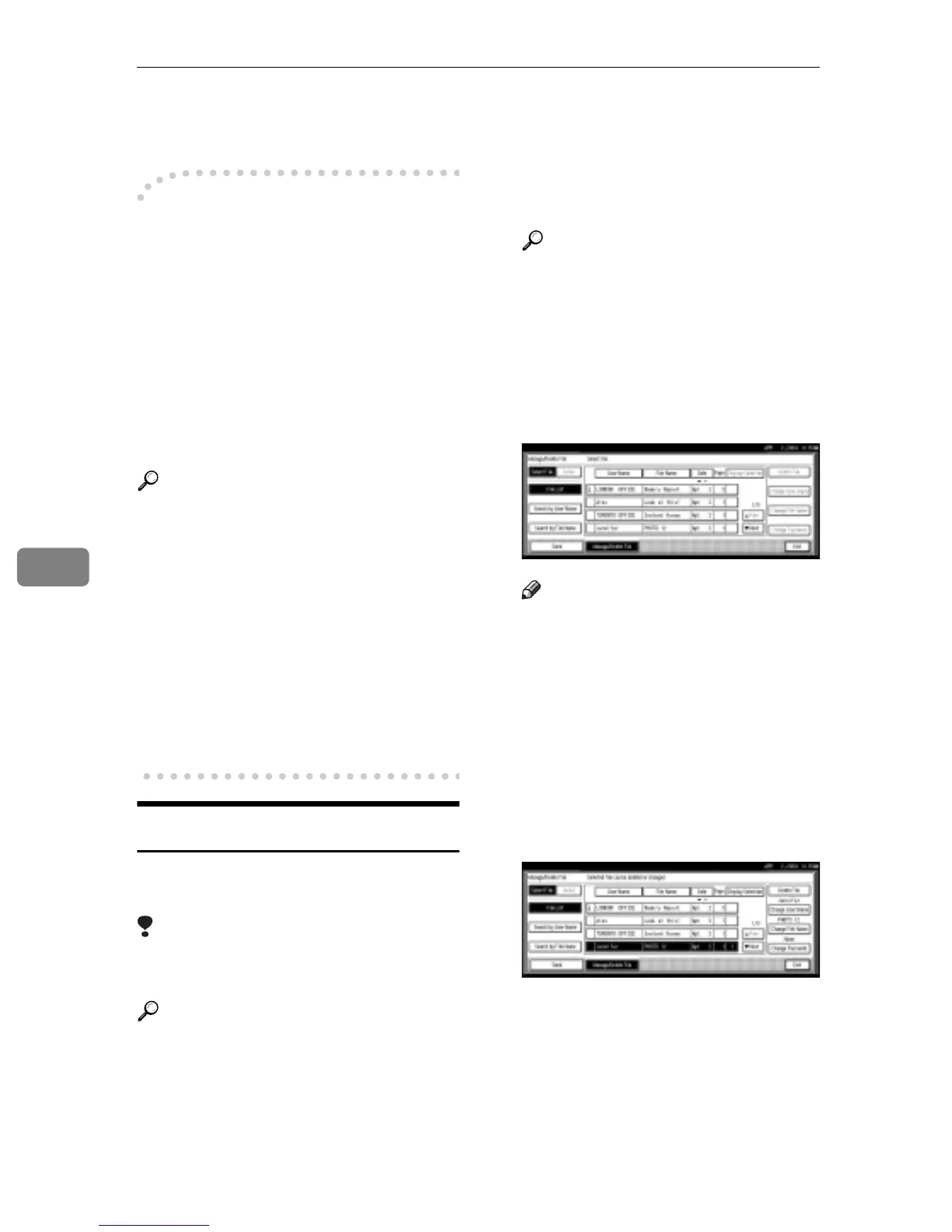
B Press [Manage/Delete File].
The Manage/Delete File screen ap-
pears.
C Select the file to be deleted.
Note
r Up to 30 files can be selected.
r When you select a password
protected file, the Password
screen appears. Enter the cor-
rect password, and then press
[OK]. When more than one file is
selected, the Password screen
appears each time a password
protected file is selected.
D Press [Delete File].
A confirmation message for file de-
leting appears.
E Press [Delete].
F Press [Exit].



 To Next Page