Viewing a List of Stored Files
81
6
Sending Stored Files by E-mail
or Scan to Folder, or Delivering
Files stored in the Document Server
can be sent by e-mail or Scan to Fold-
er, or delivered to the delivery server.
Note
r This section explains how to select
files to be sent or delivered. For
more information about sending
by e-mail, see p.47 “Procedure for
Sending E-mail”. For more infor-
mation about sending by Scan to
Folder, see p.61 “Procedure for
Sending by Scan to Folder”. For
more information about delivering
stored files, see p.87 “Delivering
Scan File”.
r When sending or delivering stored
files, scan settings cannot be
changed. The files are sent or de-
livered with the scan settings spec-
ified when they were stored in the
Document Server.
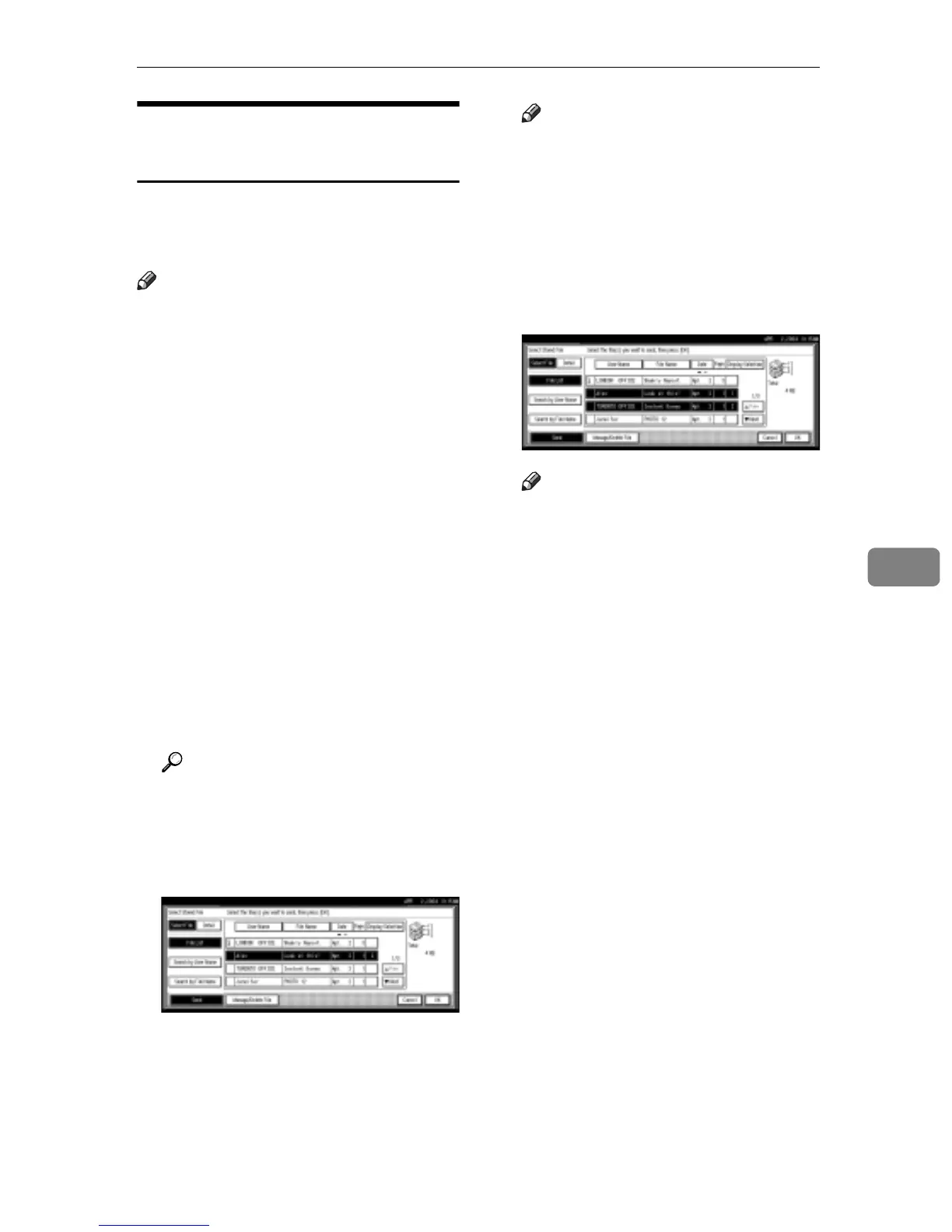
A Display the list of stored files by
pressing [Select Stored File].
Reference
p.77 “Viewing a List of Stored
Files”.
B Select a file to be sent or deliv-
ered.
Note
r When you select a password
protected file, the Password
screen appears. After you have
entered the correct password
and pressed [OK], the file will be
selected.
C To select multiple files, repeat
step
B
.
Note
r You can select up to 30 files for
one operation.
r If you select multiple files, the
files will be sent or delivered in
the order they were selected.
r If you press [Display Selection],
the selected files will be shown
in the order of delivery.
D Press [OK].
The screen for sending or deliver-
ing appears.
E Switch the Destination List if nec-
essary.
F Specify a destination to be sent or
delivered.
G Select the sender, subject, and
message if necessary.
H Press the {Start} key.



 To Next Page