Sending Scan File by E-mail
49
4
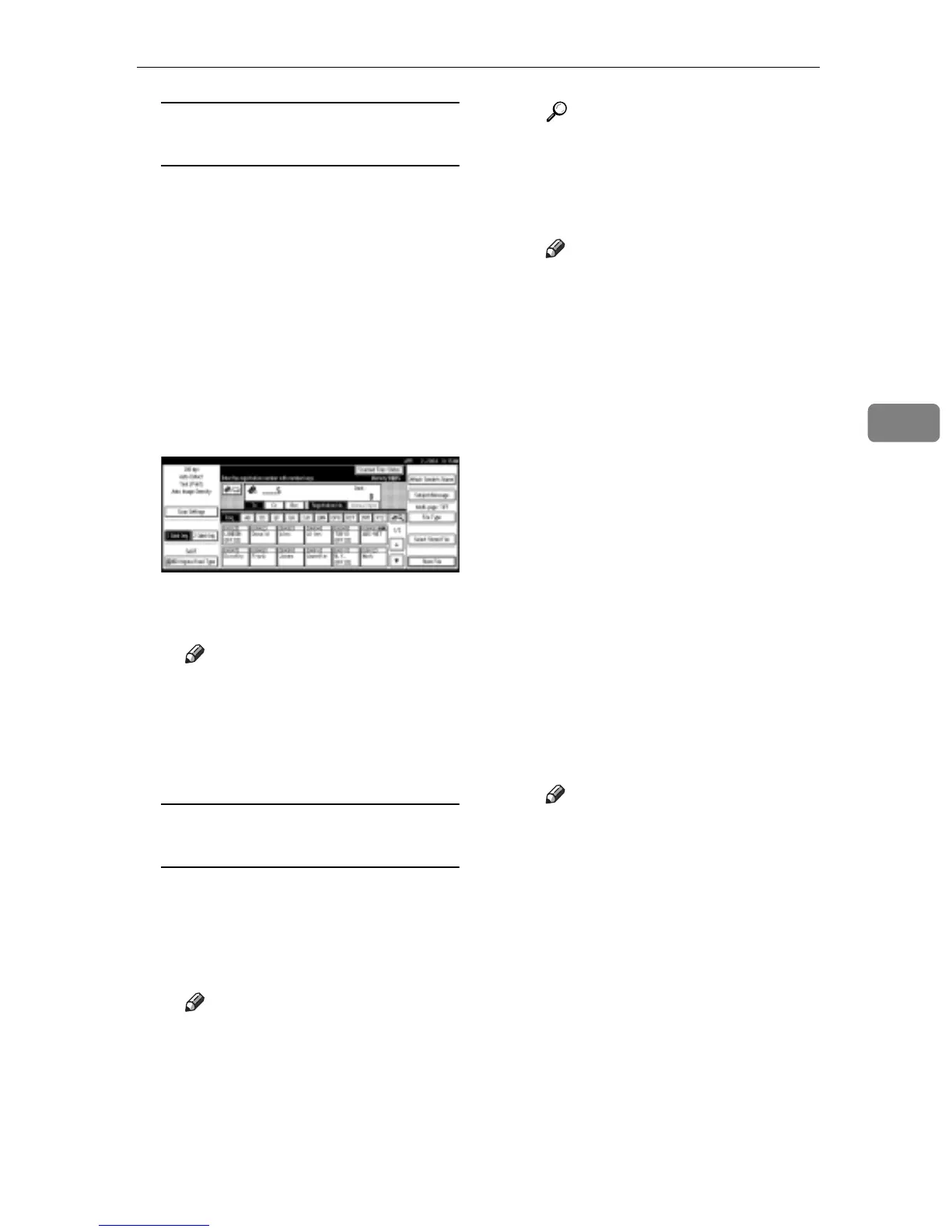
Using a registration number to
select a destination
A Press [Registration No.].
B Use the number keys to enter
the five-digit registration
number that has been assigned
to a destination.
If the entered number is less
than five digits long, press the
{#} key after the last number.
Example: To enter 00005
Press the {5} key, and then
press the {#} key.
C To select more destinations, re-
peat step B.
Note
r To deselect a destination,
press [U Prev.] or [T Next] to
display the destination in the
destination field, and then
press the {Clear/Stop} key.
Manual entry of an e-mail
address
A Press [Manual Input].
The soft keyboard is displayed
for entering the e-mail address.
B Enter the e-mail address.
Note
r It is possible to use letters,
numbers, and periods. The
symbols ()\,;:” cannot be
used.
Reference
For information about how
to enter characters, see Gener-
al Settings Guide.
C Press [OK].
Note
r An e-mail address entered
manually can be registered in
the list. Press [ProgDest], and
a screen for entering the ad-
dress appears. For informa-
tion about registering
destinations, see General Set-
tings Guide.
r To change an e-mail address
that has been entered, press
[Change] located on the left
side of the destination field.
A soft keyboard for entering
the e-mail address is dis-
played. Make any changes,
and then press [OK].
r Pressing the {Check Modes}
key on the control panel lets
you check the list of selected
destinations.
D To enter more destinations, re-
peat steps A to C.
Note
r To deselect a destination,
press [U Prev.] or [T Next] to
display the destination in the
destination field, and then
press the {Clear/Stop} key.



 To Next Page