Storing Files
75
6
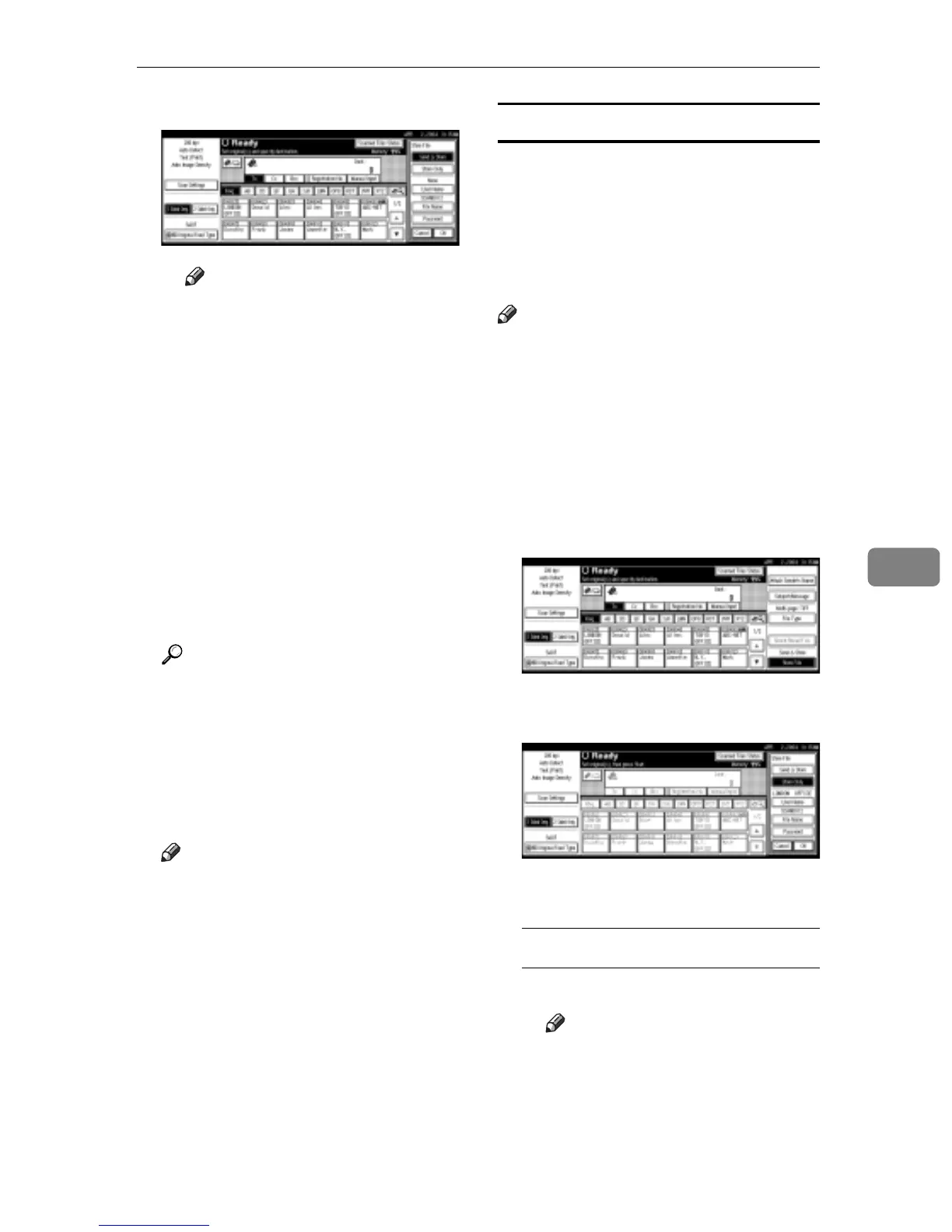
B Press [Store Only].
Note
r To store and deliver scan
files, press [Send & Store]. See
p.57 “Simultaneous Storage
and Sending by E-mail”, p.70
“Simultaneous Storage and
Sending by Scan to Folder”,
or p.93 “Simultaneous Stor-
age and Delivery”.
r [Store Only] cannot be pressed
if even a single destination or
sender is selected.
G Specify file information.
Specify a user name, file name, and
password for the file to be stored.
Reference
For more information about
how to specify file information,
see p.75 “Specifying file infor-
mation”.
A Press [OK] twice.
H Press the {Start} key.
Note
r To abort the scanning process,
press the {Clear/Stop} key or
press [Stop] on the screen.
r When using the SADF function,
place the next original after the
others have been scanned. See
p.42 “Scanning Originals in Sev-
eral Times”.
Specifying file information
You can specify a user name, file name,
and password for a stored scan file.
According to the settings made, you
can search for files by user name or file
name and you can prevent unauthor-
ized persons from accessing the files.
Note
r The file name can be up to 64 char-
acters long. The user name can be
up to 20 characters long. The first
16 characters are shown on the
control panel. From a client com-
puter with DeskTopBinder V2
Lite/Professional installed, you
can view all the characters entered.
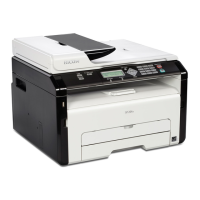
A Press [Store File].
The File Information screen ap-
pears.
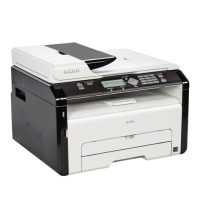
B Specify file information.
Specifying a user name
A Press [User Name].
Note
r If no user code is programed
on the Key Operator Tools
tab in System Settings, the
User Code screen does not
appear. Instead, the Non-
programed Name screen ap-
pears. Enter any user name.



 To Next Page