*1
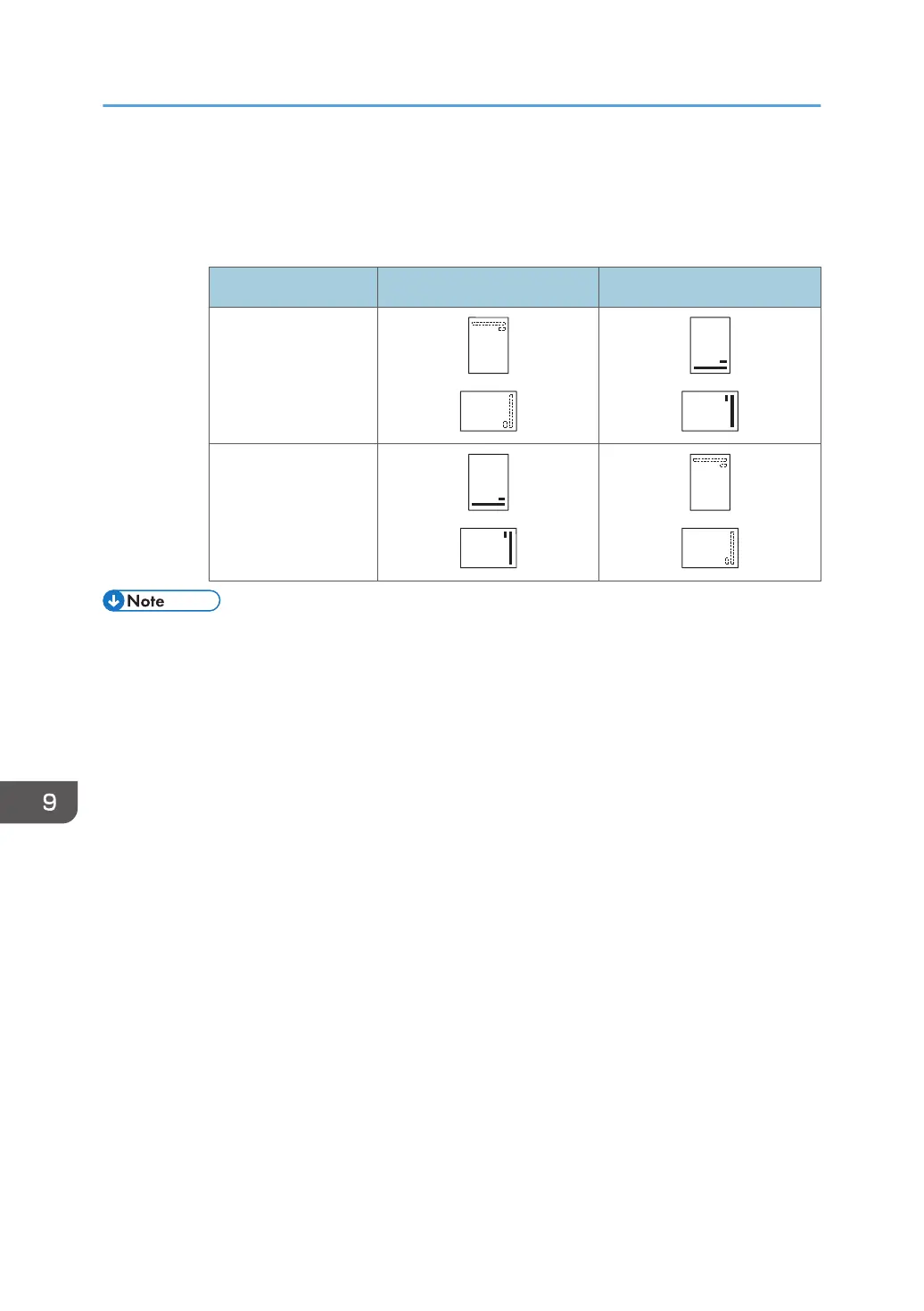
If you place originals in the ADF and copy on orientation-fixed paper from the bypass tray
without specifying the paper size, the image might be copied upside down. In order to make
copies correctly, place the paper upside down or specify the paper size.
• Printer mode
Print side Paper trays Bypass tray
One-sided
Two-sided
• In copier mode:
• For details about how to make two-sided copies, see page 70 "Duplex Copying".
• In printer mode:
• To print on letterhead paper when [Auto Detect] is specified for [Letterhead Setting], you must
specify [Letterhead] as the paper type in the printer driver's settings.
• If a print job is changed partway through printing from one-sided to two-sided printing, one-
sided output after the first copy may be printed facing a different direction. To ensure all
paper is output facing the same direction, specify different input trays for one-sided and two-
sided printing. Note also that two-sided printing must be disabled for the tray specified for
one-sided printing.
• For details about how to make two-sided prints, see page 94 "Printing on Both Sides of
Sheets".
9. Adding Paper and Toner
130


 To Next Page
 Loading...