LDAP Server Settings
55
2
To set search options
To search the LDAP server data using
a keyword other than prepared key-
words such as Name, E-mail Ad-
dress, FAX Number, Company
Name, and Department Name, speci-
fy the attribute for the keyword regis-
tered in your LDAP server, and the
name to be displayed on the control
panel during the search. For example,
to search e-mail addresses by em-
ployee number, enter “employeeNo.”
in the Attribute field, and “Employee
No.” in the key display field.
A
AA
A
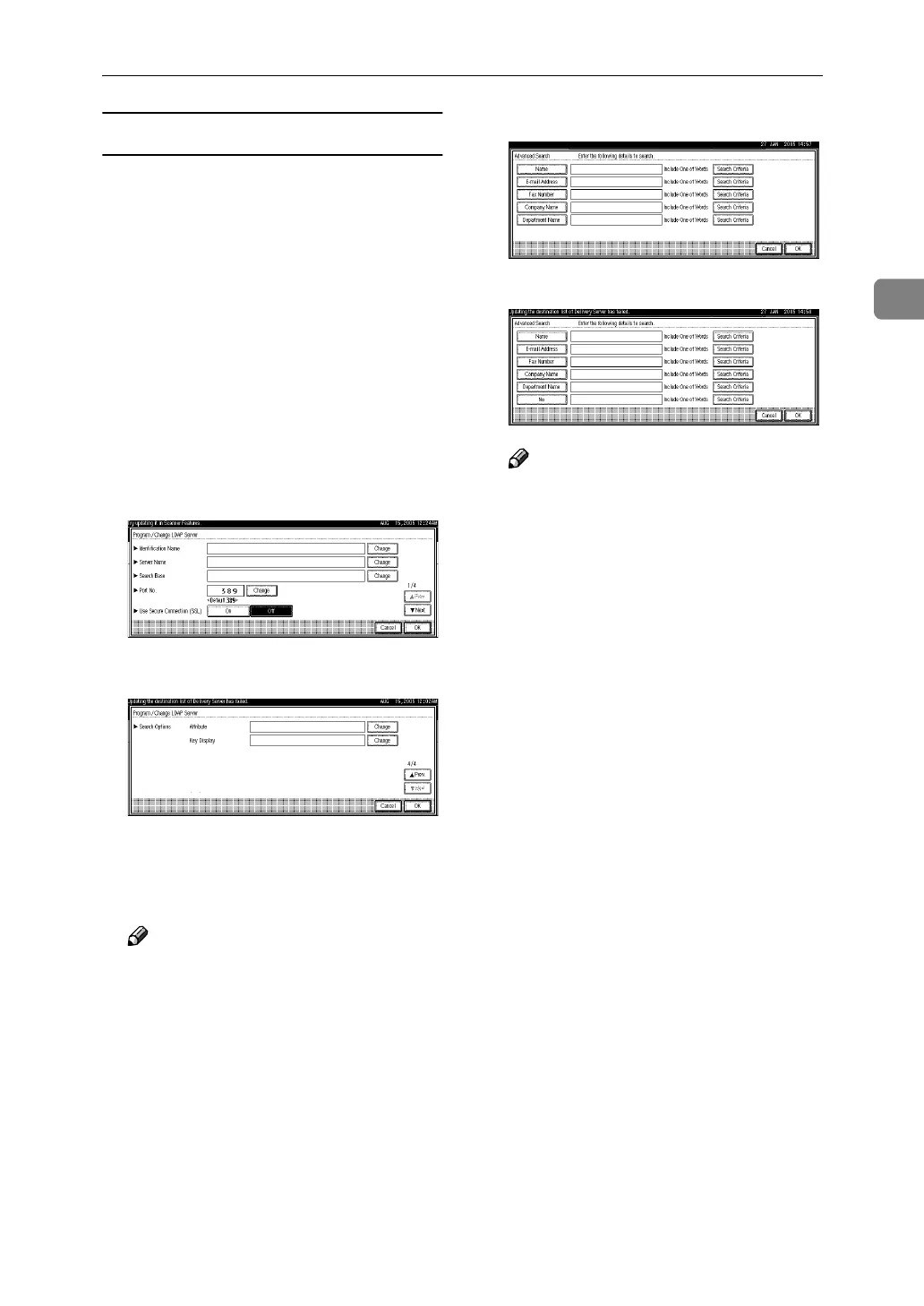
Press [TNext] three times.
B
BB
B
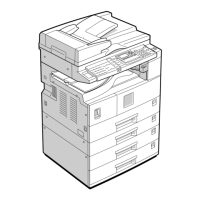
Press [Change] under [Attribute].
C
CC
C
Enter the attribute you want to
use when searching for e-mail ad-
dresses, and then press [OK].
Note
❒ The attribute value may change
depending on the server envi-
ronment. Check the attribute
complies with your server envi-
ronment before setting it.
D
DD
D
Press [Change] under [Key Display].
E
EE
E
Enter the key display, and then
press [OK].
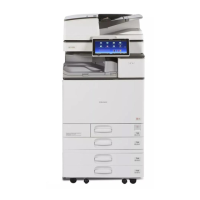
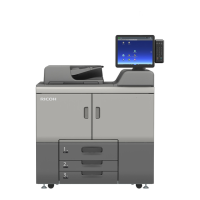
The registered “key display” ap-
pears as a keyword for searching
LDAP.
• Without key display registration
• With key display registration
Note
❒ The key does not appear on the
search screen unless both “At-
tribute” and “Key Display” are
registered. Make sure you regis-
ter both to use the optional
search.




 To Next Page