EasyManua.ls Logo

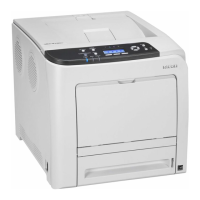
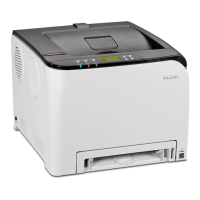
Ricoh SP C352dn - User Manual

Ricoh SP C352dn
124 pages
Print Icon
To Next Page IconTo Next Page
Loading...
For safe and correct use, be sure to read the Safety Information in
Read This First before using the machine.
Troubleshooting
Loading Paper
Getting Started
User Guide

Table of Contents

Questions and Answers

  • B
    Bryan GonzalezAug 14, 2025
    What to do if documents do not print out from Ricoh Printer?
    • A
      Ann MoralesAug 14, 2025
      If documents and reports do not print from your Ricoh Printer, it might be because the paper output tray is full. Remove the prints from the tray. Alternatively, the printer may be out of paper, so load paper into the printer.
  • D
    Deanna HallAug 17, 2025
    Why is my Ricoh SP C352dn not starting to print?
    • C
      caseybaileyAug 17, 2025
      If printing does not start on your Ricoh Printer, ensure that the power is on. Also, check the error message or warning status on the display panel and take the required action. Make sure the interface cable is connected correctly and that you are using the correct interface cable for your computer. Ensure that the interface cable was connected before turning on the main power switch.
  • M
    Michael RyanAug 21, 2025
    Why does Ricoh Printer frequently misfeed?
    • J
      Jacqueline HarrisAug 21, 2025
      If misfeeds occur frequently on your Ricoh Printer, ensure that you are not exceeding the printer's paper capacity by loading paper only as high as the upper limit markings. Also, check that the paper tray's side fences aren't set too tightly; if they are, push them lightly and then reset them. The paper could also be damp, too thick, too thin, wrinkled, or folded/creased. Use paper that has been stored in the recommended temperature and humidity conditions and use recommended paper.
  • X
    xhopkinsAug 25, 2025
    How to fix Ricoh Printer not automatically recognized?
    • R
      Rebecca BurchAug 25, 2025
      If your Ricoh Printer is not automatically recognized, disconnect the USB cable, turn off the printer, and then turn it on again. When the printer has fully booted up, reconnect the USB cable. Another reason might be that Windows has already configured the USB settings. Open Windows' Device Manager, and then, under [Universal Serial Bus controllers], remove any conflicting devices.
  • K
    Katherine BentleyAug 27, 2025
    Why is the printed image faded on my Ricoh SP C352dn Printer?
    • T
      theresa76Aug 27, 2025
      If the printed image is faded over the entire page on your Ricoh Printer, ensure that the paper is not damp by using paper that has been stored in the recommended temperature and humidity conditions. Also, the paper may be unsuitable, so use recommended paper. If [On] is selected in the "Economy Color" list in the printer driver settings, the entire page will be faded when printed, so select [Off] in the "Economy Color".
  • A
    Angela DennisAug 30, 2025
    What to do if an error has occurred on Ricoh SP C352dn Printer?
    • M
      Michael LongAug 30, 2025
      If an error has occurred on your Ricoh Printer, it could be that a function with the status "Error Occurred" in the [Check Status] screen is defective. Press [Check], and then check the displayed message and take appropriate action.
  • L
    Laura BrownSep 3, 2025
    Why are printed images patchy on Ricoh SP C352dn Printer?
    • N
      Nicholas DillonSep 3, 2025
      If printed images contain blots or are patchy when using your Ricoh Printer, the paper may be damp, so use paper that has been stored in the recommended temperature and humidity conditions. Ensure that the printer is placed on a stable and level surface. The LED heads may also be dirty, so clean the LED heads.
  • F
    ftaylorSep 6, 2025
    Why is the printed image smudged on Ricoh Printer?
    • N
      Natalie WilliamsSep 6, 2025
      If the printed image is smudged when using your Ricoh Printer, and you are printing on thick paper in the bypass tray, ensure that settings for thick paper have been configured. On the printer driver's [Paper] tab, select [Bypass Tray] in the "Input Tray:" list. Then in the "Type:" list, select a proper paper type.
  • B
    Benjamin PotterSep 9, 2025
    Why is printed image different from the image on the computer's display on Ricoh Printer?
    • S
      Sherry SotoSep 9, 2025
      If the printed image from your Ricoh Printer is different from the image on the computer's display, it might be because printing will be performed by the printer's graphic processing function. On the printer driver's [Detailed Settings] tab, click [Print Quality:Advanced] in "Menu:", and then select [Raster] in the "Vector/Raster:" list.

Summary

Getting Started

Before You Start

Initial setup, manual navigation, symbols, and model information.

Guide to Components

Identifies and describes the printer's external and internal parts for user understanding.

Turning On;Off the Power

Instructions for safely powering the printer on and off.

Monitoring and Configuring the Printer

Explains how to use Web Image Monitor for printer management and settings.

Loading Paper

Paper Loading Procedure

Step-by-step guide on how to load paper correctly into various trays.

Paper Size Specifications

Lists supported paper sizes and their tray compatibility.

Paper Precautions

Important warnings and guidelines for handling paper to prevent jams and damage.

Loading Envelopes

Specific instructions and recommendations for loading and printing envelopes.

Troubleshooting

When Checking the Indicator Lamps, Status Icons, and Messages on the Control Panel

How to interpret printer status indicators, icons, and messages for status.

When Messages Are Displayed

A comprehensive list of printer messages, their causes, and solutions.

When You Cannot Print

Troubleshooting steps for common printing failures.

Paper Misfeeds Occur Frequently

Common causes and solutions for frequent paper jams.

Removing Jammed Paper

Detailed, step-by-step instructions for safely removing jammed paper.

Trademarks

Trademarks

Lists registered trademarks, copyrights, and permissions for product and software.

Ricoh SP C352dn Specifications

General IconGeneral
ColorYes
Print technologyLED
Duplex printing modeManual
Time to first page (black, normal)6 s
Time to first page (color, normal)7.8 s
Print speed (black, normal quality, A4/US Letter)30 ppm
Control typeTouch
Product colorWhite
Display diagonal4.3 \
Market positioningHome & office
AC input voltage220 - 240 V
AC input frequency50 - 60 Hz
Power consumption (max)1200 W
Power consumption (ready)40.2 W
Power consumption (printing)- W
Energy Star Typical Electricity Consumption (TEC)1.16 kWh/week
Printer fontsPCL, PostScript
Printing colorsBlack, Cyan, Magenta, Yellow
Maximum duty cycle75000 pages per month
Number of print cartridges4
Page description languagesPCL 5c, PCL 6, PDF, PostScript 3
Mac operating systems supportedMac OS X 10.10 Yosemite, Mac OS X 10.11 El Capitan, Mac OS X 10.12 Sierra, Mac OS X 10.13 High Sierra, Mac OS X 10.14 Mojave, Mac OS X 10.15 Catalina, Mac OS X 10.15.3 Catalina, Mac OS X 10.7 Lion, Mac OS X 10.8 Mountain Lion, Mac OS X 10.9 Mavericks
Server operating systems supportedWindows Server 2008, Windows Server 2008 R2, Windows Server 2012, Windows Server 2012 R2
Windows operating systems supportedWindows 10, Windows 7, Windows 8, Windows 8.1
Total input capacity- sheets
Maximum input capacity2100 sheets
Total number of input trays-
Paper tray media typesBond paper, Card stock, Coated paper, Envelopes, Glossy paper, Labels, Letterhead, Plain paper, Pre-Printed, Recycled paper, Thick paper, Thin paper
Paper tray media weight56 - 220 g/m²
ISO A-series sizes (A0...A9)A4, A5, A6
ISO B-series sizes (B0...B9)B4, B5, B6
Maximum ISO A-series paper sizeA4
Optional connectivityParallel, Wireless LAN
USB 2.0 ports quantity2
Cabling technology10/100/1000Base-T(X)
Ethernet LAN data rates10, 100, 1000 Mbit/s
Sound pressure level (printing)- dB
Cables includedAC
Weight and Dimensions IconWeight and Dimensions
Depth515 mm
Width400 mm
Height387 mm

Related product manuals