14
Touch Panel Screens
Use together with the hard keys to set functions or
perform operations.
The touch panel is designed for user-
friendly settings or operations.
Simply touch the buttons on the
screen.
The screens displayed vary depending on the optional equipment connected and settings details.
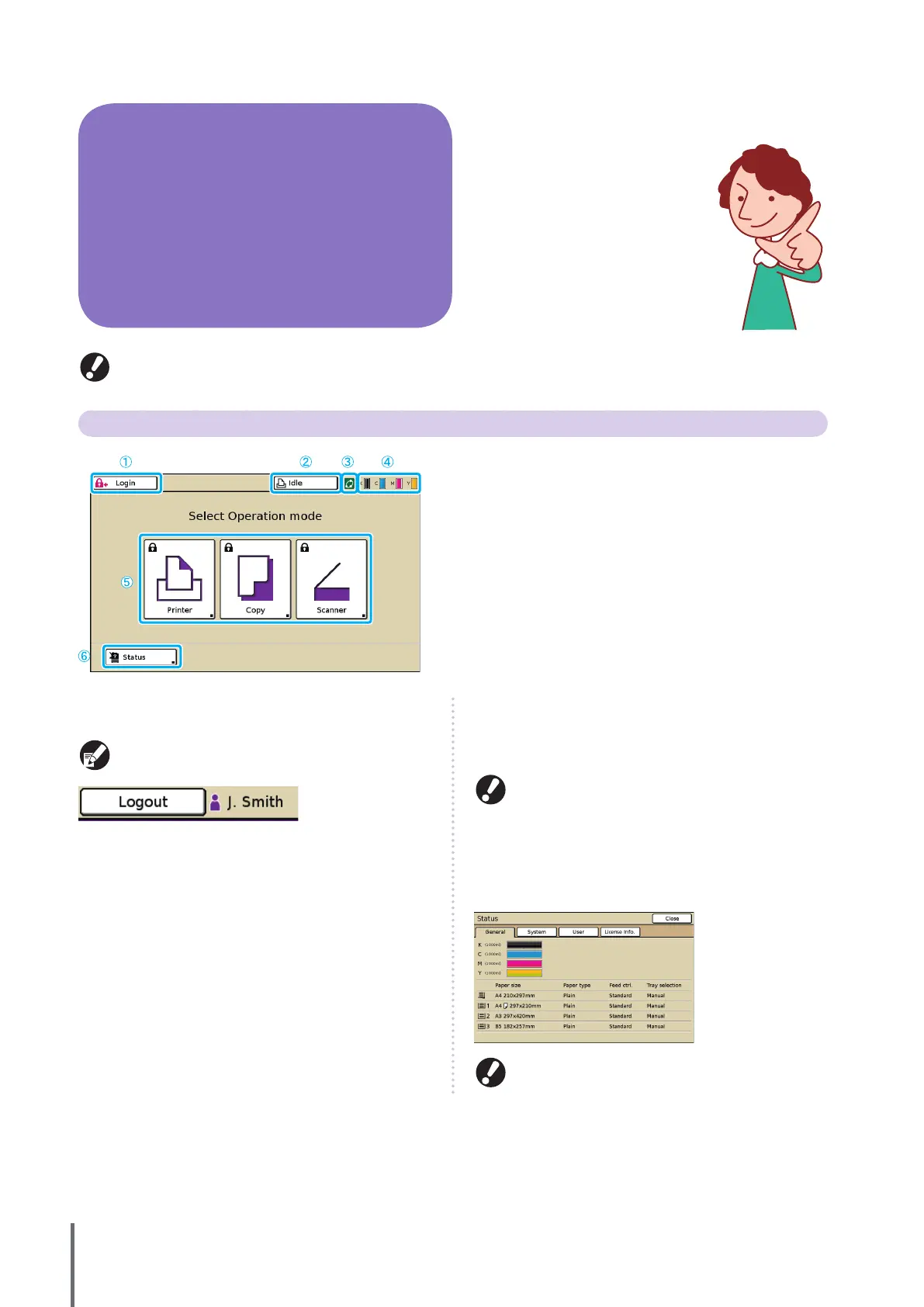
Mode Screen
This is the rst screen displayed. From this screen, you
can select each mode to congure and operate the
machine.
Press the MODE key on the operation panel to display
this screen.
① [Login]
Press this button to log in.
While you are logged in, this button is labeled [Logout],
and the name of the current user is displayed next to the
button.
② Printer Status Button
This button indicates the current machine status: Idle,
Printing, Error, or Oine.
Pressing the button will switch to the printer mode screen.
③ FORCEJET™ Link Icon
This icon indicates whether all parts required for printing are
working correctly. The icon is grayed out if accurate color
management is not possible.
④ Remaining Ink Indicator
These icons indicate how much of each ink color is left. The
icons ash when less than 10% of the capacity is left. Prepare
a new ink cartridge of the color that ashes.
⑤ Mode Buttons
Press these buttons to access screens for each mode.
Lock icons in the upper left corner of a button indicate that
you must log in to access that mode.
Some mode buttons are not displayed unless the
scanner has been connected.
Buttons for modes that the current user is not
authorized to use are grayed out.
•
•
⑥ [Status]
Press this button to check General, System, User, or License
information.
[User] is displayed only when a user is logged in.
ComColor Series Basic Guide 02










 To Next Page