51
Copying >> Copying Operations
3
4
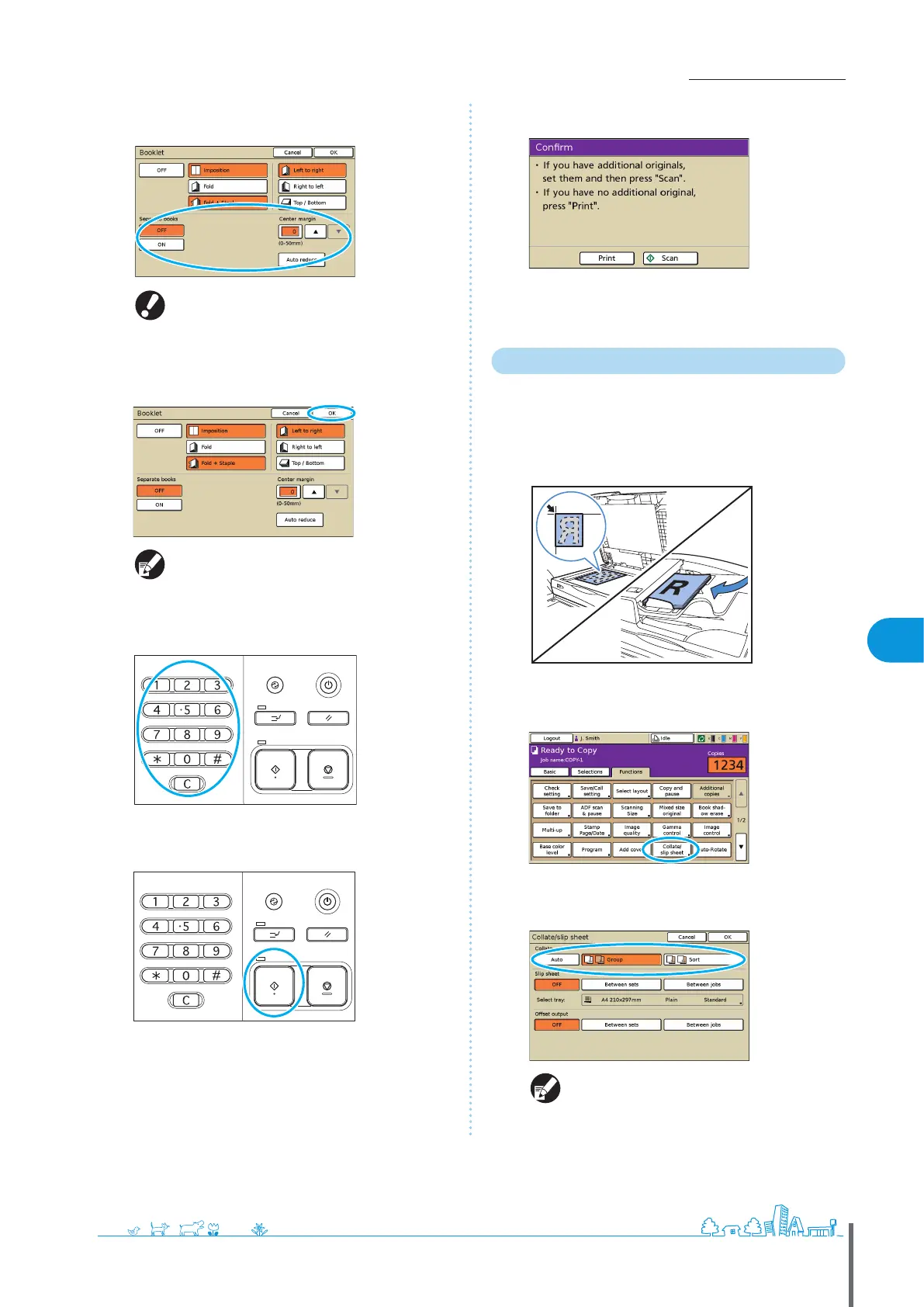
Complete the [Separate books] and [Center margin]
settings.
[Separate books] is not available when you have
only selected [Imposition] as the type of layout in
step 3.
5
Press [OK].
Complete other copy settings as needed.
6
Enter the number of copies.
Use the numeric keys for input.
7
Press the [START] key.
When you are using the platen glass, a conrmation message
may be displayed regarding scanning the next original.
Load the next original and press [Scan]. After all originals are
scanned, press [Print].
Collated Copying
Collating can quickly sort your copies into sets. You can
also insert slip sheets between copies.
1
Load the original.
Load the original on the platen glass or in the ADF.
2
On the [Functions] screen, press [Collate/slip sheet].
3
Complete the [Collate] setting.
When you have specied [Auto], [Sort] is
automatically set when using the automatic
document feeder and [Group] is set when using the
platen glass.
ComColor Series Basic Guide 02
ComColor Series Basic Guide 02










 To Next Page